
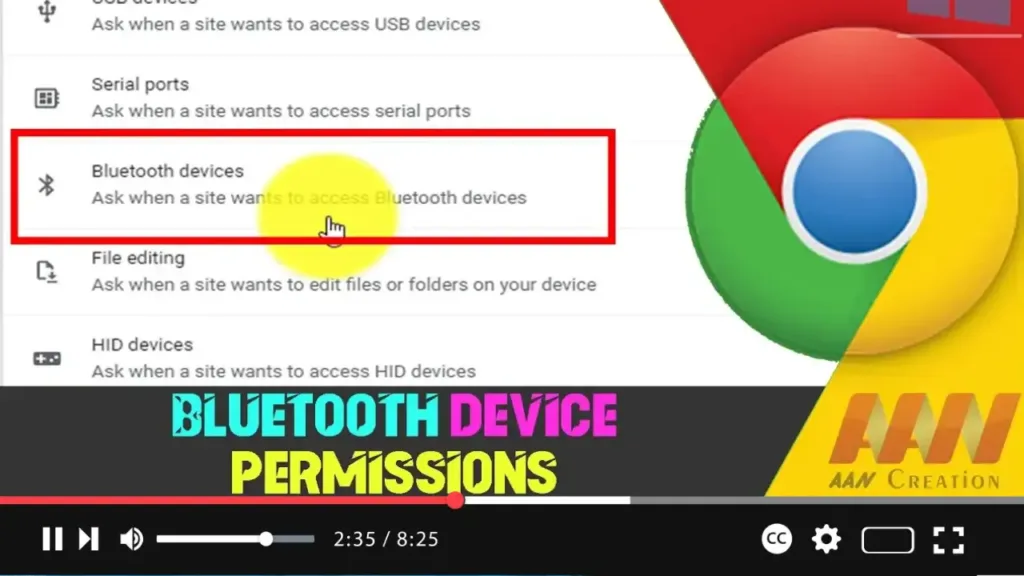

Google Chrome allows websites to connect to nearby Bluetooth devices, enabling a range of functionality from controlling smart devices to reading data from sensors. Managing these permissions is crucial for ensuring your privacy and security. This guide will show you how to enable or disable Bluetooth device permissions in Google Chrome.
Introduction
Bluetooth device permissions in Google Chrome provide websites with the ability to interact with nearby Bluetooth devices. This feature can be useful but also raises privacy and security concerns, making it important to control which websites have access to Bluetooth.
Steps to Enable or Disable Bluetooth Device Permissions in Google Chrome
Step 01: Open Google Chrome
Launch Google Chrome on your computer.
Step 02: Access Chrome Settings
Click on the three vertical dots (menu icon) in the top-right corner of the browser window and select “Settings” from the dropdown menu.
.webp)
Step 03: Navigate to Privacy and Security
In the left-hand menu, click on “Privacy and security.”
Step 04: Open Site Settings
Under the “Privacy and security” section, click on “Site settings.”
Step 05: Find Bluetooth Permissions
Scroll down to the “Permissions” section and click on “Additional permissions” to expand more options. Then, click on “Bluetooth devices.”
.webp)
Step 06: Manage Bluetooth Permissions
Here, you will see a list of websites that have requested Bluetooth access. You can manage these permissions as follows:
- To Enable Bluetooth Access for a Site:
- If the site is already listed under “Blocked,” click on the site’s name.
- In the dropdown menu next to “Bluetooth devices,” select “Allow.”
- To Disable Bluetooth Access for a Site:
- If the site is already listed under “Allowed,” click on the site’s name.
- In the dropdown menu next to “Bluetooth devices,” select “Block.”
Step 07: Block or Allow All Sites (Optional)
You can also set a default behavior for all sites:
- To Block All Sites from Accessing Bluetooth:
- Toggle the switch next to “Don’t allow sites to access your Bluetooth devices.”
- To Allow Sites to Request Access:
- Ensure the switch next to “Don’t allow sites to access your Bluetooth devices” is turned off. This setting allows sites to ask for permission to access Bluetooth devices.
Additional Information
.webp)
Prompt for Access: When a site first requests Bluetooth access, Chrome will prompt you with a permission dialog. You can choose to allow or block the access at that time.
Revoking Permissions: You can always revisit the “Bluetooth devices” settings to revoke permissions from any site that you previously allowed.
Privacy Considerations: Be cautious about granting Bluetooth permissions, as it can expose your device to potential security risks. Only allow trusted websites to access your Bluetooth devices.
Regular Updates: Keep Google Chrome updated to ensure you have the latest security features and enhancements.
By following these steps, you can effectively manage Bluetooth device permissions in Google Chrome, ensuring your privacy and security while using web-based Bluetooth functionalities.

