When your PC abruptly freezes, closes a game without warning, or shows a blue screen, finding the culprit often feels like guesswork. You do not need bloated third-party diagnostic utilities to find out what went wrong. Windows 11 already records every crash, failed update, and misbehaving driver on an easy-to-read timeline.
The Hidden Diagnostic Tool Inside Windows 11
Most users know about Task Manager and Event Viewer. While Task Manager shows what is happening right now, Event Viewer is overwhelmingly dense with thousands of technical logs. Reliability Monitor sits right between them. It takes those raw system logs and plots them onto a clean day-by-day stability graph, showing you the exact file or program that failed at the exact minute your computer choked.
How to Open Reliability Monitor
Because Microsoft keeps this tool tucked away inside the legacy Control Panel, the easiest way to launch it is using Windows Search or the Run command.
- Press the keyboard shortcut Windows Key + R to open the Run dialog box.
- In the Open field, type perfmon /rel and press Enter (or click OK).
- Alternatively, tap the Windows Key, type View reliability history into the search bar, and click the matching result.
The utility takes three to five seconds to calculate your historical data before displaying the chart.
How to Read the Reliability Graph
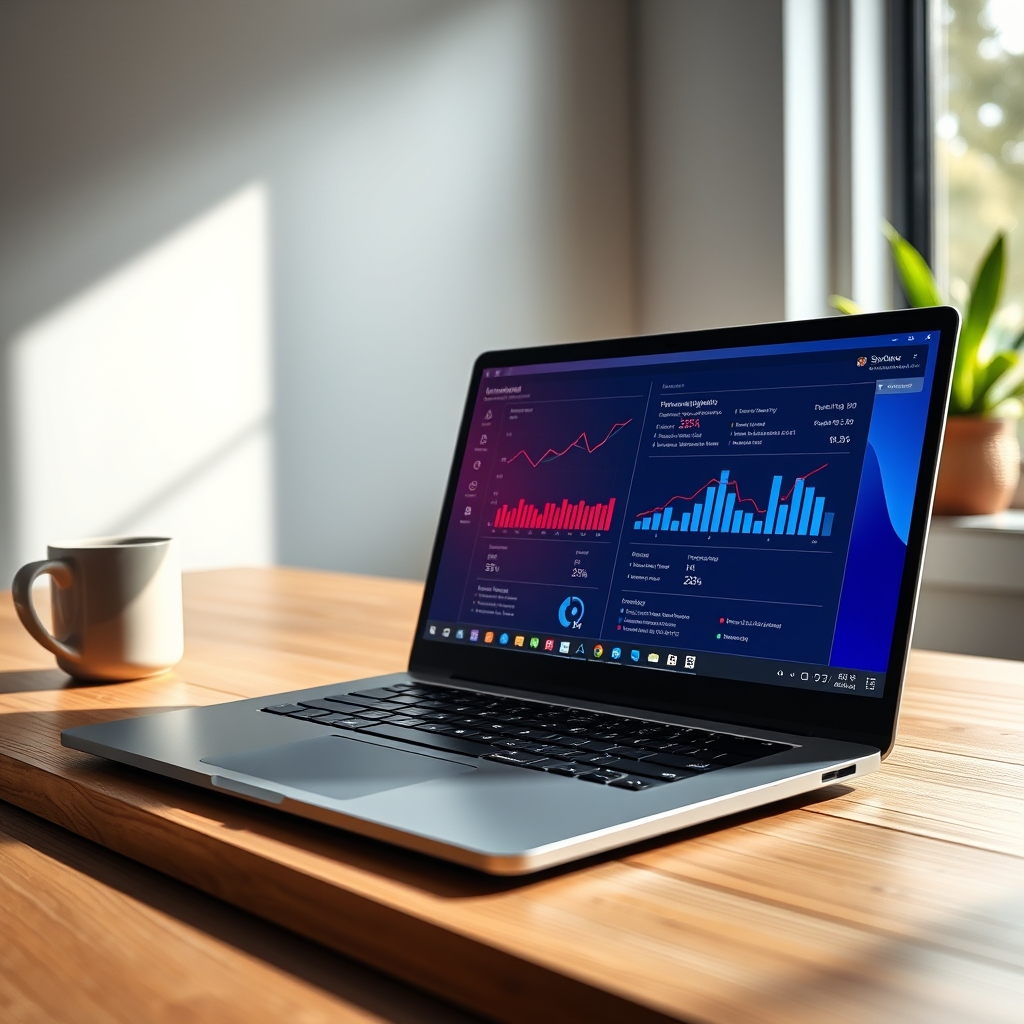
At the top of the window, you will see a stability index rated from 1 to 10. A score of 10 means your system has experienced zero disruptions over recent days, while a sudden drop indicates critical errors.
The timeline divides events into five rows:
- Application failures: Programs that crashed or stopped responding.
- Windows failures: Blue screen crashes (BSOD) and operating system kernel stops.
- Miscellaneous failures: Hardware issues or unexpected shutdowns (such as holding down the physical power button).
- Warnings: Unsuccessful software installations or minor driver issues that did not freeze Windows.
- Information: Successful Windows updates, app installations, and security definition updates.
Click on any specific day or column that displays a red circle with a white "X". The bottom half of the window will instantly filter down to show only the events that occurred on that date.
Finding the Exact Cause of a Crash
Once you click a day that experienced a problem, look at the Source and Summary columns in the lower pane.
- Locate the red error icon next to the program or service that crashed around the time you noticed the issue.
- Look to the right side of that row and click View technical details under the Action column.
- A details window will open. Look specifically for two lines: Faulting Application Name and Faulting Module Name.
- Take note of the Faulting Module Name. For example, if you see
nvlddmkm.sys, your NVIDIA graphics driver caused the crash. If you see a file likentdll.dllor an audio driver likeRTKVHD64.sys, you have pinpointed the exact driver causing your PC instability.
Why This Works
Windows continuously logs component state changes using Windows Error Reporting (WER). Reliability Monitor queries these specific reliability database records and automatically filters out thousands of harmless background notices, displaying only actionable software faults.
One Important Warning
Do not panic if your stability score is low (between 1 and 4). Minor background helper processes frequently crash and restart without affecting your normal workflow. Never download third-party "PC cleaner" or "driver booster" programs to clean these logs; those tools often cause real system damage.
What to Do After Identifying the Fault
Now that you know what triggered the problem, you can apply a targeted fix instead of resetting your whole operating system:
- If a specific software app crashed: Open Settings > Apps > Installed apps, select the three dots next to the program, choose Advanced options, and click Repair or Reset.
- If a display or audio driver failed: Right-click the Start menu icon, select Device Manager, find the component, right-click it, and select Update driver, or grab the latest installer directly from the hardware manufacturer’s website.
- If a Windows update preceded the crash: Go to Settings > Windows Update > Update history > Uninstall updates to roll back the problematic patch.
Key Takeaways Checklist
- Open the monitor instantly with Win + R and the command
perfmon /rel. - Click dates marked with a red error circle to inspect failures.
- Click View technical details on any crash entry.
- Check the Faulting Module Name to identify the problematic file or driver.
- Update or reinstall only the component listed in the crash report.
Checking this built-in dashboard turns random technical headaches into straightforward troubleshooting steps. Instead of wondering why your computer cut out in the middle of a project, a sixty-second look at your reliability history tells you exactly what happened and what needs your attention.