nakvy88@gmail.com

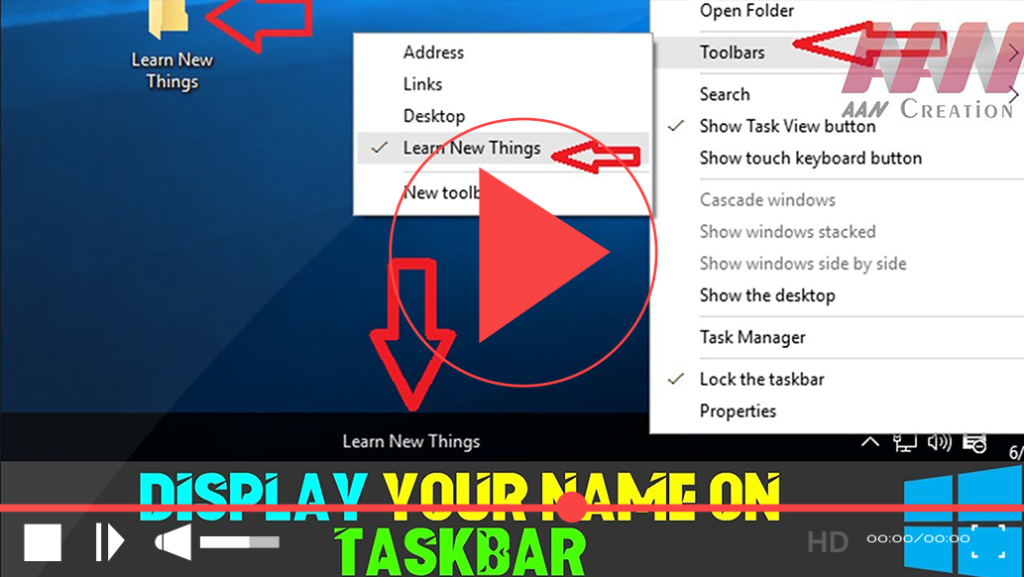
How to Display Your Name on the Taskbar in Windows 10

Customizing your Windows 10 experience can enhance productivity and provide quick access to your frequently used items. One way to personalize your taskbar is by displaying your name or a folder directly on it. This allows you to quickly access important files or simply add a personal touch to your desktop. Follow the steps below

How to Display Your Name on the Taskbar in Windows 10 Read More »
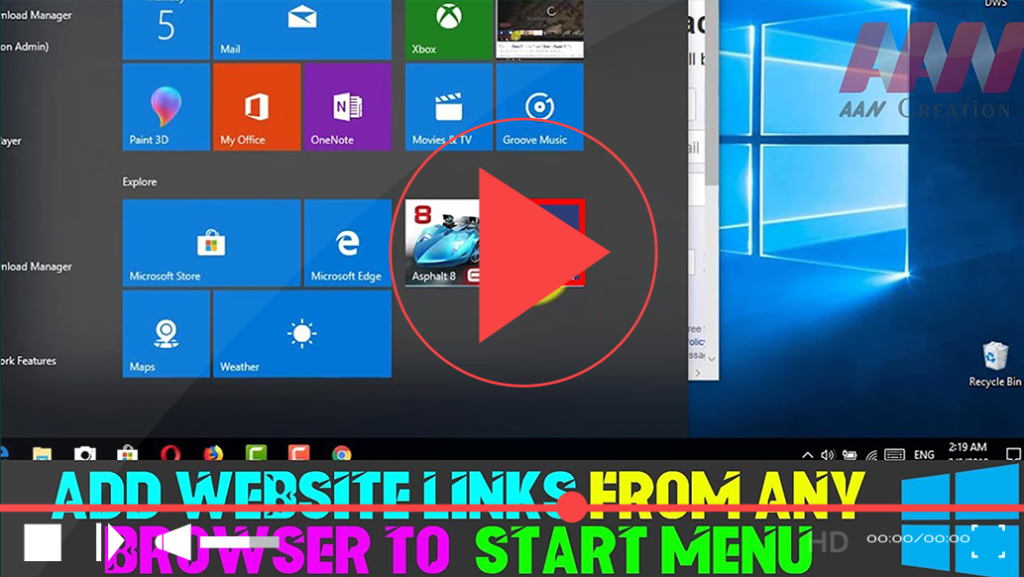
How to Add Website Links from Any Browser to Windows 10 Start Menu

Adding website shortcuts to your Windows 10 Start Menu allows you to access your favorite sites quickly and efficiently. Whether you’re using Microsoft Edge, Google Chrome, Mozilla Firefox, or another browser, this process is straightforward. Below are the detailed steps to pin websites to your Start Menu for easy access. Method 1: Pinning Directly from

How to Add Website Links from Any Browser to Windows 10 Start Menu Read More »

How to Use Snipping Tool to Capture Screenshots in Windows 10

The Snipping Tool is a built-in screenshot utility in Microsoft Windows that allows users to capture images of their screen easily. Although it has been largely replaced by Snip & Sketch in newer updates, the Snipping Tool remains accessible and useful, particularly for its unique features, such as the “Delay” function. This feature enables users

How to Use Snipping Tool to Capture Screenshots in Windows 10 Read More »

How to Fix Apps & Software Not Working Properly Issues (App Reset) in Windows 10

If you’re experiencing issues with apps not functioning correctly in Windows 10, especially with the Microsoft Store app, resetting it can often resolve these problems. The Microsoft Store is essential for installing and updating Universal apps, but sometimes it may crash or fail to install new applications. Fortunately, Windows 10 provides a straightforward way to

How to Fix Apps & Software Not Working Properly Issues (App Reset) in Windows 10 Read More »

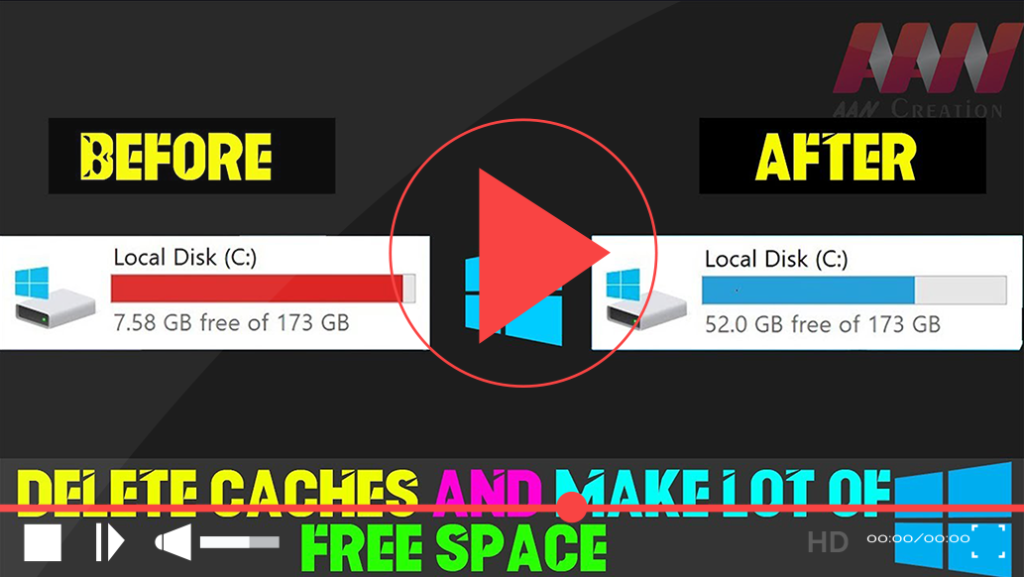
Delete Caches and Make a Lot of Free Space in Windows 10

Clearing cache files can free up a significant amount of space on your Windows 10 system, helping it run more efficiently. Cache files include temporary files, browser caches, download packages, and more. By regularly deleting these files, you can optimize your computer’s performance and recover valuable disk space. Here’s how to do it step-by-step. Steps

Delete Caches and Make a Lot of Free Space in Windows 10 Read More »

How to Check Graphics Card, Sound, and System Information in Windows 10

To effectively troubleshoot multimedia applications, 3D games, and HD videos in Windows 10, understanding your system’s hardware configuration is essential. The DirectX Diagnostic Tool (DxDiag) is a valuable utility that helps you diagnose and manage multimedia and gaming functionality on your PC. What is the DirectX Diagnostic Tool? DirectX is a collection of application programming

How to Check Graphics Card, Sound, and System Information in Windows 10 Read More »

How to Move Installed Apps to a Different Location in Windows 10

When using a device with limited storage, applications and games downloaded from the Microsoft Store can quickly fill up the system drive. The problem lies not in the number of apps, but in their size—some games and applications consume significant amounts of space. Thankfully, Windows 10 provides an option to move already installed apps and

How to Move Installed Apps to a Different Location in Windows 10 Read More »

How to Find Out Graphics Card Details Using DirectX Diagnostic Tool in Windows 10

Your graphics card is crucial for rendering everything you see on your Windows 10 PC, whether you’re navigating the system, running applications, or playing games. The performance of your graphics card can significantly impact how well applications and games run, especially if they are graphics-intensive. Most devices come with a graphics card from one of

How to Find Out Graphics Card Details Using DirectX Diagnostic Tool in Windows 10 Read More »

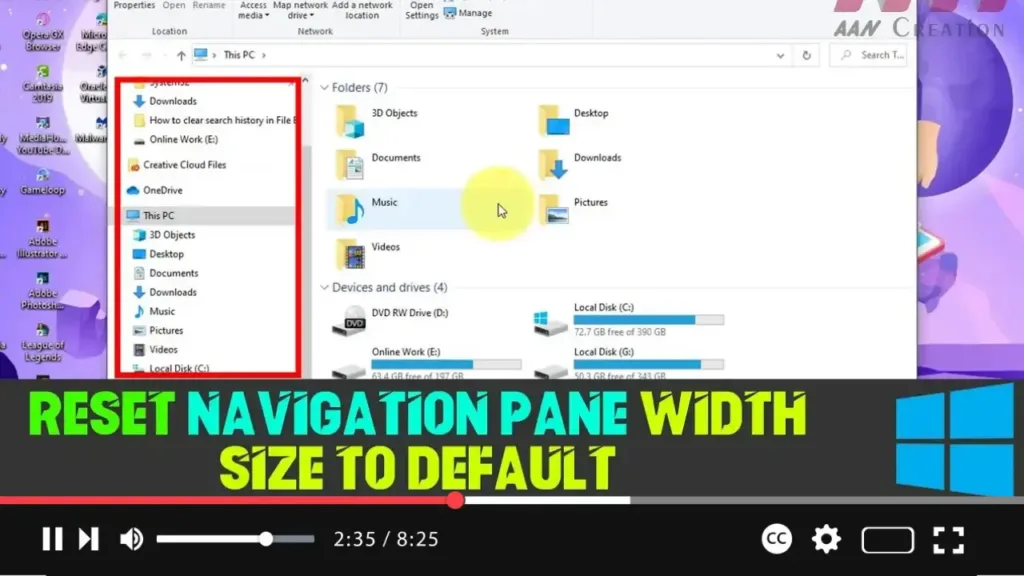
How to Reset Navigation Pane Width Size to Default in Windows 10

The navigation pane in File Explorer is a vital feature in Windows 10, offering quick access to essential folders like “This PC,” “Network,” “Libraries,” and more. Over time, you may resize the navigation pane to suit your needs, but sometimes you might want to revert it to its default width. Unfortunately, Windows 10 doesn’t provide

How to Reset Navigation Pane Width Size to Default in Windows 10 Read More »