How-to

How to Stop Microsoft Edge from Saving History in Windows 10

  Microsoft Edge, like other browsers, saves your browsing history to help improve your web experience. However, if you prefer to keep your browsing activities private, you can configure Edge to stop saving your history. Here’s how to do it: Introduction Microsoft Edge saves browsing history to enhance your browsing experience by remembering frequently visited […]

How to Stop Microsoft Edge from Saving History in Windows 10 Read More »
How to Add or Remove Favorites Bar in Microsoft Edge

 The Favorites Bar in Microsoft Edge allows you to quickly access your most frequently visited websites. This feature can be customized to show or hide according to your preference. Here’s a step-by-step guide to adding or removing the Favorites Bar in Microsoft Edge. Introduction The Favorites Bar in Microsoft Edge provides a convenient way to

How to Add or Remove Favorites Bar in Microsoft Edge Read More »

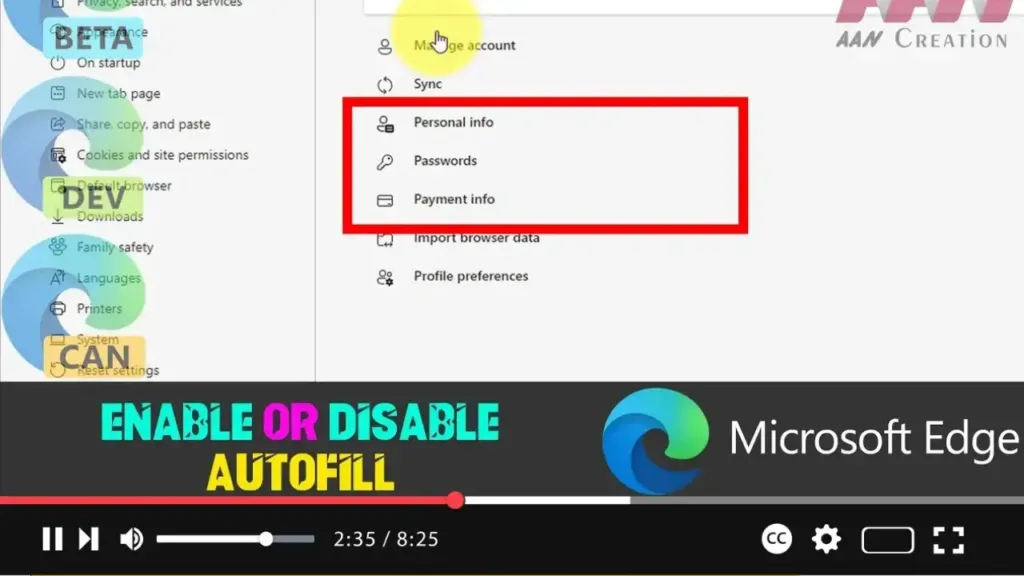
How to Enable or Disable Autofill in Microsoft Edge

Autofill in Microsoft Edge can be a useful feature that saves time by automatically entering saved information such as passwords, addresses, and payment details into forms on websites. However, if you prefer not to use this feature, you can easily disable it. Here’s a step-by-step guide to enabling or disabling autofill in Microsoft Edge. Introduction

How to Enable or Disable Autofill in Microsoft Edge Read More »

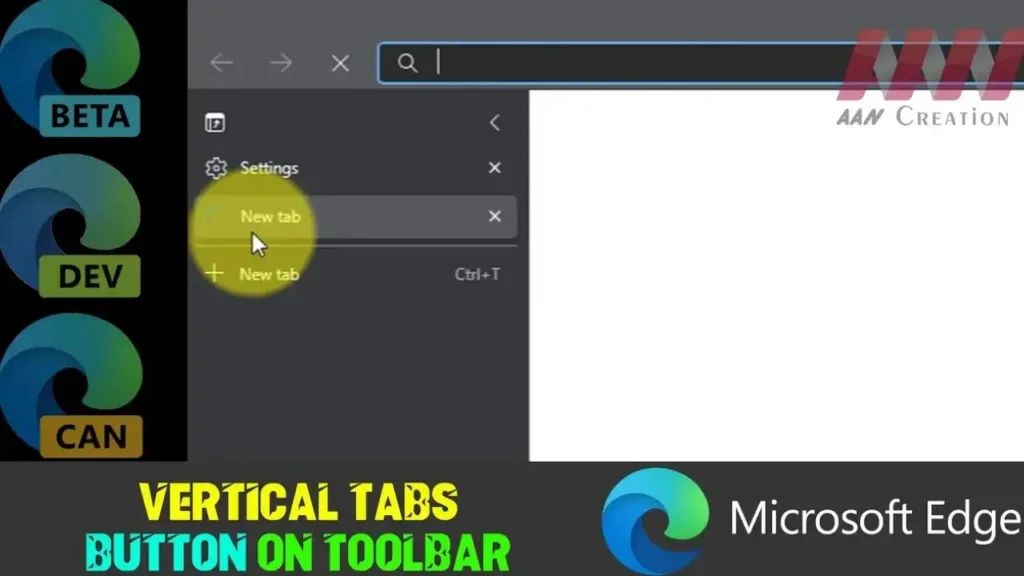
Add or Remove Vertical Tabs Button on Toolbar in Microsoft Edge

 Microsoft Edge provides a vertical tabs feature that allows users to view and manage their tabs on the side of the browser. This can be particularly useful for users who have many tabs open at once. You can add or remove the vertical tabs button on the toolbar to customize your browsing experience. Here’s how

Add or Remove Vertical Tabs Button on Toolbar in Microsoft Edge Read More »

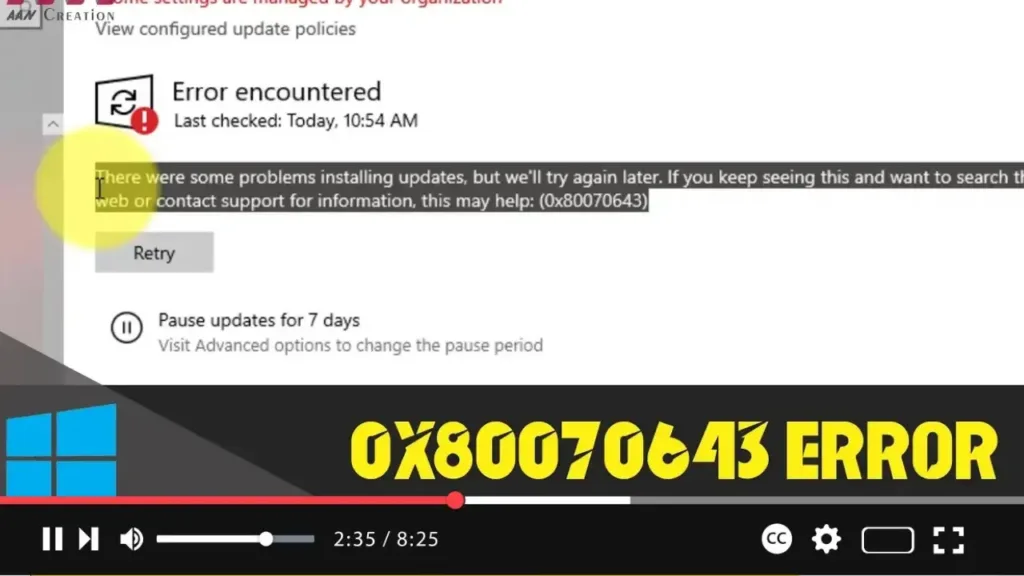
How to Fix Windows 0x80070643 Update or Installation Errors on Windows 10

 The Windows 0x80070643 error code is a common issue that can occur during Windows Updates or software installations on Windows 10. This error can be caused by corrupted system files, outdated drivers, or conflicts with other software. Here is a comprehensive guide to fixing the 0x80070643 error. Introduction: Windows 0x80070643 is an error code that

How to Fix Windows 0x80070643 Update or Installation Errors on Windows 10 Read More »

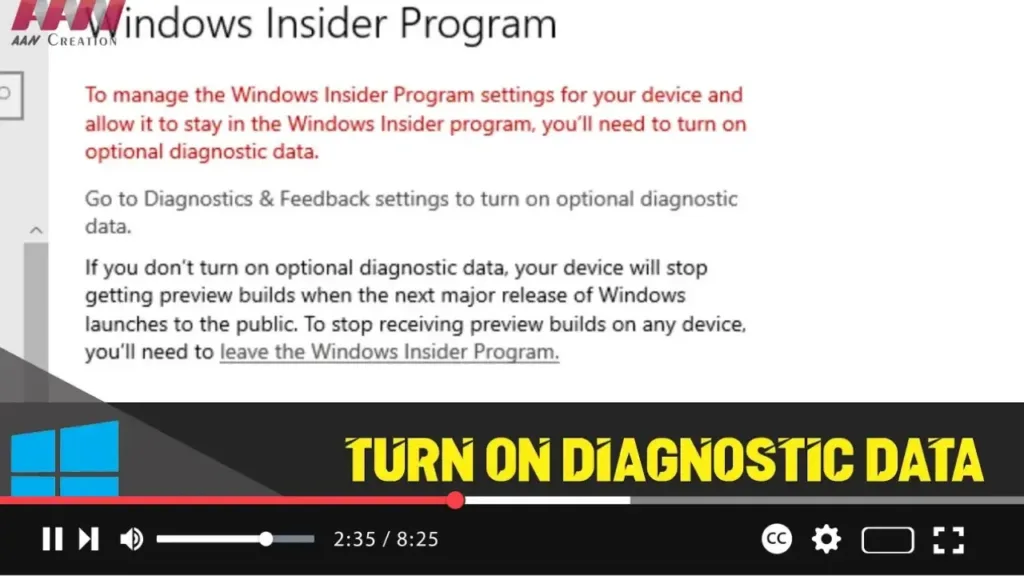
Turn on Diagnostic Data Settings in Windows 10 For Windows Insider Program

 Enabling diagnostic data settings is essential for managing your device in the Windows Insider Program. This data helps Microsoft improve Windows features and provides the necessary feedback for the program. If you find that the option to enable diagnostic data is disabled, follow the steps below to enable it through the Windows Settings and Registry

Turn on Diagnostic Data Settings in Windows 10 For Windows Insider Program Read More »

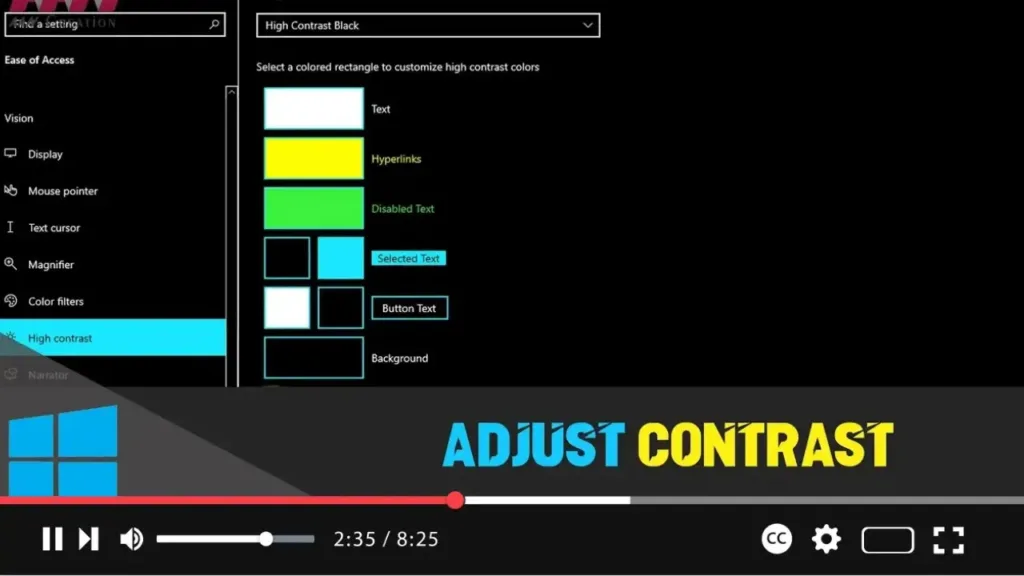
How to Adjust Contrast in Windows 10

 Adjusting the contrast in Windows 10 can enhance visibility and reduce eye strain, especially for users with visual impairments. Here’s a comprehensive guide on how to adjust the contrast settings: Introduction: Windows 10 provides several options to adjust contrast to improve readability and visual comfort. High contrast settings change the color scheme of your desktop

How to Adjust Contrast in Windows 10 Read More »

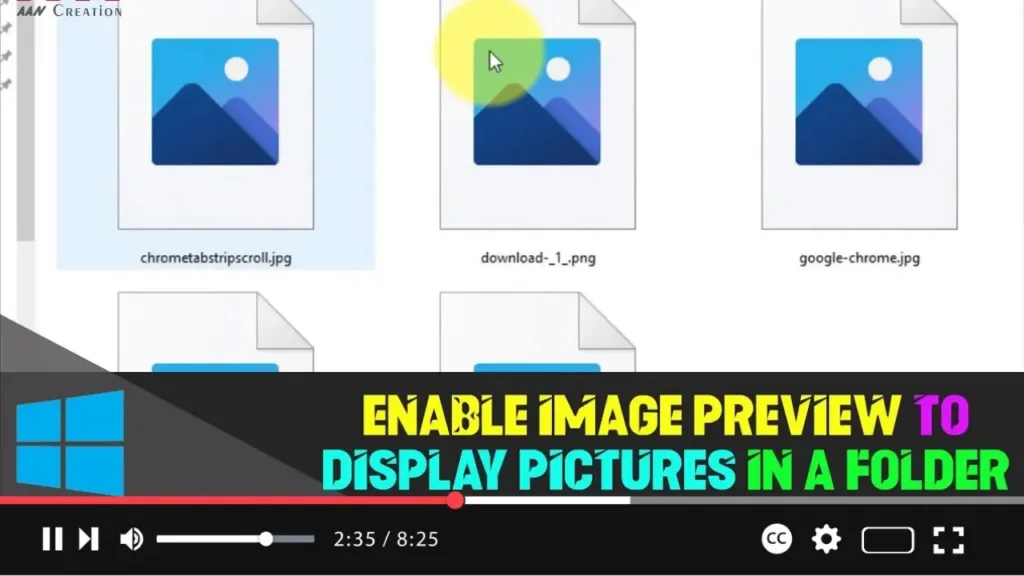
How to Enable Image Preview to Display Pictures in a Folder on Windows 10

 Enabling image previews in Windows 10 allows you to see thumbnails of your pictures instead of generic icons, making it easier to manage and locate images. Here’s a comprehensive guide to enable this feature: Introduction: Windows 10 provides an option to display thumbnail previews for images and videos in File Explorer. This feature enhances file

How to Enable Image Preview to Display Pictures in a Folder on Windows 10 Read More »

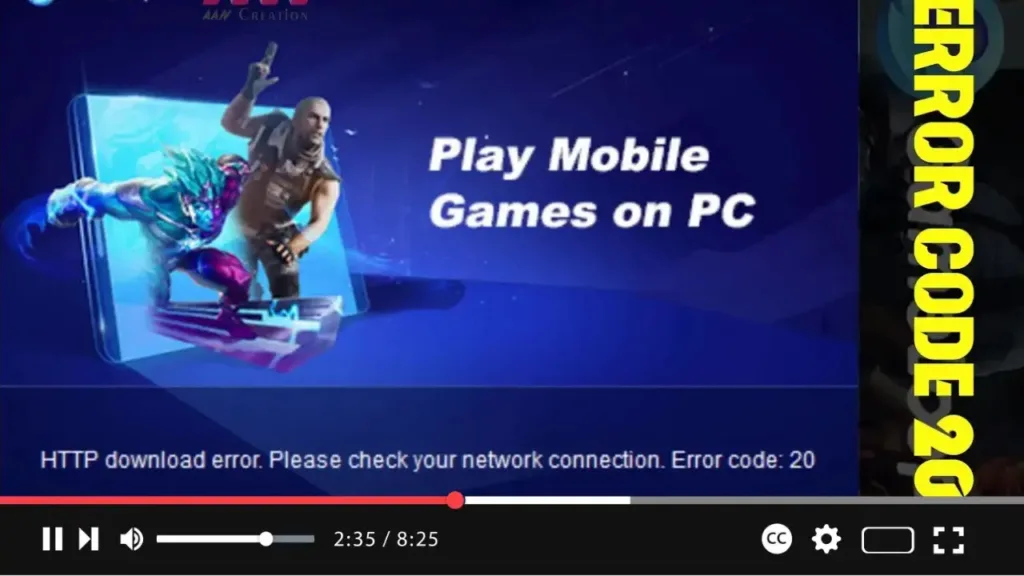
How to Fix the HTTP download error please check your network connection. Error Code 20: GameLoop

 Fixing the “HTTP download error please check your network connection” or “Error Code 20” in the GameLoop application can involve a series of steps to troubleshoot and resolve network and compatibility issues. Here’s a detailed guide to help you address this problem: Introduction: GameLoop is a popular Android emulator designed for playing mobile games on

How to Fix the HTTP download error please check your network connection. Error Code 20: GameLoop Read More »