How-to

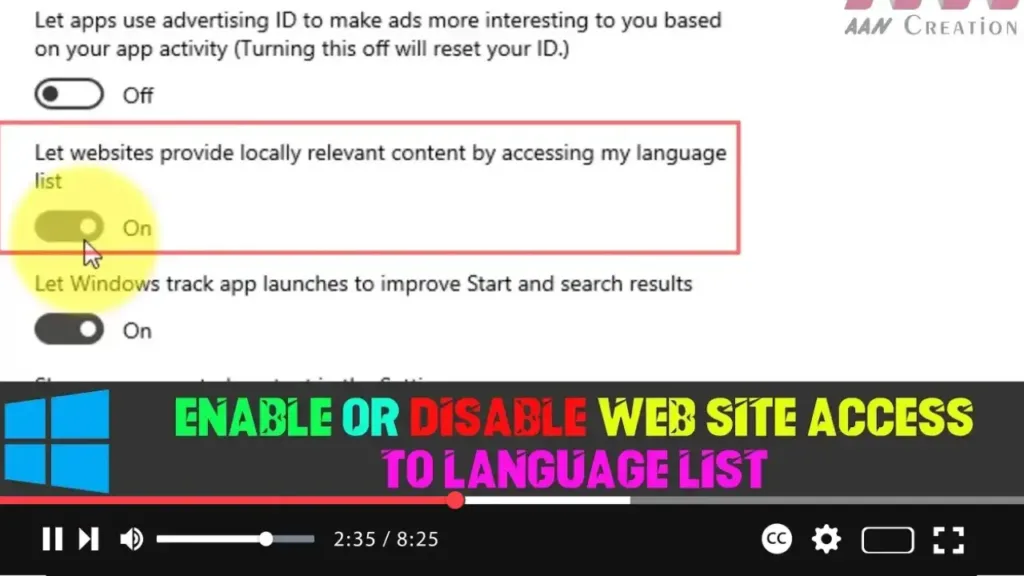
How to Enable or Disable Website Access to Language List in Windows 10

In Windows 10, many websites can automatically detect your installed language preferences to serve you localized content, making browsing more personalized and convenient. This feature eliminates the need to manually adjust language settings for every site. However, if you prefer more privacy or want to prevent websites from accessing your language list, you can easily […]

How to Enable or Disable Website Access to Language List in Windows 10 Read More »
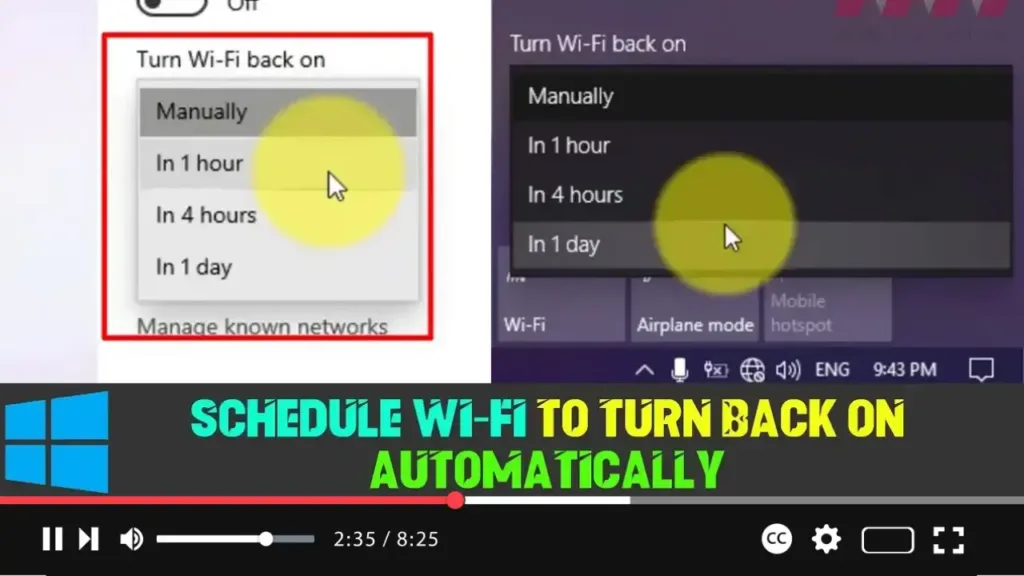
How to Schedule Wi-Fi to Turn Back On Automatically on Windows 10

Windows 10 now offers a convenient feature that allows you to manually turn off your Wi-Fi connection while scheduling it to turn back on after a specified period of time. This feature is especially useful for saving battery life or avoiding automatic connections to unwanted networks, without the need to remember to turn Wi-Fi back

How to Schedule Wi-Fi to Turn Back On Automatically on Windows 10 Read More »

How to Know When It’s Time to Replace Your Laptop’s Battery on Windows 10

If you find yourself constantly connecting your Windows 10 laptop to a power source, it could signal that your battery is no longer functioning optimally. Over time, laptop batteries wear out after a certain number of charge cycles, which leads to a shorter battery life. If you’ve already tried lowering screen brightness, limiting video usage,

How to Know When It’s Time to Replace Your Laptop’s Battery on Windows 10 Read More »

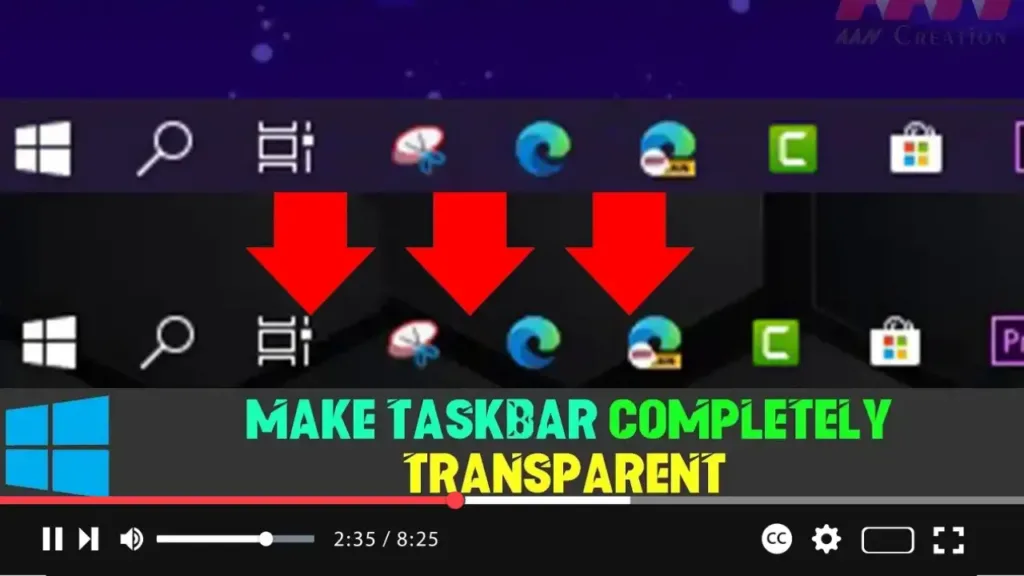
How to Make Your Taskbar Transparent on Windows 10

Windows 10 offers many ways to personalize your experience, including options to customize the taskbar. You can control which icons appear in the notification area, set the taskbar to auto-hide, or even enable basic transparency. However, one limitation is that you cannot make the taskbar fully transparent or apply advanced visual effects like frosted glass

How to Make Your Taskbar Transparent on Windows 10 Read More »

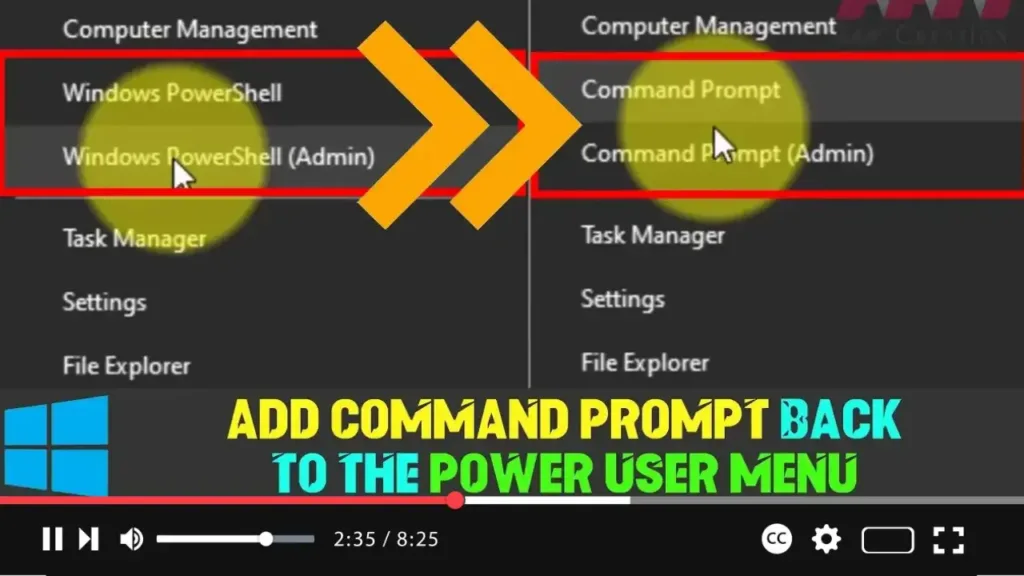
How to Add Command Prompt Back to the Power User Menu on Windows 10

In the earlier versions of Windows 10, users were accustomed to accessing Command Prompt through the Power User menu by pressing Windows key + X. However, with the introduction of the Creators Update, Microsoft replaced the Command Prompt options with PowerShell by default. While PowerShell is a powerful tool with advanced scripting capabilities, it might

How to Add Command Prompt Back to the Power User Menu on Windows 10 Read More »

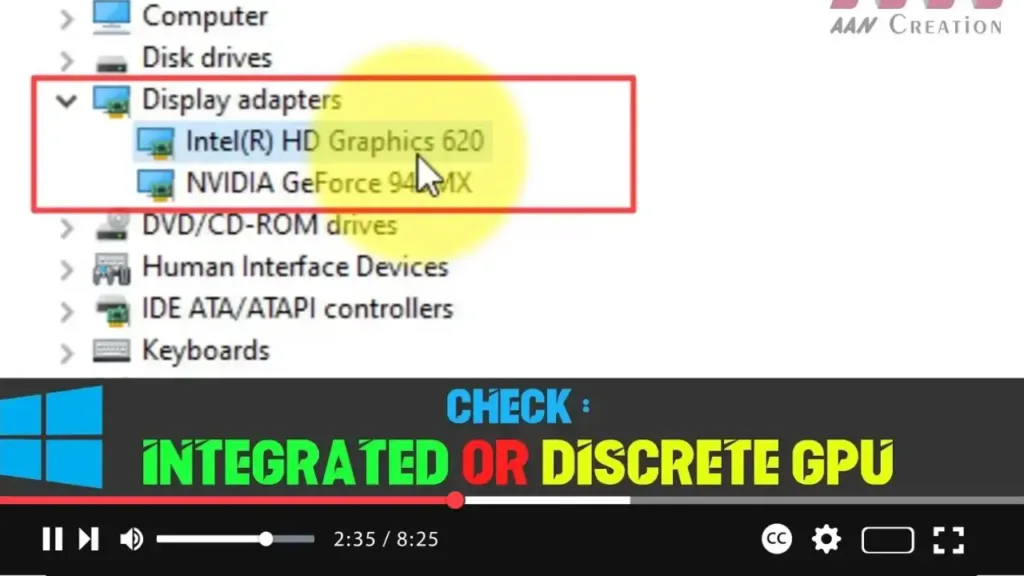
How to Check if You’re Using an Integrated or Discrete GPU on Windows 10

Computers generally use one of two types of graphics processing units (GPUs): integrated or discrete. Understanding which GPU your system uses is essential for knowing how well it can handle graphics-intensive tasks, such as gaming or video editing. Discrete GPU: A dedicated graphics card separate from the main processor, designed specifically for handling graphics processing.

How to Check if You’re Using an Integrated or Discrete GPU on Windows 10 Read More »

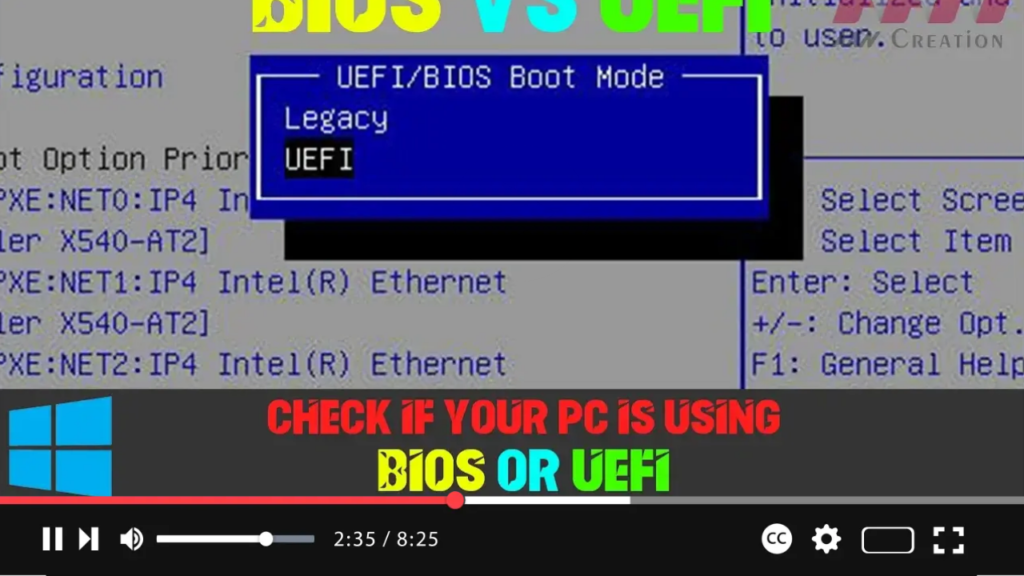
How to Check if Your PC is Using BIOS or UEFI on Windows 10

BIOS (Basic Input/Output System) has been a traditional firmware interface used by operating systems to interact with hardware components. However, BIOS comes with certain limitations, such as slow startup times, lack of advanced security features, and limited support for large drive partitions. On the other hand, UEFI (Unified Extensible Firmware Interface) is a more modern

How to Check if Your PC is Using BIOS or UEFI on Windows 10 Read More »

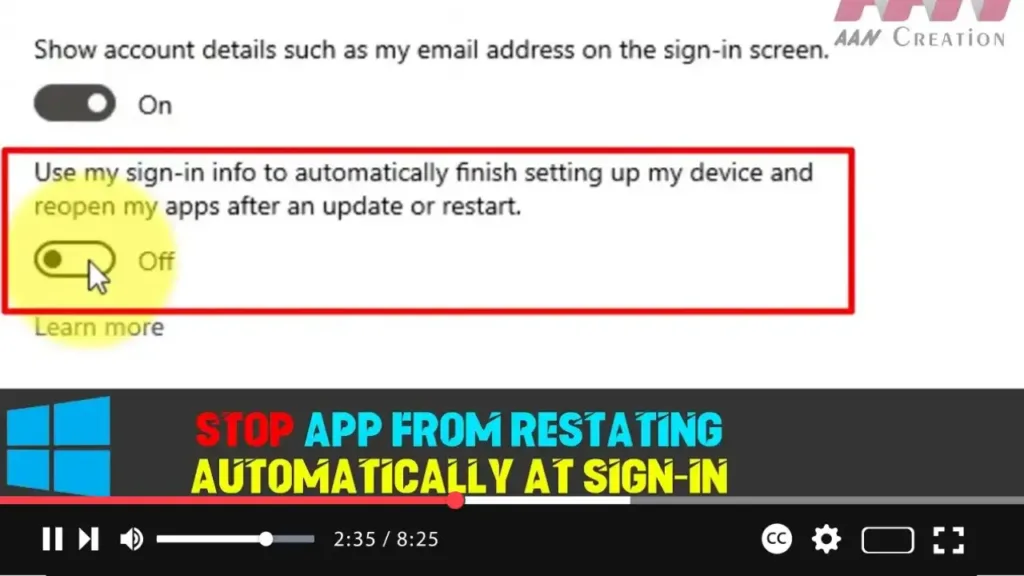
How to Stop Apps From Restarting Automatically at Sign-in on Windows 10

Windows 10 includes a feature that enhances the sign-in process by using your sign-in credentials to complete the setup of your device after certain updates. Initially introduced for quality or feature updates, this functionality expanded with the Windows 10 Fall Creators Update to regular reboots and shutdowns, optimizing the speed at which you can get

How to Stop Apps From Restarting Automatically at Sign-in on Windows 10 Read More »

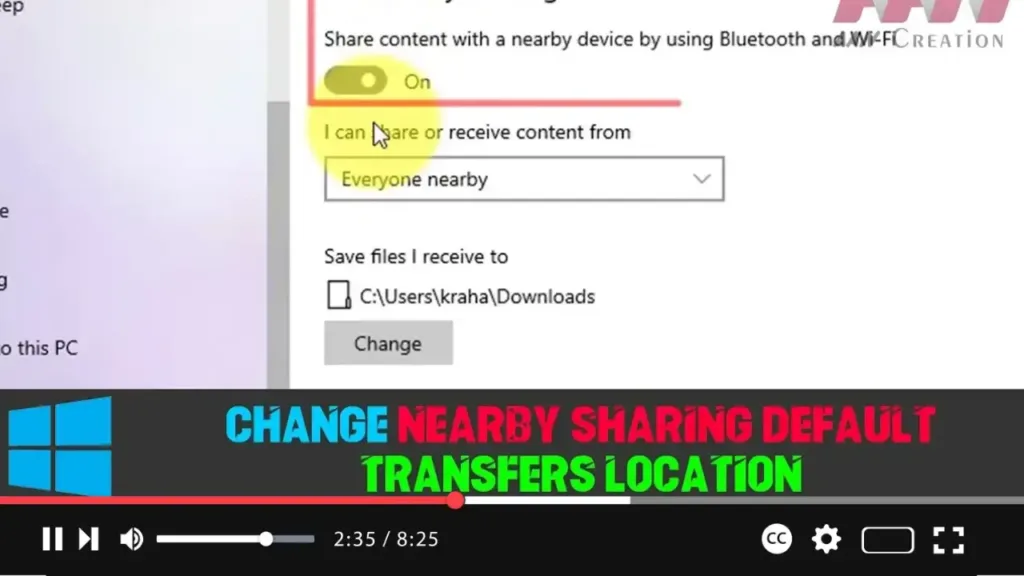
How to Change Nearby Sharing Default Transfers Location on Windows 10

Nearby sharing is a useful feature in Windows 10 that allows you to quickly transfer files and links between devices using Bluetooth or Wi-Fi. By default, files received through Nearby sharing are saved to the Downloads folder. However, if you prefer to organize your files differently or want them stored in a different folder or

How to Change Nearby Sharing Default Transfers Location on Windows 10 Read More »

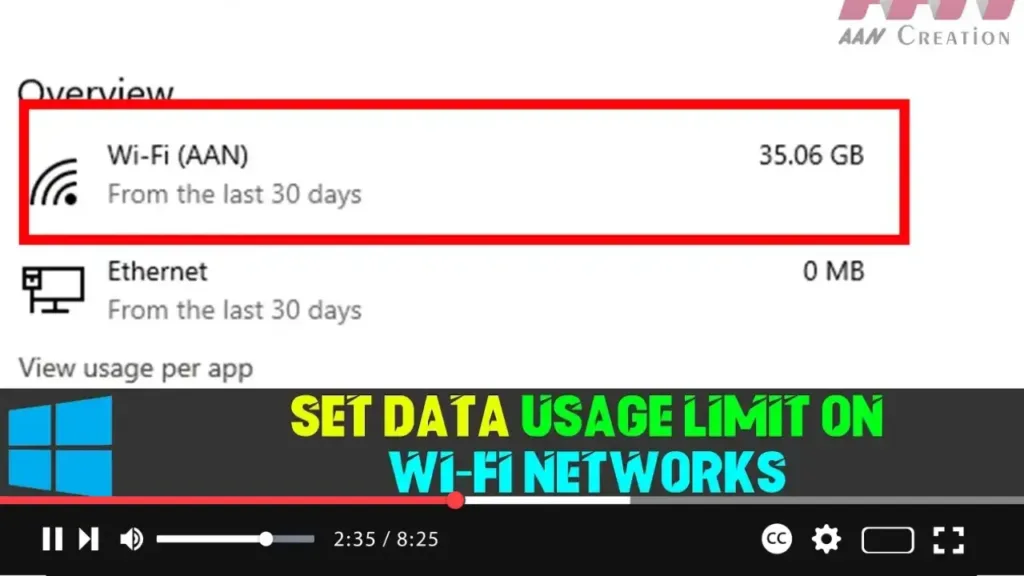
How to Set Data Usage Limit on Wi-Fi Networks on Windows 10

Windows 10 offers several features to help manage data usage, and with version 1803, it introduced the ability to set data usage limits for Wi-Fi and Ethernet connections. This is particularly useful for those on metered connections to avoid extra charges by monitoring their data consumption. If you’re connected to a Wi-Fi network with a

How to Set Data Usage Limit on Wi-Fi Networks on Windows 10 Read More »