windows guidance

How to Download Themes for Windows 10 Free

  Customizing your Windows 10 experience with themes can enhance your computer’s aesthetic and reflect your personal style. Themes consist of wallpapers, colors, and sounds, providing a cohesive look for your desktop. Here’s how to download free themes for Windows 10. Step 01: Access Windows Settings Click on the Start button. Select Settings (the gear […]

How to Download Themes for Windows 10 Free Read More »
How to Check if a Website Has a Virus, Spam, or Malware

  In today’s digital landscape, ensuring the safety and security of your online activities is paramount. With the increasing prevalence of malware, viruses, and spam on the internet, it is essential to verify the safety of websites before engaging with them. One of the most reliable tools for this purpose is VirusTotal. This guide will

How to Check if a Website Has a Virus, Spam, or Malware Read More »

How to Install Windows 11 with Virtual Machine in Windows 10

Windows 11 will officially launch on June 24 however, ahead of the official release, the ISO file of the beta and Dev version has been leaked on the internet. Windows 11 comes packed with several new UI and features which are more than enough to make people curious about the latest release.  In this video,

How to Install Windows 11 with Virtual Machine in Windows 10 Read More »

How to Fix the Gameloop Video Recorder not Working or Terrible Video Output (Low Frame Rate)

When you play an emulator using Gameloop. It has a built-in video recorder, but the videos are at terrible frame rates and are unusable. or the videos in black and white or not in the correct positions. In this video, you’ll learn the steps to Fix the Game loop video recorder not working or terrible

How to Fix the Gameloop Video Recorder not Working or Terrible Video Output (Low Frame Rate) Read More »

How to Enable Scrollable Tabs in Chrome Browser

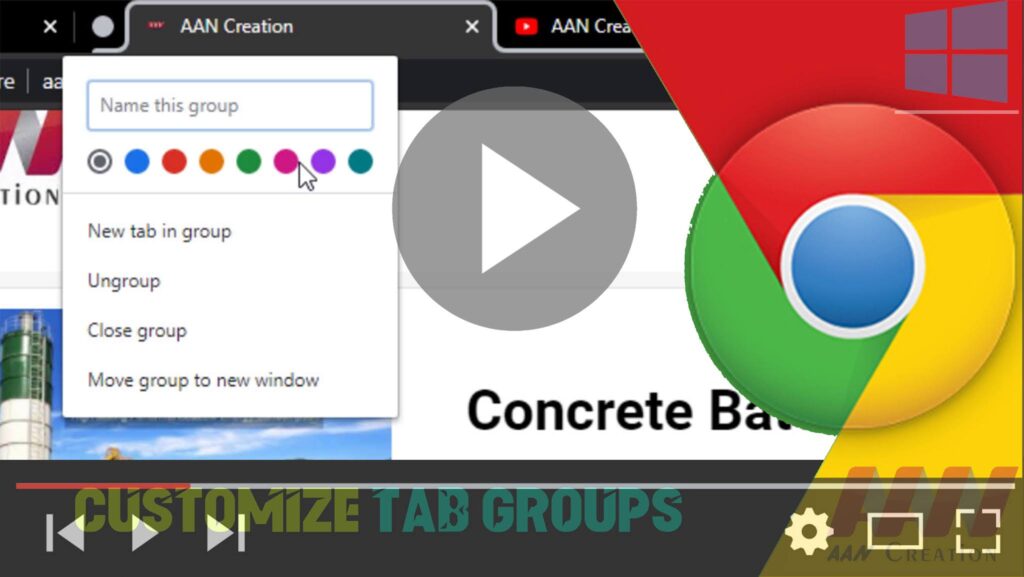
One of the biggest problems with web browsers is that we tend to open a lot of tabs making things unmanageable very quickly. Google has been introducing many improvements for Chrome to help users manage tabs more efficiently, such as with tab previews and tab groups, and recently the company has been working on a

How to Enable Scrollable Tabs in Chrome Browser Read More »

How to Fix the Nvidia Geforce Experience icon missing from the System Tray or the Not Working

  The windows 10 Nvidia Geforce Experience icon missing from System Tray. and the computer getting overload. because the Nvidia Geforce Experience application not working and you can’t run high-performance applications or games. In this video, you’ll learn the steps to fix the Nvidia Geforce Experience icon missing from the system tray or the Nvidia

How to Fix the Nvidia Geforce Experience icon missing from the System Tray or the Not Working Read More »

How to Enable Heavy Ad Intervention Feature in Google Chrome

Google is unlikely to ever all advertisements from the Chrome browser, as it’s still the main source of revenue, the company is making changes to make ads less annoying. Starting with version 80, Chrome is now introducing a new “Heavy Ad Intervention” option designed to block advertisements known to use too many system resources, which

How to Enable Heavy Ad Intervention Feature in Google Chrome Read More »

How to Enable Windows Spellcheck on Google Chrome

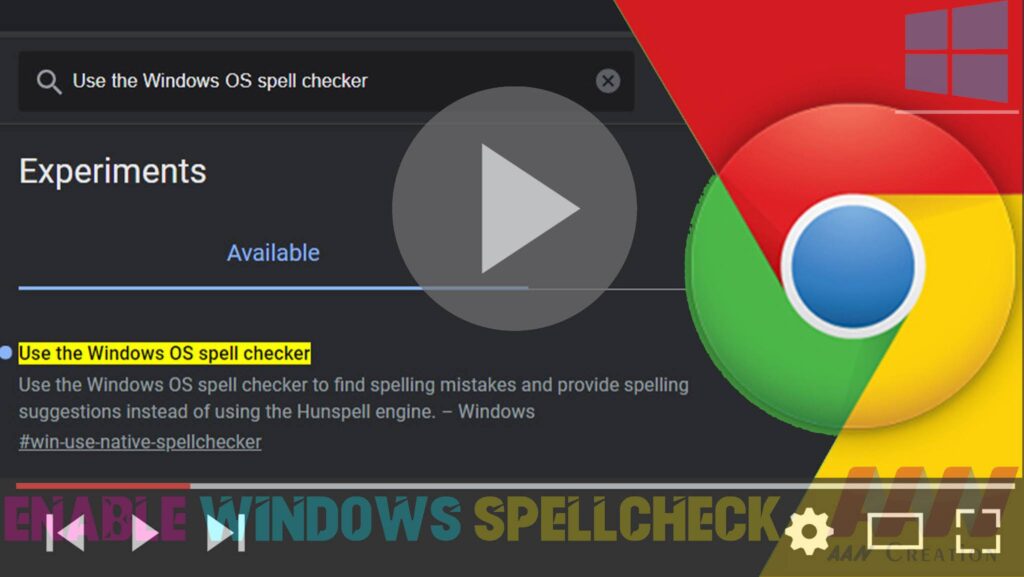
null Google Chrome offers its own spellchecking feature, but you can also enable Windows Spellcheck for a more integrated experience with your operating system. This guide will show you how to enable Windows Spellcheck on Google Chrome. Introduction Windows Spellcheck, also known as Windows Spellchecker, can provide a consistent spellchecking experience across different applications on

How to Enable Windows Spellcheck on Google Chrome Read More »

How to Display Your Name on the Taskbar in Windows 10

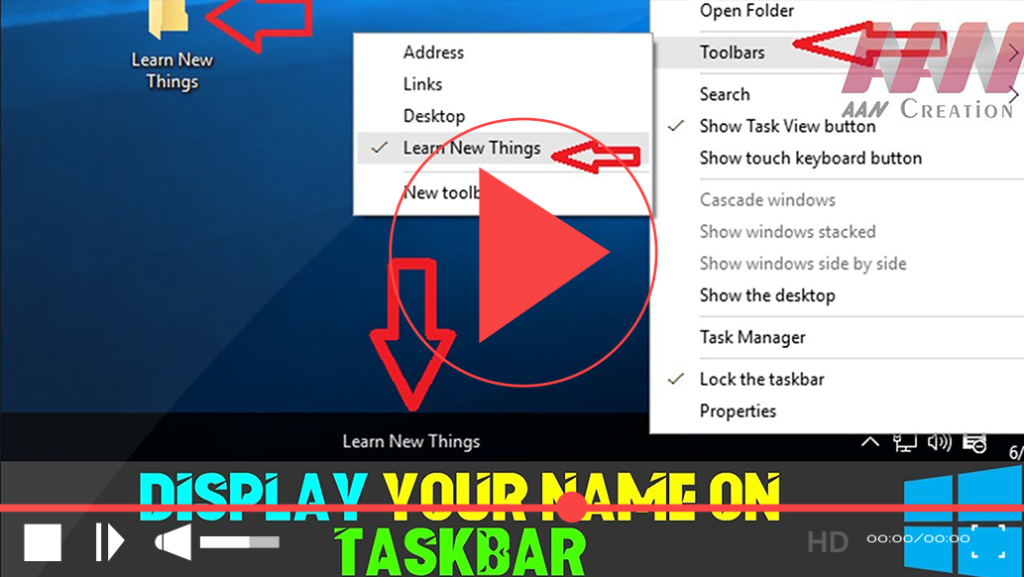
Customizing your Windows 10 experience can enhance productivity and provide quick access to your frequently used items. One way to personalize your taskbar is by displaying your name or a folder directly on it. This allows you to quickly access important files or simply add a personal touch to your desktop. Follow the steps below

How to Display Your Name on the Taskbar in Windows 10 Read More »