Windows Tips & Tricks

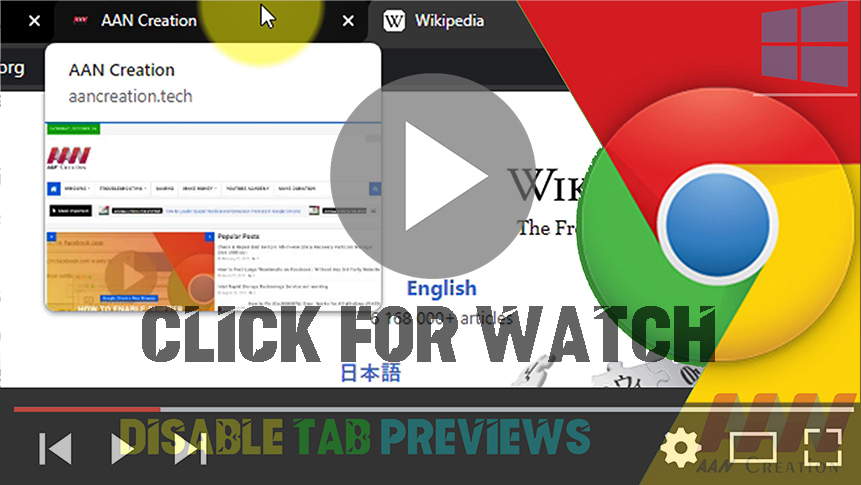
How to Disable Tab Previews in Google Chrome Browser

Google Chrome version 78 update introduces “Tab Hover Cards,” a new feature that allows getting a small preview of other open pages, hovering over the tab without having to leave the current page. Although it can be a useful feature, it’s not something that everybody wants to use. If you’re in the type that would […]

How to Disable Tab Previews in Google Chrome Browser Read More »
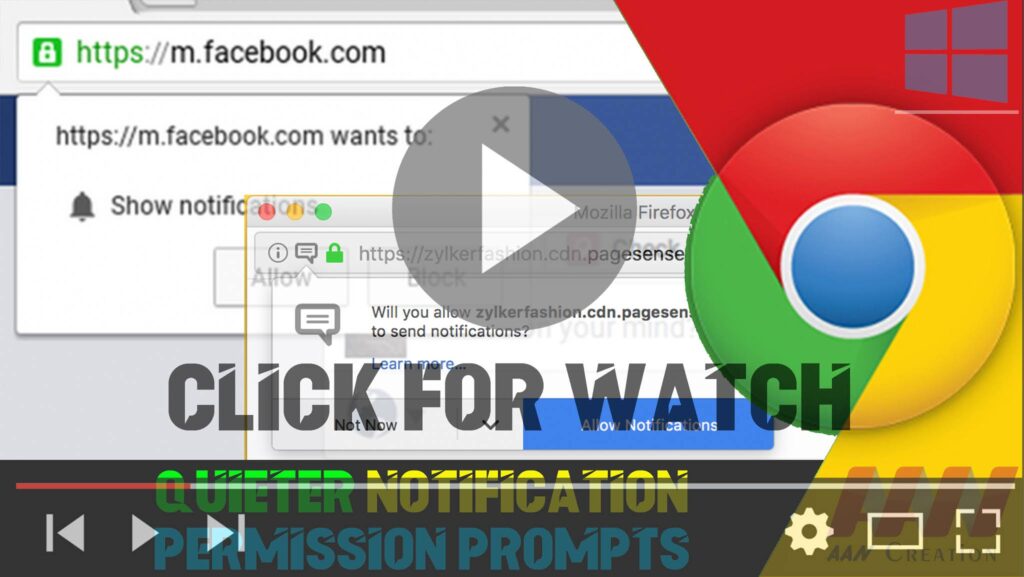
How to Enable Quieter Notification Permission Prompts in Google Chrome

  Google Chrome Browser has a new “Quieter notification permission prompts” option in the advanced settings page, starting version 80, which has been designed to minimize the number of notification interruptions from websites. The option does not eliminate notification requests completely. Instead, when enabled, you will now see a “quieter” prompt on the right side

How to Enable Quieter Notification Permission Prompts in Google Chrome Read More »

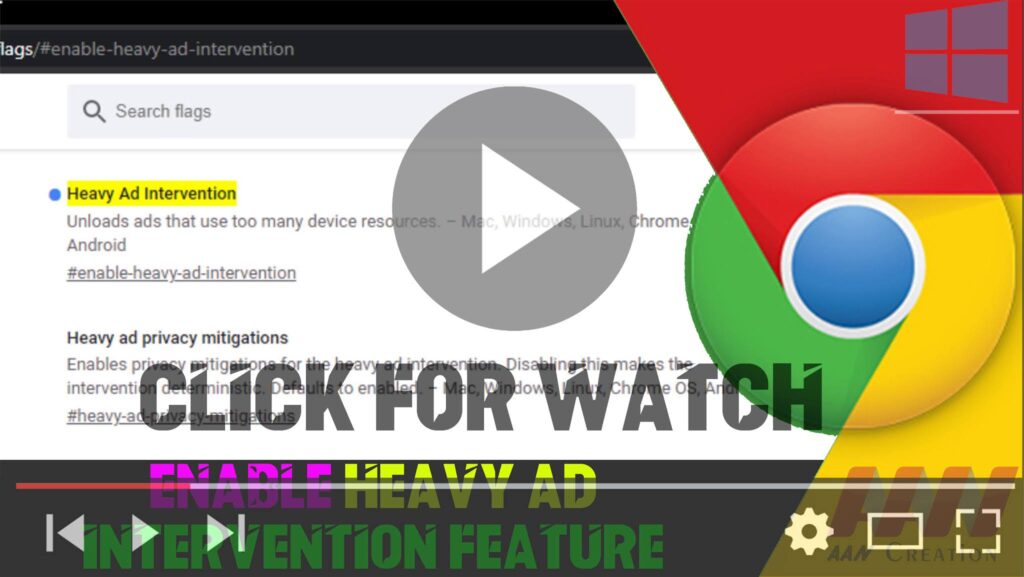
How to Enable Heavy Ad Intervention Feature in Google Chrome

Google is unlikely to ever all advertisements from the Chrome browser, as it’s still the main source of revenue, the company is making changes to make ads less annoying. Starting with version 80, Chrome is now introducing a new “Heavy Ad Intervention” option designed to block advertisements known to use too many system resources, which

How to Enable Heavy Ad Intervention Feature in Google Chrome Read More »

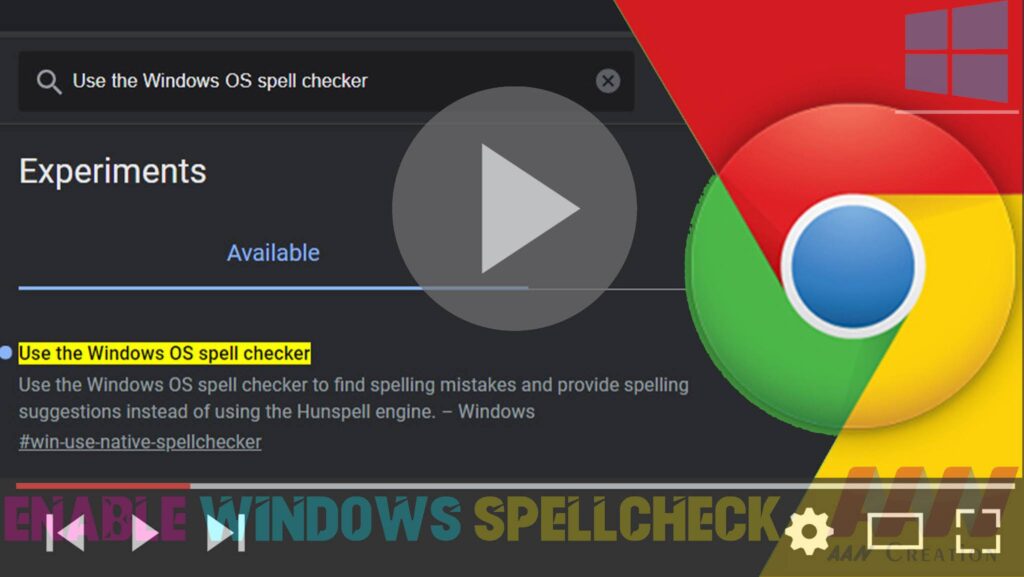
How to Enable Windows Spellcheck on Google Chrome

null Google Chrome offers its own spellchecking feature, but you can also enable Windows Spellcheck for a more integrated experience with your operating system. This guide will show you how to enable Windows Spellcheck on Google Chrome. Introduction Windows Spellcheck, also known as Windows Spellchecker, can provide a consistent spellchecking experience across different applications on

How to Enable Windows Spellcheck on Google Chrome Read More »

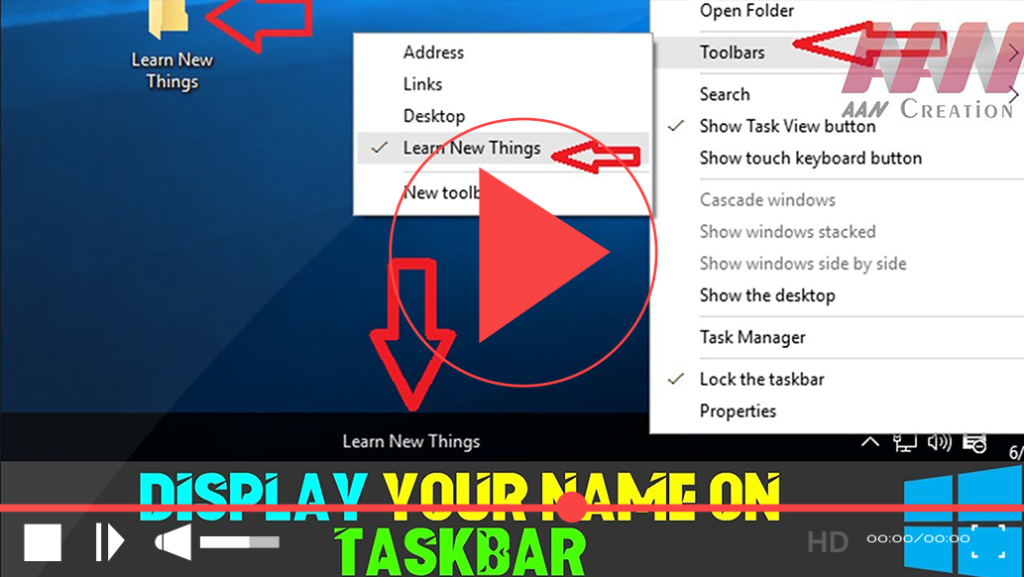
How to Display Your Name on the Taskbar in Windows 10

Customizing your Windows 10 experience can enhance productivity and provide quick access to your frequently used items. One way to personalize your taskbar is by displaying your name or a folder directly on it. This allows you to quickly access important files or simply add a personal touch to your desktop. Follow the steps below

How to Display Your Name on the Taskbar in Windows 10 Read More »

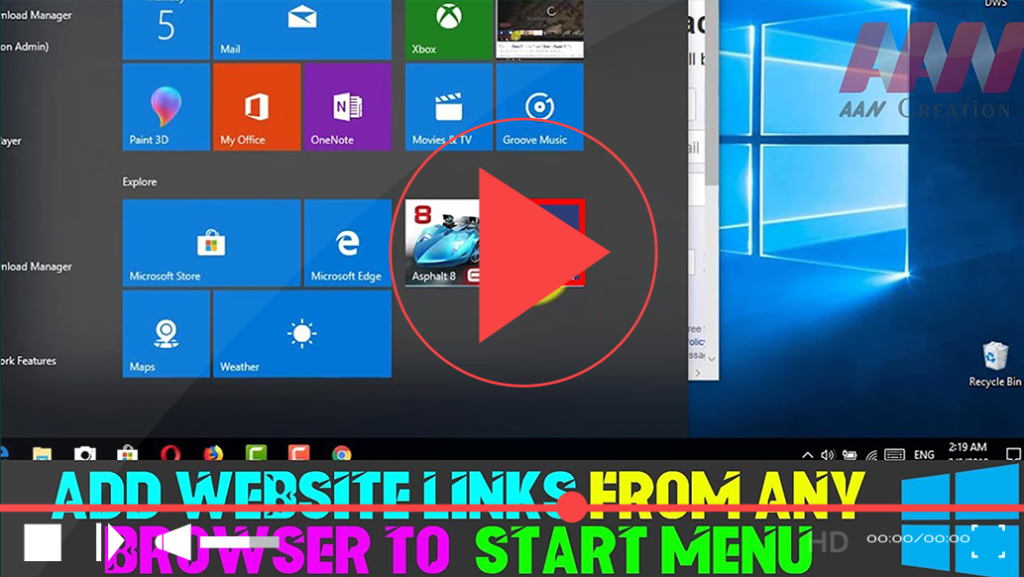
How to Add Website Links from Any Browser to Windows 10 Start Menu

Adding website shortcuts to your Windows 10 Start Menu allows you to access your favorite sites quickly and efficiently. Whether you’re using Microsoft Edge, Google Chrome, Mozilla Firefox, or another browser, this process is straightforward. Below are the detailed steps to pin websites to your Start Menu for easy access. Method 1: Pinning Directly from

How to Add Website Links from Any Browser to Windows 10 Start Menu Read More »

How to Use Snipping Tool to Capture Screenshots in Windows 10

The Snipping Tool is a built-in screenshot utility in Microsoft Windows that allows users to capture images of their screen easily. Although it has been largely replaced by Snip & Sketch in newer updates, the Snipping Tool remains accessible and useful, particularly for its unique features, such as the “Delay” function. This feature enables users

How to Use Snipping Tool to Capture Screenshots in Windows 10 Read More »

How to Fix Apps & Software Not Working Properly Issues (App Reset) in Windows 10

If you’re experiencing issues with apps not functioning correctly in Windows 10, especially with the Microsoft Store app, resetting it can often resolve these problems. The Microsoft Store is essential for installing and updating Universal apps, but sometimes it may crash or fail to install new applications. Fortunately, Windows 10 provides a straightforward way to

How to Fix Apps & Software Not Working Properly Issues (App Reset) in Windows 10 Read More »

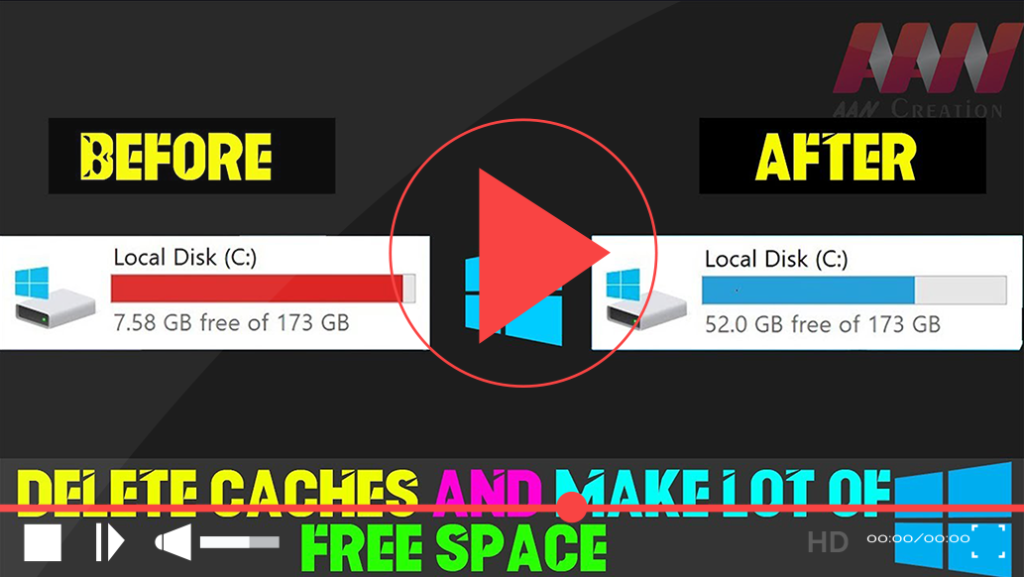
Delete Caches and Make a Lot of Free Space in Windows 10

Clearing cache files can free up a significant amount of space on your Windows 10 system, helping it run more efficiently. Cache files include temporary files, browser caches, download packages, and more. By regularly deleting these files, you can optimize your computer’s performance and recover valuable disk space. Here’s how to do it step-by-step. Steps

Delete Caches and Make a Lot of Free Space in Windows 10 Read More »