
Mozilla released Firefox 57, which included support for WebExtensions, the
same technology that Google uses in Chrome to power extensions.
One of the primary advantages of WebExtensions support is that Firefox users
will be able to install the majority of Google Chrome extensions; at the very
least, this simplifies things. Developers will find it easy to move their
extensions from Chrome to Firefox.
This tutorial will teach you how to use a Firefox extension to turn Chrome
extensions into Firefox add-ons that you can use in the browser.
Note: While almost any Google Chrome extension may be installed in Mozilla
Firefox 57 or newer, you will notice that not all of them work right now. The
major reason for this is that WebExtensions is still in development, and
support is not yet complete. Also, some WebExtensions make use of
Chrome-specific features that Firefox does not support.
Step 1: Install Chrome Store Foxified
(adsbygoogle = window.adsbygoogle || []).push({});
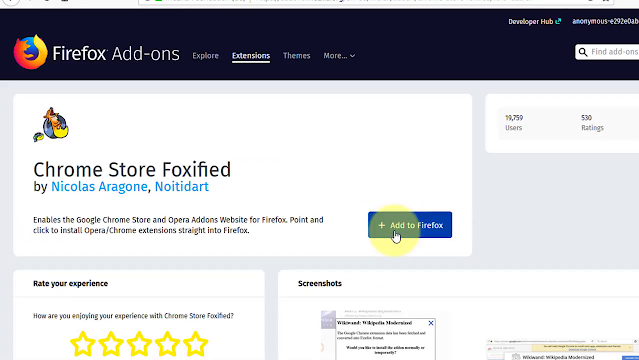
The first step is to install the Firefox extension Chrome Store Foxified,
which will power the conversion and installation process in the background.
The Firefox add-on changes the “get Google Chrome” notification on the Chrome
Web Store when you open it in Firefox with an “add to Firefox” button on
extension pages.
Step 2: Install Chrome extensions in Firefox
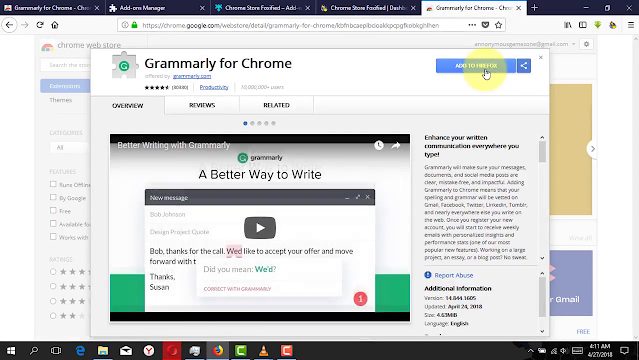
Open the Google Chrome Web Store and look for extensions that interest you.
Locate the add to the Firefox button and click on it.
The Chrome extension may be installed automatically or manually at this point,
depending on how you set up the Firefox add-on.
Foxified Chrome Store can install the Chrome extension as a temporary Firefox
add-on that is only installed for the duration of the browsing session.
This is a nice solution if you want to test the functionality of the Chrome
extensions to check if it works in Firefox yet.
Another reason why this is a good solution is that you may otherwise have
Firefox add-on signing troubles.
The Firefox add-creator on’s has included an option to sign the extensions
that are installed automatically, but you need to sign in to a Mozilla account
for that.
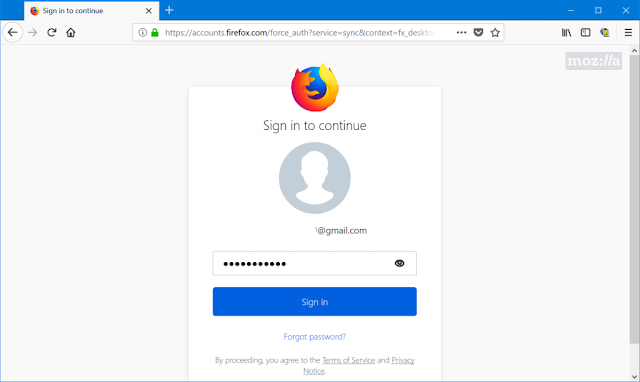
This is your only choice if you wish to use the Chrome browser extension in
Firefox permanently.
When you press the add to Firefox button the first time after installing the
add-on, a little notification prompt is displayed that gives you options to
install the Chrome extension Sign in to a Mozilla account to install it
temporarily or permanently.
You can customize the Firefox add-on to automatically choose the temporary
option for you so that you do not get the prompt all the time.
The Firefox add-on downloads the Chrome extension & converts it from crx
to xpi (Mozilla format).
It will make changes to the manifest.json file of the extension to make it
compatible with Firefox, & save the processed file to the desktop or
another location of your selection (if you change it in the settings).
Depending on your options, it will either prompt you to install the extension
or install it automatically as a temporary add-on.
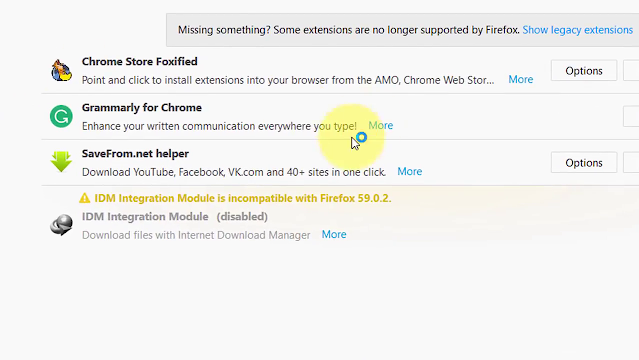
(adsbygoogle = window.adsbygoogle || []).push({});
You may see that extensions add icons to the main toolbar of Firefox, which
you may use.
You may notice a slight problem with some extensions, like a layout that isn’t
100% accurate yet.
While some Chrome extensions function without a problem in Firefox, others
either don’t work at all or don’t work correctly.
I have yet to encounter Chrome extensions that couldn’t be installed in
Firefox, but that doesn’t tell you anything about whether it is working or
not.
Firefox 49, which is currently available in the Nightly channel, was used for
the tests.
Most Google Chrome extensions are expected to work with Mozilla Firefox at
some time in the not-too-far future.
This could give Firefox the most edge over Mozilla considering that Chrome
users can’t install legacy Firefox add-ons at all as they aren’t based on
WebExtensions.
Foxified’s Chrome Store provides a simple way to download, convert, and
install Google Chrome extensions in Firefox.

