
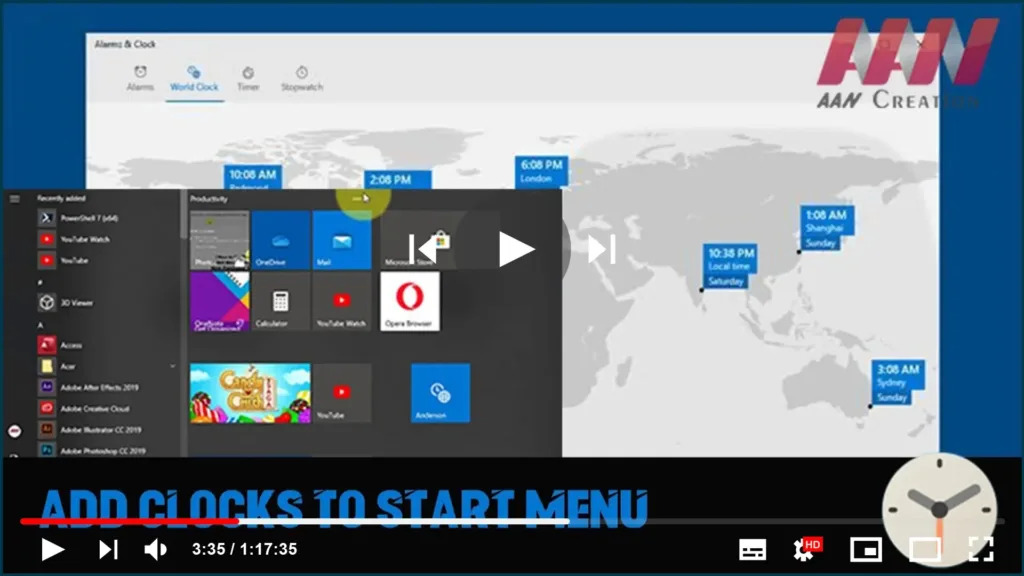

We can any time show the current time and date from the taskbar on
Windows 10, from the bottom-right corner, but if we want, it’s also
possible to add clocks to the Start menu for quicker access to the details
for the current location or different time zones.
Windows 10, from the bottom-right corner, but if we want, it’s also
possible to add clocks to the Start menu for quicker access to the details
for the current location or different time zones.
In this guide, you’ll learn the easy steps to pin clocks to the Start
menu on Windows 10. Use these steps.
menu on Windows 10. Use these steps.
01. Click the Search icon.
02. Search alarm and Clock.
03. Click the Clock tab.
04. Click the add (+) button from the bottom-right corner.
05. Type the time zone location and press Enter.
(adsbygoogle = window.adsbygoogle || []).push({});
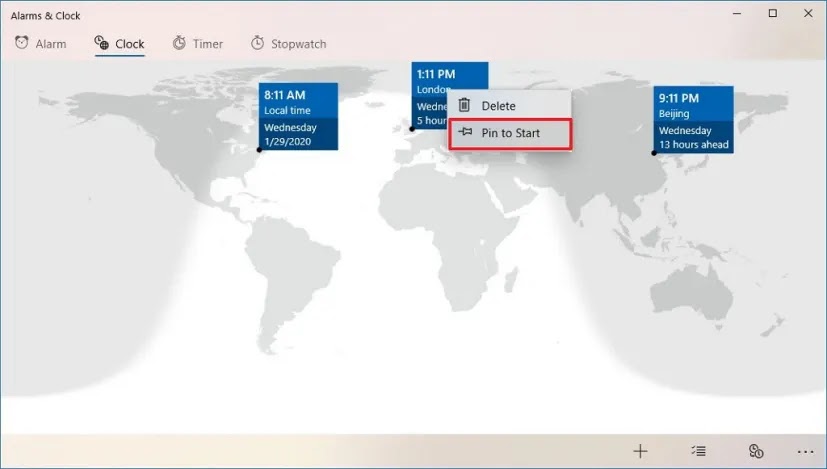
06. Right-click the clock and select the Pin to Start option.
07. Click the Yes button.
Once you complete the steps, a new live Title will be added to the Start
menu with the clock you specified. If we want to see extra clocks for
different time zones, repeat the same instructions.
menu with the clock you specified. If we want to see extra clocks for
different time zones, repeat the same instructions.
After adding the clocks that want, we can always rearrange them together
for Quicker access to the details by dragging the tiles to the top
corner.
for Quicker access to the details by dragging the tiles to the top
corner.

