
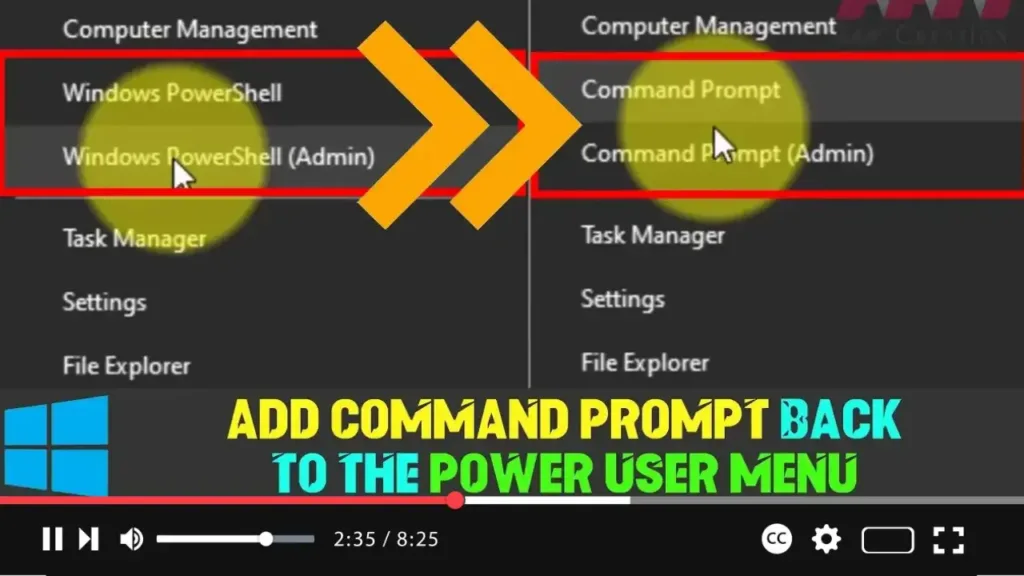

In the earlier versions of Windows 10, users were accustomed to accessing Command Prompt through the Power User menu by pressing Windows key + X. However, with the introduction of the Creators Update, Microsoft replaced the Command Prompt options with PowerShell by default.
While PowerShell is a powerful tool with advanced scripting capabilities, it might not be familiar or necessary for everyone. If you prefer using Command Prompt, you can easily bring it back to the Power User menu by tweaking a simple setting.
Steps to Restore Command Prompt in the Power User Menu:
Step 01: Open Settings.
Begin by opening the Settings app. You can do this by pressing Windows key + I or searching for “Settings” in the Start menu.
Step 02: Navigate to Personalization.
In the Settings window, click on Personalization to access the customization options for your desktop and taskbar.

Step 03: Go to Taskbar Settings.
Within the Personalization settings, select Taskbar from the menu on the left-hand side.
Step 04: Turn Off PowerShell Replacement.
Scroll down in the Taskbar settings until you see the option labeled “Replace Command Prompt with Windows PowerShell in the menu when I right-click the start button or press Windows key + X.”
Turn off the toggle switch for this setting to bring back Command Prompt.
Final Step:
After completing these steps, right-clicking the Start button or pressing Windows key + X will once again display the Command Prompt and Command Prompt (Admin) options in the Power User menu.
This simple change will allow you to access Command Prompt quickly and efficiently, just like before. If you ever need to use PowerShell, you can still find it in the Start menu or search for it directly.

