
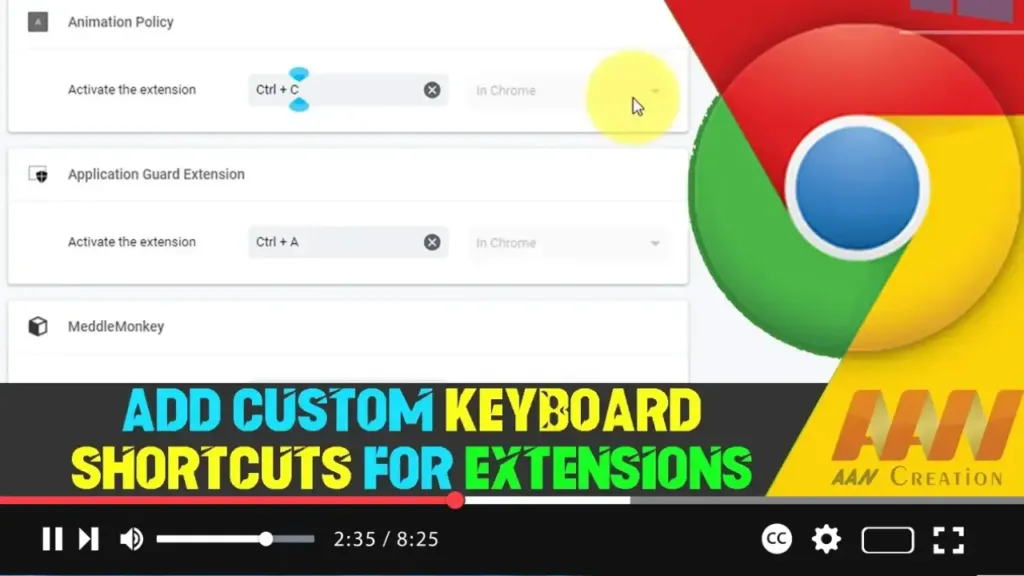

null Custom keyboard shortcuts for extensions on the Chrome browser can significantly enhance your productivity by providing quick access to your favorite tools and functionalities. This guide will walk you through the steps to add and manage custom keyboard shortcuts for your Chrome extensions.
Introduction
Google Chrome allows you to set custom keyboard shortcuts for various extensions, making it easier to perform tasks without navigating through menus. Whether you frequently use a particular extension or need to quickly enable/disable it, keyboard shortcuts can streamline your workflow.
Steps to Add Custom Keyboard Shortcuts for Extensions on Chrome Browser
Step 01: Open Chrome Menu
Open Google Chrome. Click the three-dot menu icon in the top-right corner to open the Chrome menu. Select “More tools” from the dropdown menu, then click on “Extensions.”
Step 02: Access Keyboard Shortcuts Settings
On the Extensions page, click on the hamburger menu icon (three horizontal lines) in the top-left corner. Select “Keyboard shortcuts” from the sidebar menu.
.webp)
Step 03: Add or Edit Shortcuts
You will see a list of installed extensions with their current keyboard shortcuts (if any). To add or edit a shortcut:
- Find the extension you want to set a shortcut for.
- Click on the “Edit” icon (a pencil) next to the action you want to customize.
- Press the desired key combination on your keyboard to set the new shortcut.
Step 04: Save Your Changes
After setting the new keyboard shortcut, press “Enter” or click outside the input field to save it. The new shortcut will now be active.
.webp)
Additional Information
Types of Actions You Can Customize
- Activate the extension: Launch the main function of the extension.
- Browser actions: Perform specific actions provided by the extension, such as opening a popup.
- Page actions: Execute functions related to the current webpage, like highlighting text or filling forms.
Shortcut Recommendations
- Use key combinations that are easy to remember and do not conflict with existing Chrome shortcuts.
- Consider using combinations with Ctrl, Shift, and Alt keys to avoid clashes with regular typing.
Managing Conflicts
If a shortcut does not work, it might be due to a conflict with another shortcut or application. Check your other extensions and system shortcuts to resolve conflicts.
.webp)
Backup and Sync
Chrome settings, including keyboard shortcuts, can be synced across devices if you are signed into Chrome with your Google account. This ensures that your custom shortcuts are available on any device you use.
Conclusion
Adding custom keyboard shortcuts for Chrome extensions can greatly enhance your browsing efficiency and productivity. By following these steps, you can quickly set up and manage shortcuts tailored to your needs, allowing for faster and more intuitive use of your favorite extensions.

