
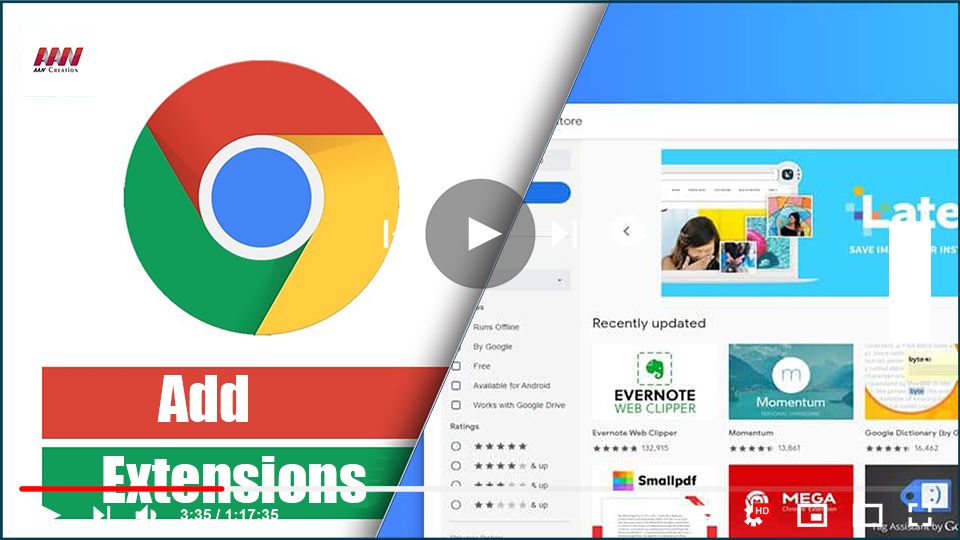

Extensions enhance your Google Chrome browser, allowing for a personalized browsing experience with functionalities like spell checking, language translation, email customization, screenshot tools, and more. If you’re new to using browser extensions, here’s a guide on how to add, remove, and manage them.
Installing Extensions from the Chrome Web Store
Note: Extensions cannot be added while in Incognito mode or as a guest.
-
Open the Chrome Web Store
Navigate to the Chrome Web Store. -
Find the Desired Extension
Browse or search for the extension you want to install. -
Add to Chrome
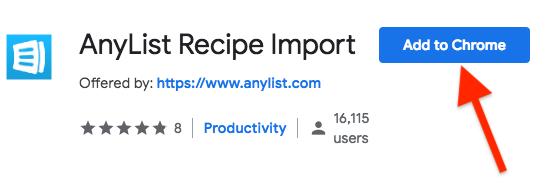
Click the Add to Chrome button. -
Review Permissions
Some extensions may request specific permissions or access to your data. To proceed, click Add extension to confirm.Important: Only approve extensions from trusted developers.
-
Activate the Extension
Once installed, click the extension icon to the right of the address bar to activate and configure it as needed.
Note: If you are using a work or school computer, certain extensions may be restricted by your organization.
Installing Extensions on Mobile
To add extensions to Chrome on your mobile device:
-
Open the Chrome App
Launch the Chrome app on your phone. Ensure you are signed in to your Chrome account. -
Find the Extension
Search for the extension you wish to install. -
Add to Desktop
Tap on Add to Desktop. -
Confirm Installation
Confirm the action by tapping Add to Desktop again.

(adsbygoogle = window.adsbygoogle || []).push({});

