
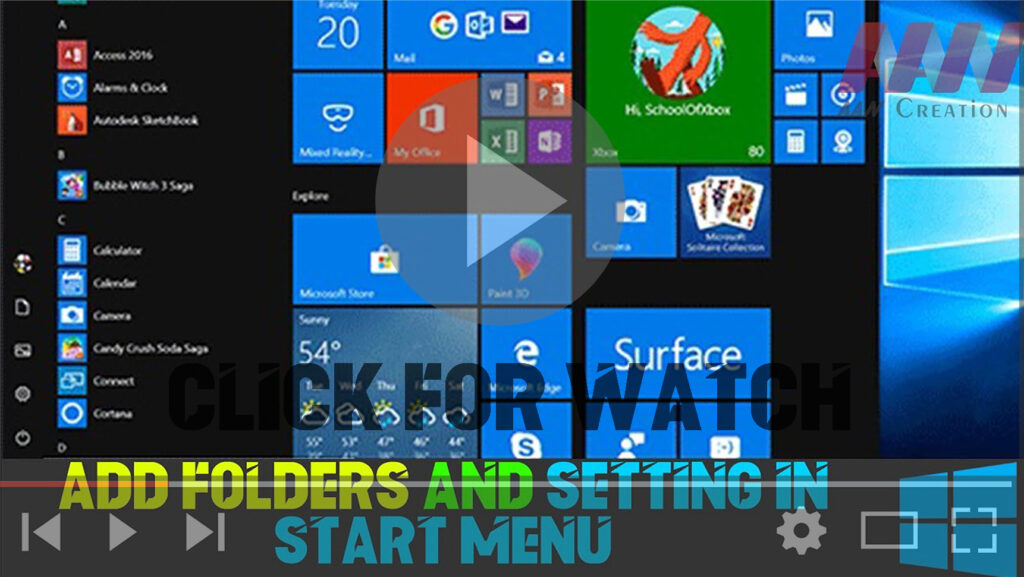

The Start Menu in Windows 10 serves as the central hub for accessing applications and settings. While its default layout can feel quite standard, there are numerous ways to customize it to reflect your personal preferences. This guide will walk you through the steps to add or remove folders in the Start Menu, making it more functional and tailored to your needs.
Steps to Customize Your Start Menu
Step 1: Open the Start Menu
- Click on the Start Menu icon (Windows icon) located in the lower-left corner of your screen.
Step 2: Access Settings
- In the Start Menu, click on Settings (the gear icon).
Step 3: Go to Personalization
- In the Settings window, select Personalization to access options related to the appearance and layout of your Start Menu.
Step 4: Select Start
- Within the Personalization menu, click on Start from the list on the left side.
Step 5: Choose Folders to Appear on Start
- Find and click on Select which folders appear on Start. This option allows you to manage which folders are visible in the Start Menu.
Step 6: Toggle Folders On or Off
- You will see a list of folders such as Documents, Downloads, Music, Pictures, Videos, and Settings.
- Use the switch next to each folder to turn it on (to add it) or turn it off (to remove it).

Additional Customization Tips
- Rearranging Tiles: You can also rearrange tiles by clicking and dragging them to your preferred location on the Start Menu.
- Resizing Tiles: Right-click on any tile to change its size, allowing for more visibility or compactness based on your preferences.
- Changing Colors: In the Personalization menu, you can change the color scheme of your Start Menu to better suit your style.
Conclusion
Windows 10 offers a highly customizable Start Menu, making it easy to personalize your experience. By following the steps above, you can add folders like Videos, Music, and Documents, enhancing your workflow and accessibility. Take advantage of the customization options available to create a Start Menu that truly reflects your personal style and usage preferences.

