
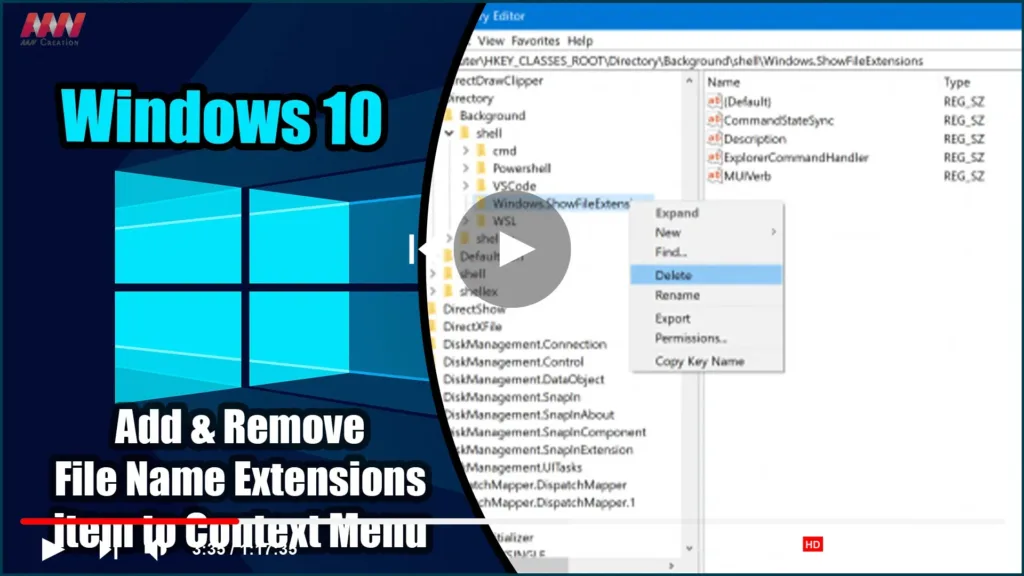

On Windows 10, Microsoft has added a feature to the File Explorer Options
or Folder Options ribbon and mini window that allows the user to enable or
disable the visibility of file extensions in the File Explorer. However,
some users enable it for a few minutes and then hide the file extensions.
Following the Folder Options path is often time-consuming and tedious. As
a result, having that option toggled from the right-click context menu is
the best option. These file extensions differ depending on the type of
file that a user is attempting to run.
If you add the ‘File name extensions’ item to Windows 10 context menu,
then you will be able to show or hide file extensions with a single click!
This is useful if you need to temporarily enable the option.

Add File name extensions to Context Menu
To add the ‘File name extensions’ option in the context menu on Windows
10, the user has to make use of the Windows 10 Registry Editor. The
context menus covered in this step are the ones on the Desktop,
File, Folder, and folder background. This guide will cover two
topics. They are as follows:
* Adding the File Name extensions option to the context menu.
* Removing the File Name extensions option to the context menu.
1] Add the File Name extensions option to the context menu
This is a pretty straightforward method to follow.
01. Download this Registry file, double-click on the file, and give your
approval to add the Registry entries.

(adsbygoogle = window.adsbygoogle || []).push({});
02. If you still don’t see the option, restart your computer to make it
appear.
2] Remove the File Name extensions option to the context menu
01. To do so, launch the Windows 10 Registry Editor and navigate to the
following locations:


