

Adding website shortcuts to your Windows 10 Start Menu allows you to access your favorite sites quickly and efficiently. Whether you’re using Microsoft Edge, Google Chrome, Mozilla Firefox, or another browser, this process is straightforward. Below are the detailed steps to pin websites to your Start Menu for easy access.
Method 1: Pinning Directly from Microsoft Edge
Microsoft Edge offers a built-in feature to pin websites directly to the Start Menu. Follow these steps:
Step 01: Open Microsoft Edge
Launch the Microsoft Edge browser and navigate to the website you wish to pin.
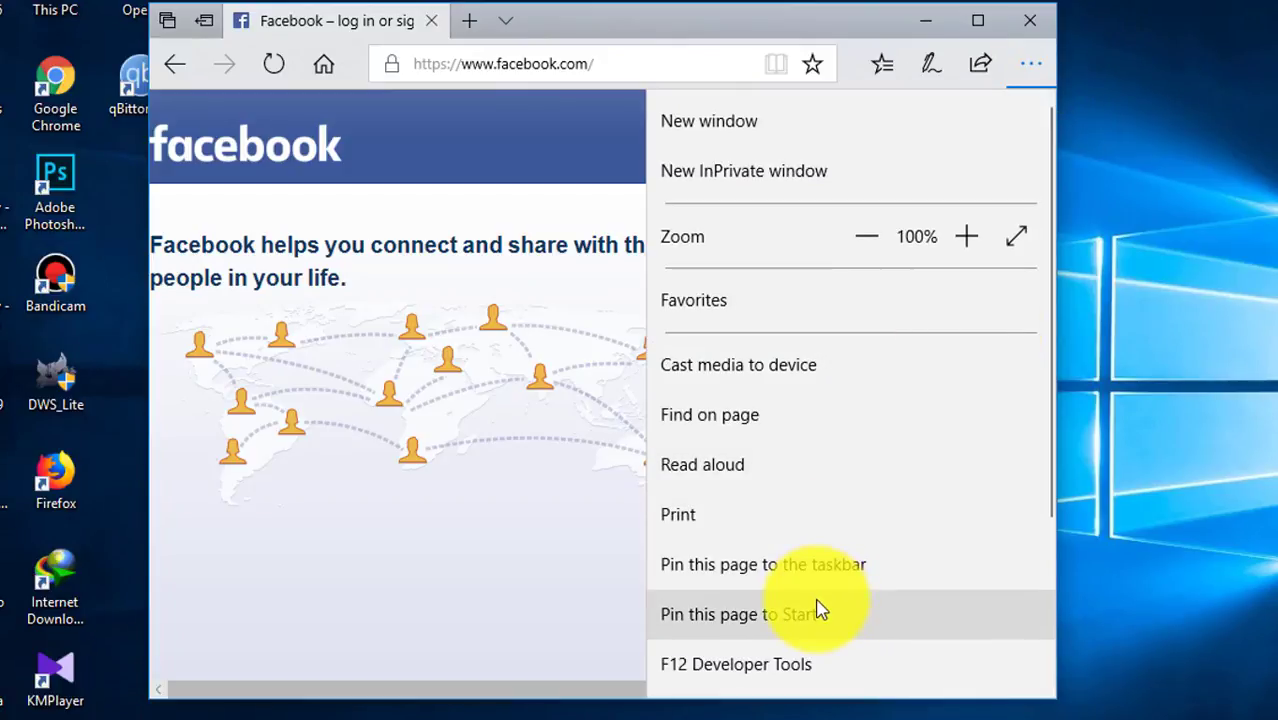
Step 02: Pin the Website
Click on the menu button (three dots in the upper right corner) and select “Pin this page to Start.” Confirm any prompts that appear. Once completed, the website will appear on your Start Menu as a tile, which you can drag and position to your liking.
Additional Features
Some websites may offer enhanced features when pinned, such as customized tile icons or live tiles displaying real-time updates like headlines and notifications.
Important Note
This shortcut will always open in Microsoft Edge, regardless of your default browser settings.
Method 2: Adding Shortcuts from Other Browsers
If you’re using a different browser, such as Google Chrome or Mozilla Firefox, you can still add website shortcuts to your Start Menu using these steps:
Step 01: Create a Desktop Shortcut
- Visit the desired website in your preferred browser.
- Locate the icon to the left of the website’s address in the location bar (also known as the address bar).
- Drag and drop the icon onto your desktop. This action creates a desktop shortcut for the website.
Step 02: Rename the Shortcut (Optional)
- Right-click the newly created desktop shortcut and select “Rename.”
- Enter a new name if desired, which will help you identify the website easily.
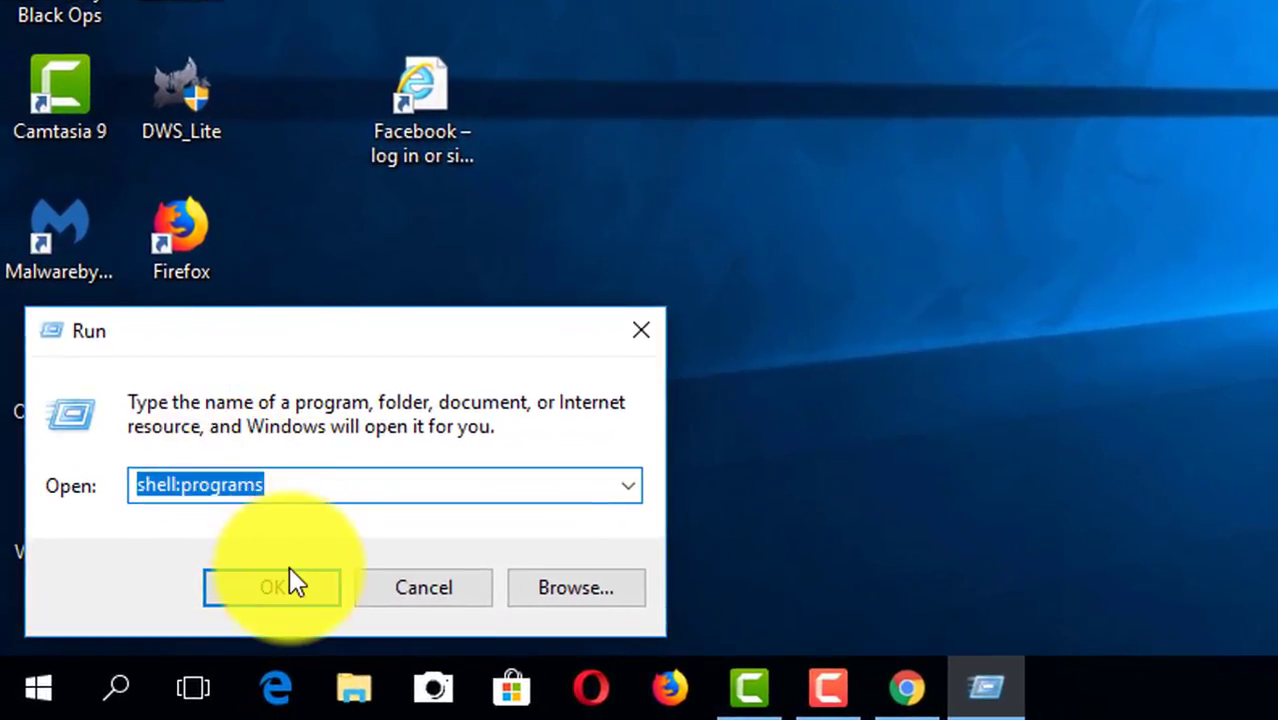
Step 03: Open the Start Menu Programs Folder
- Press Windows + R to open the Run dialog.
- Type
shell:programsinto the dialog and press Enter. This command opens the folder where Start Menu program shortcuts are stored.
Step 04: Move the Shortcut to the Start Menu
- In the opened Programs folder, right-click inside the window.
- Select “Paste” to copy the previously created desktop shortcut into this folder.
(adsbygoogle = window.adsbygoogle || []).push({});
Conclusion
By following these steps, you can efficiently add website links to your Windows 10 Start Menu, making it easier to access your favorite sites. Whether you prefer the direct method through Microsoft Edge or creating shortcuts from other browsers, you can customize your Start Menu to enhance your browsing experience. Enjoy quick access to the internet right from your desktop!

