

If you do not like the Taskbar to appear on your Windows 10/8/7 desktop all the time, you can easily set Windows to auto-hide the Taskbar when not in use. You may need to hide the taskbar because you need more space on your desktop, or maybe you feel that it just gets in the way & you want it to appear only when you need it, or maybe you use a 3rd party dock or a launcher. In any case, you can set the taskbar to hide automatic, if you Liked it.
Auto Hide Taskbar in Windows
01. Right-click on the taskbar and unlock the taskbar.
02. Again right-click and select Taskbar Properties.
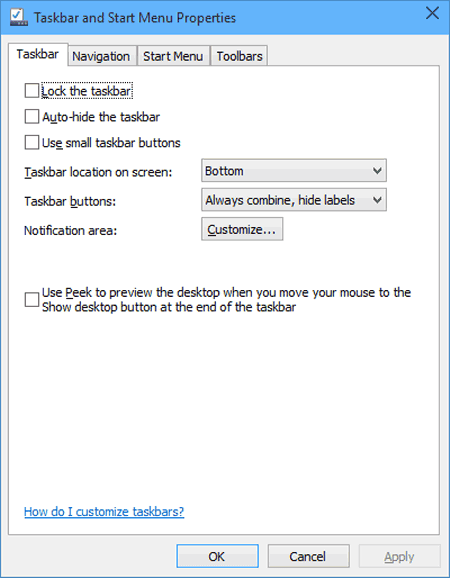
03. Under the Taskbar tab, check the Auto-hide the taskbar setting.
04. Click Apply – OK.
you will now see that the taskbar recedes & hides automatically when not in use. To make it appear to want it to, you then have to move the cursor to the bottom of the screen or the taskbar area or you could press “Win+T”.
Auto Hide Taskbar using Group Policy
How to disable the Auto-Hide the Taskbar setting via Group Policy.
01. Run gpedit.msc to open Group Policy Editor.
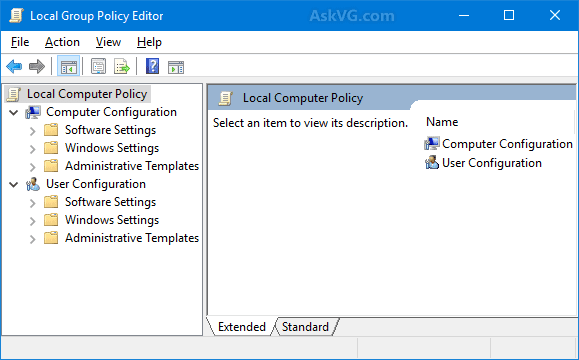
02. User Configuration
03. Administrative Templates
04. Start Menu and Task Bar
05. In the left pane, double-click Lock all taskbar settings & Enable it.
This will prevent users from creating any changes to the Taskbar.
This policy setting allows locking all taskbar settings. If you enable this policy setting, the user can’t access the taskbar control panel. The user is also unable to rearrange, move or resize toolbars on their taskbar. If you disable or don’t configure this policy setting, the user will be able to set any taskbar setting that is not prevented by another policy setting.
Auto Hide Taskbar registry key
For those who may be related, the concerned registry key which deals with this setting is:
HKEY_CURRENT_USERSoftwareMicrosoftWindowsCurrentVersionExplorerStuckRects2
The auto-hide taskbar isn’t working, & Taskbar won’t hide
There may be times; you may notice that the auto-hide taskbar isn’t working & the taskbar won’t hide, If a taskbar button flashes or something which needs your comes up in the taskbar notification area, the taskbar won’t auto-hide till you address that issue. It could also be some software that may be programmatically making the taskbar visible.
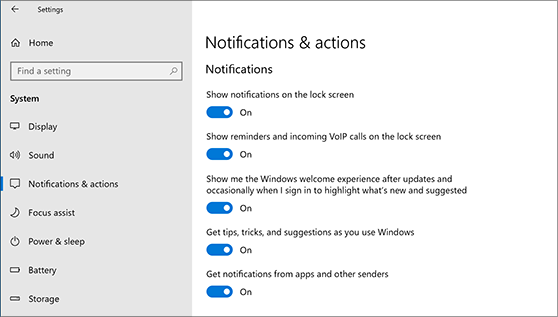
See if any 3rd-party software is preventing this. If so, disable this icon from appearing on the taskbar. Disable showing of notifications for such problematic taskbar icons. In Windows 10, you will be able to do this via Settings ➡ System ➡ Notifications & actions.
In most cases this problem is temporary, & a restart usually makes the problem go away. Also, the Auto-hiding of the taskbar isn’t supported on Windows Tablet PCs where only touch or pen screen input is being utilized with no keyboard or mouse.
The Auto-hide taskbar feature will hide the taskbar & the start button. If you want to hide only the taskbar, & not the Start Button, use our freeware Hide Taskbar. It allows you to hide or show the taskbar with a hotkey.

