
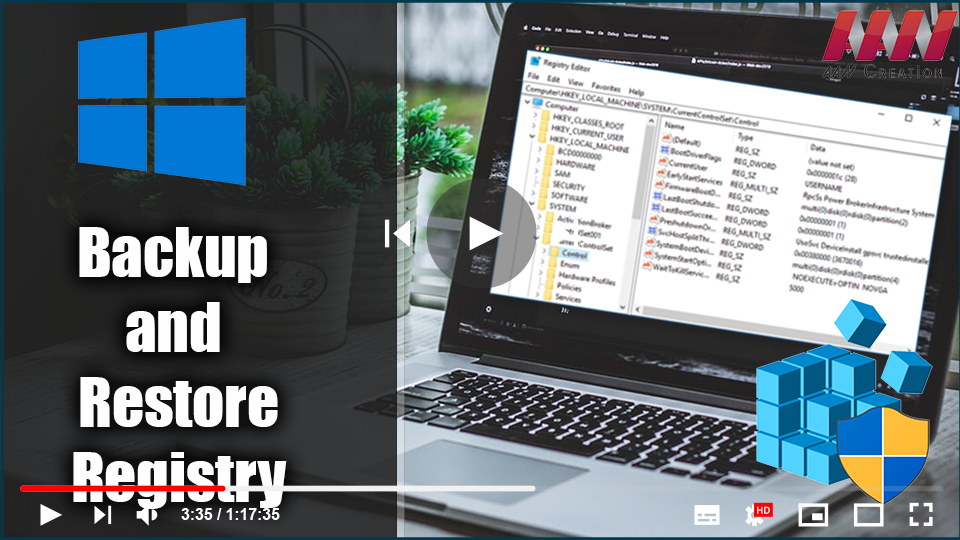

The Windows Registry is a hierarchical database that stores
low-level settings for the Windows OS & apps that use it. The
registry can be accessed by the kernel, device drivers, services,
Security Accounts Manager, and user interface. The registry also
provides access to counters that can be used to profile system
performance.
In simple terms, the registry, also known as the Windows Registry,
contains information, settings, options, and other values for programs
and hardware installed on all versions of Microsoft Windows OS. When a
program is installed, for example, a new subkey containing settings such
as a program’s location, version, and how to start the program is added
to the Windows Registry.
contains information, settings, options, and other values for programs
and hardware installed on all versions of Microsoft Windows OS. When a
program is installed, for example, a new subkey containing settings such
as a program’s location, version, and how to start the program is added
to the Windows Registry.
Back up the registry manually
01. In the search box, type regedit.exe from the Start menu, and then
press Enter. If an administrator password or confirmation is requested,
enter it or provide confirmation.
press Enter. If an administrator password or confirmation is requested,
enter it or provide confirmation.
02. Locate and click the registry key or subkey that you want to back
up in Registry Editor.
up in Registry Editor.
03. Click File ➡ Export.
(adsbygoogle = window.adsbygoogle || []).push({});
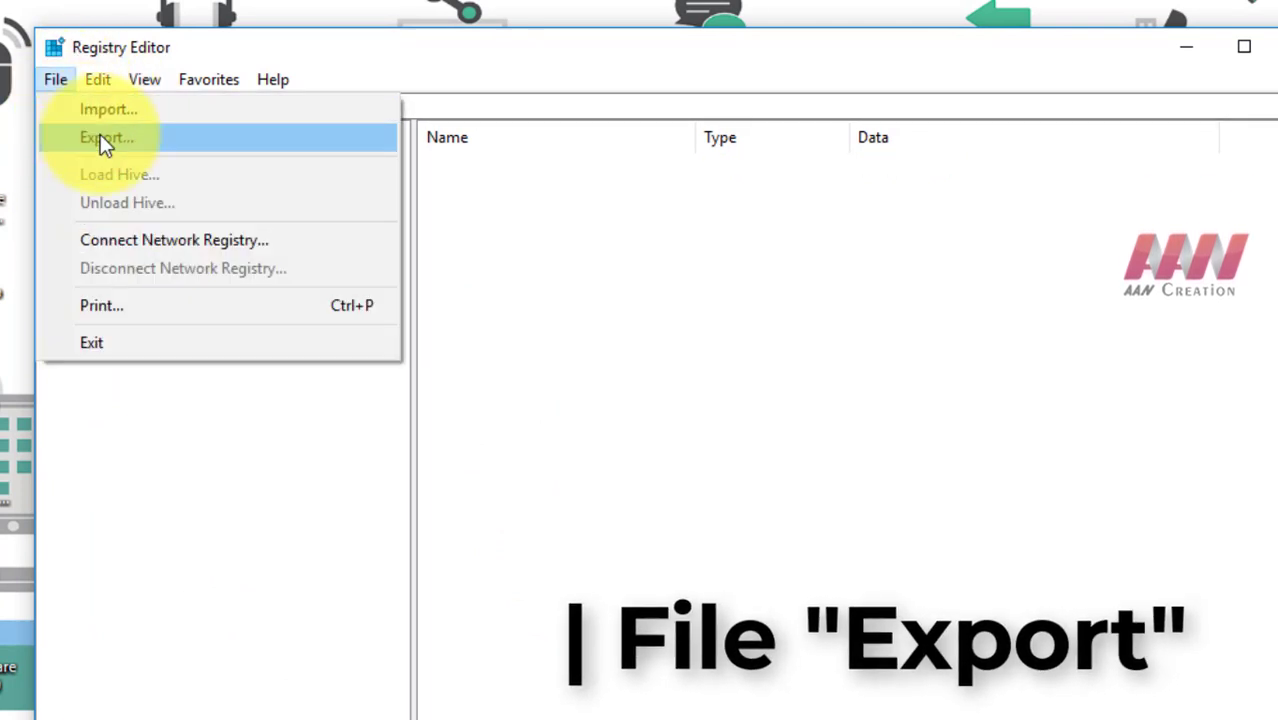
04. In the Export Registry File dialog box, select the location to
which you want to save the backup copy and then type a name for the
backup file in the File name field.
which you want to save the backup copy and then type a name for the
backup file in the File name field.
05. Click Save.
Create a restore point
01. From the Start menu, type creates a restore point.
02. Select Create a restore point from the search results.
03. Choose to Create, and then follow the steps to create a restore
point.
point.
Restore a manual backup
01. Enter regedit.exe into the Start menu.
02. In Registry Editor, click File ➡ Import.
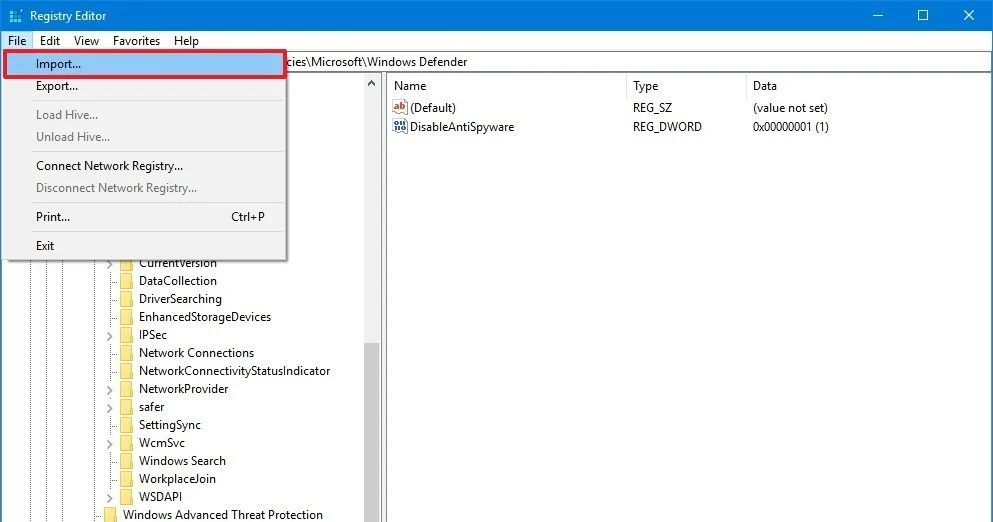
03. In the Import Registry File dialog box, select the location to
which you saved the backup copy, select the backup file, and then click
Open.
which you saved the backup copy, select the backup file, and then click
Open.
Restore from a restore point
01. From Start, type create a restore point.
02. Select Create a restore point from the search results.
03. Choose System Restore.

