

Windows 10 gives you more control over which apps can access your documents, pictures, videos, and OneDrive files stored on your device. With the release of version 1803 (Redstone 4), Microsoft introduced a new feature allowing users to manage file system access for apps globally or on an app-by-app basis to protect privacy.
If you want to block apps from accessing your files, you can easily do so through the Privacy settings in Windows 10.
Steps to Block Apps from Accessing Your File System:
Step 01:
Open Settings by clicking the Start menu and selecting the gear icon, or simply pressing Windows + I.
Step 02:
Click on Privacy.
Step 03:
Scroll down the left-hand menu and click on File system.
.webp)
Step 04:
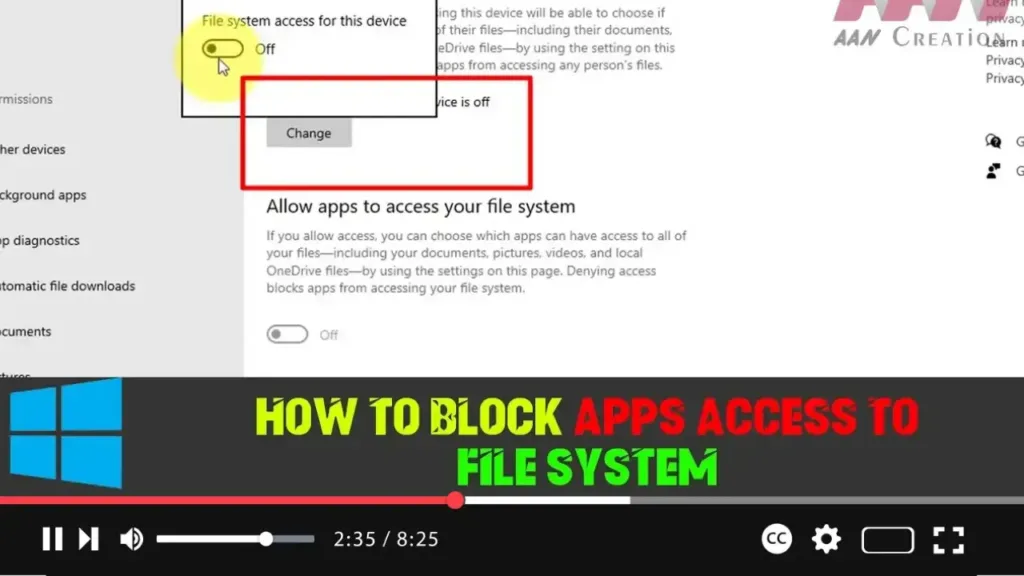
Under File system access for this device, click the Change button.
Step 05:
To block all apps from accessing your file system, turn off the toggle for File system access for this device. This will deny access to all accounts on the device.
Step 06:
If you only want to block file system access for your account, leave the global toggle on, and turn off the toggle for Allow apps to access your file system. This will block access only for your specific user account.
Step 07:
To manage file system access on an app-by-app basis, scroll down to Choose which apps can access your file system. Here, you can individually toggle access for specific apps.
Once you complete these steps, the apps you’ve blocked will no longer have access to your locally stored files, including those in your OneDrive folder. You can always reverse these settings by following the same steps and toggling access back on for specific apps or globally.
.webp)
Additional Details:
-
Why Block Access: Blocking access is crucial if you’re concerned about privacy or security, especially for apps that don’t require access to your personal files.
-
Reverting Changes: If you need to allow file access later for certain apps, you can always re-enable it by turning the relevant toggles back on.
This feature ensures you have better control over your data, allowing you to safeguard your sensitive files from unnecessary app access.

