
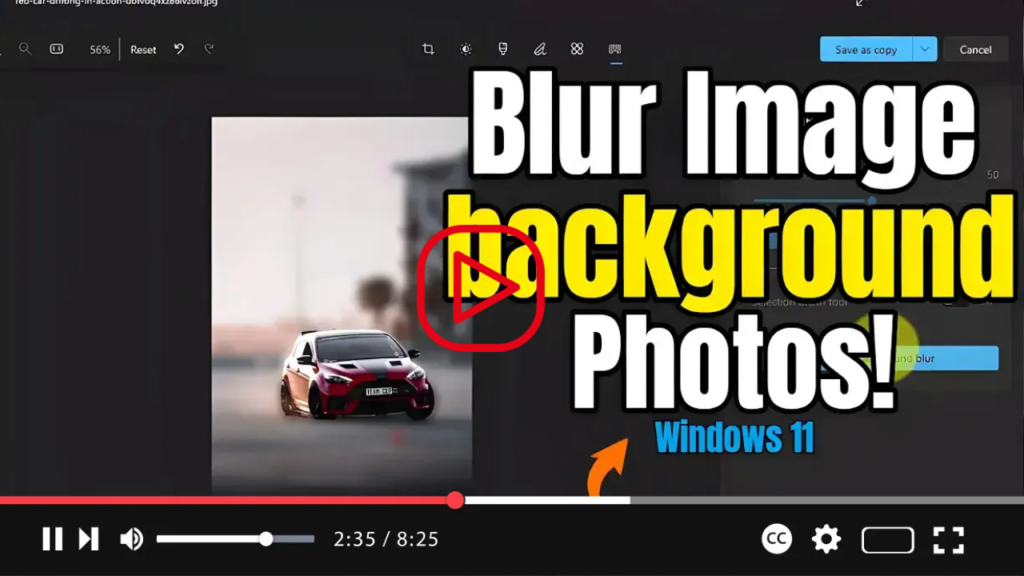

Enhance Your Photos with Background Blur on Windows 11
Exciting news for Windows 11 users! The Photos app has received an update that introduces a brand new feature: background blur for images. This feature allows you to effortlessly make the subject of your photo stand out by applying a beautiful background blur, reminiscent of portrait mode shots taken on your smartphone. In this guide, we’ll walk you through the simple steps to use this feature and elevate your photo editing experience.
.webp)
Here’s how to blur the background of your images using the latest update of the Photos app for Windows 11:
- Open the Photos app on your Windows 11 device.
- Select the image you want to edit, and open it within the app.
- Click on the “Edit image” option (you can also use the shortcut Ctrl + E) to enter the editing mode.
- Locate and click on the “Background blur” tool in the command bar.
- Use the slider provided to control the intensity of the blur effect according to your preferences.
- Additionally, adjust the brush size and softness using the sliders to fine-tune the blur effect.
- Now, use the brush tool to select the area of the image where you want to apply the blur effect. You have full control to modify the blur according to your liking.
- Once you’re satisfied with the adjustments, click on the “Apply” button to apply the background blur effect to your image.
.webp)
And there you have it! With just a few simple steps, you can transform your photos and give them a professional touch with background blur. Whether you’re enhancing portraits, highlighting a subject, or simply adding a creative flair to your images, the background blur feature in the Photos app for Windows 11 offers endless possibilities for photo editing enthusiasts.
.webp)
Try it out today and unlock the potential to create stunning visuals right from your Windows 11 device!

