
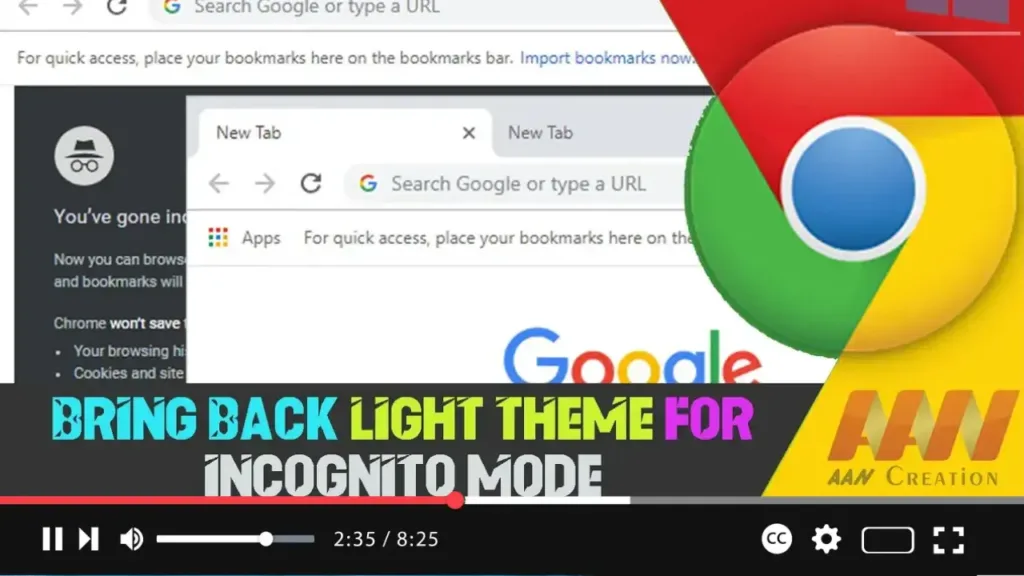

Google Chrome’s Incognito Mode typically uses a dark theme to distinguish it from regular browsing sessions. If you prefer a light theme for Incognito Mode, there are a few workarounds you can use to achieve this. This guide will show you how to bring back a light theme for Incognito Mode in Chrome Browser.
Introduction
Chrome’s dark theme for Incognito Mode is designed to provide a distinct visual difference from regular browsing. However, some users may find it aesthetically unpleasing or harder to read. While Chrome does not offer a built-in setting to change the Incognito Mode theme to light, there are some methods to achieve a similar effect.
Steps to Bring Back Light Theme for Incognito Mode in Chrome Browser
Step 01: Use a Custom Theme
One way to change the appearance of Incognito Mode is to use a custom theme from the Chrome Web Store.
Open Google Chrome and go to the Chrome Web Store by typing chrome.google.com/webstore in the address bar and pressing Enter
Search for “light theme” in the Chrome Web Store
Browse the available themes and select one that applies a light color scheme
Click “Add to Chrome” to apply the theme
Please note that this method will change the theme for both regular and Incognito browsing sessions.
Step 02: Modify Chrome’s Color Settings (Not Official)
If you are comfortable with experimenting, you can try modifying Chrome’s appearance settings using the chrome://flags interface. However, be aware that this method is experimental and might not work as intended.
.webp)
Open Google Chrome and type chrome://flags in the address bar, then press Enter
Use the search bar at the top to search for “Force Dark Mode for Web Contents”
Set this flag to “Disabled” to ensure that websites do not use a forced dark mode in Incognito
Click the “Relaunch” button at the bottom of the page to apply the changes
Step 03: Use an Extension to Override CSS
You can use a Chrome extension to inject custom CSS into pages, forcing a light theme in Incognito Mode.
Open Google Chrome and go to the Chrome Web Store
Search for an extension like “Stylus” which allows you to apply custom CSS to websites
Install the extension by clicking “Add to Chrome” and confirm by clicking “Add extension”
Open the Stylus extension and create a new style
Add CSS rules to force a light theme. For example:
* {
    background-color: #ffffff !important;
    color: #000000 !important;
}
Save and apply the style. Note that this method may affect the appearance of all websites, not just Incognito Mode.
.webp)
Step 04: Switch to an Alternative Browser
If the above methods do not suit your needs, consider using a different browser that offers more customizable theme options for private browsing modes, such as Mozilla Firefox.
Additional Information
Benefits of a Light Theme
Readability: A light theme can improve readability for some users, making text easier to see
Visual Preference: Some users simply prefer the aesthetics of a light theme
Considerations
Uniformity: Changing themes will affect both regular and Incognito sessions
Experimental Features: Using flags and custom CSS may cause unexpected behavior
Conclusion
While Chrome does not natively support changing Incognito Mode to a light theme, there are several workarounds you can try. By using custom themes, modifying experimental settings, or using CSS-injecting extensions, you can create a browsing experience that better suits your preferences. Be cautious with experimental changes and always back up your settings before making modifications.

