
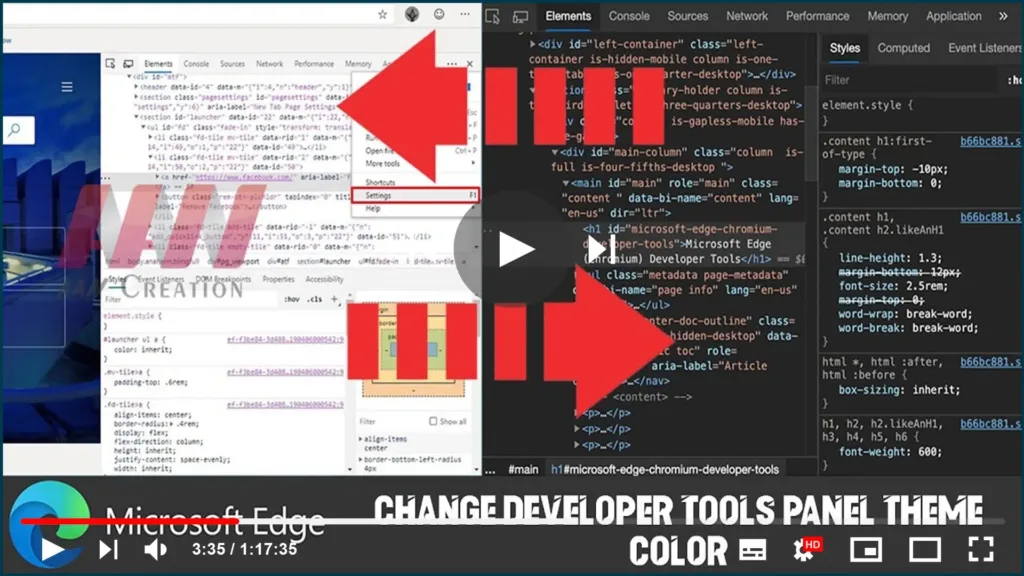

The new Microsoft Edge browser based on Google’s Chromium comes with the DevTools Elements panel to inspect and live-edit HTML and CSS within the browser.
However, it uses the light mode as the default color theme, but if the light isn’t your color, you can change the appearance by switching to the dark mode.
In this video, you’ll learn the steps to switch from the default light to the dark mode for the developer tools panel on the new Chromium version of Microsoft Edge for Windows 10.
To change the color mode for the developer tools on Microsoft Edge, use these steps:
01. Open Microsoft Edge.
02. Right-click on the page and select the Inspect option.
03. Click the menu (three-dotted) button in the top-right.
04. Select the Settings option.

05. Under the “Appearance” section, use the Theme drop-down menu and select the Light (or Dark) option.
%20option.webp)
Once you complete the steps, the developer tools panel will switch from the dark to the light theme color mode.

