
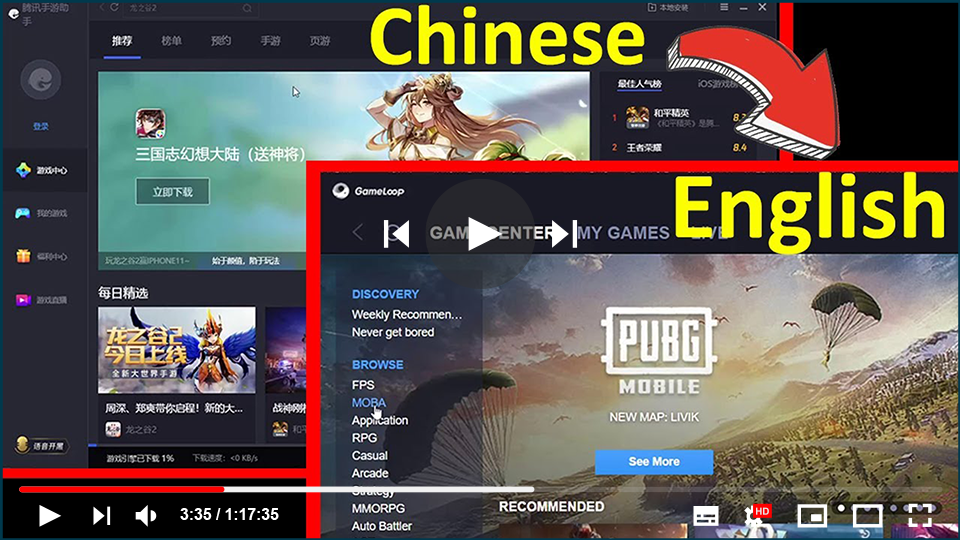

Knowing how to change the language settings in a program or app is always
useful. Recently, several people have reported that after downloading the
Gameloop gaming buddy, they are unable to use it. Even if they downloaded
the English version, the emulator’s language is displayed in
Chinese.
useful. Recently, several people have reported that after downloading the
Gameloop gaming buddy, they are unable to use it. Even if they downloaded
the English version, the emulator’s language is displayed in
Chinese.
This can be quite a headache for some, especially if you do not know the
language, but luckily there is an easy fix. Let’s take a look at how to
change your emulator’s language.
language, but luckily there is an easy fix. Let’s take a look at how to
change your emulator’s language.
How to Change Gameloop Language
01: Open Gameloop/ Tencent Gaming Buddy
Open your Gameloop emulator on your computer. If the language
displayed isn’t your preferred language, do not fret. For this Ex,
we will use an emulator in Chinese & show you how to change it
to English. On the right side of the screen, click the three
straight lines. These lines represent your settings.
displayed isn’t your preferred language, do not fret. For this Ex,
we will use an emulator in Chinese & show you how to change it
to English. On the right side of the screen, click the three
straight lines. These lines represent your settings.

(adsbygoogle = window.adsbygoogle || []).push({});
02: Click on the 7th Option
On the right-hand side of the screen, there is a menu, you will see
8 options available. Even if you can’t understand them, click on the
7th option. This will open a new window that will display your
language settings & other options.
8 options available. Even if you can’t understand them, click on the
7th option. This will open a new window that will display your
language settings & other options.

03: Click on the Drop-Down Menu
A drop-down list will appear at the bottom of the window. To see
all of the languages that are available, click on it.
all of the languages that are available, click on it.

04: Select Your Preferred Language
You can now select your preferred language from the drop-down
menu. We’ll change it to English for the sake of this example.
menu. We’ll change it to English for the sake of this example.
05: Confirm Your Choice
At the bottom of the window, select the ‘OK’ option from the
left-hand menu. By selecting ‘OK,’ your emulator’s language will
be changed.
left-hand menu. By selecting ‘OK,’ your emulator’s language will
be changed.


