
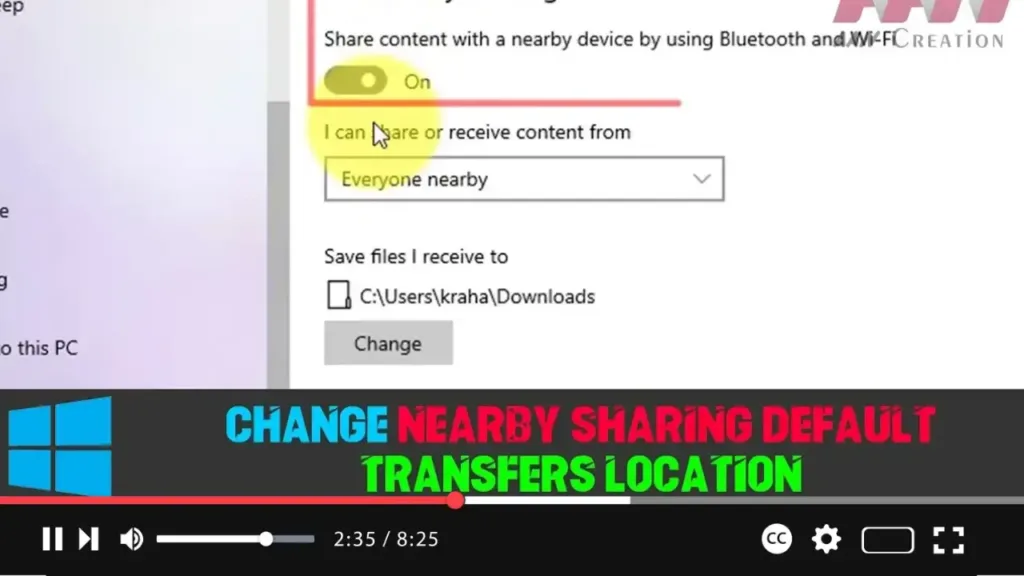

Nearby sharing is a useful feature in Windows 10 that allows you to quickly transfer files and links between devices using Bluetooth or Wi-Fi. By default, files received through Nearby sharing are saved to the Downloads folder. However, if you prefer to organize your files differently or want them stored in a different folder or drive, you can easily change the default save location.
This feature became available in the Windows 10 April 2018 Update (version 1803). Here’s how you can change the default transfer location for files received via Nearby sharing.
Steps to Change the Nearby Sharing Default Save Location:
Step 01:
Open the Settings app. You can do this by clicking on the Start menu and selecting the gear icon, or by pressing Windows key + I on your keyboard.
Step 02:
Navigate to System settings. In the Settings app, look for the System section and click on it.
Step 03:
Select Shared experiences from the left-hand sidebar. This is where you’ll find the settings related to Nearby sharing.
Step 04:
Under the Nearby sharing section, you will see an option to Change the default location for saving files. Click the Change button.
Step 05:
A file explorer window will open, allowing you to select a new folder or drive where you’d like to save the files you receive. Once you’ve selected your preferred location, confirm the change.

Advanced Details:
- Bluetooth and Wi-Fi Usage: Nearby sharing works by using either Bluetooth or Wi-Fi, depending on what’s available. Devices must be on the same local network for file transfer via Wi-Fi. Bluetooth transfers can occur between devices within a certain proximity, typically 30 feet.
- Cross-Device Compatibility: Files can be shared across any Windows 10 devices that have Nearby sharing enabled, as long as both are on version 1803 or later.
- Managing Transfer Speed and Quality: Wi-Fi-based transfers are faster than Bluetooth, especially for larger files. So, if you’re looking for quicker transfers, ensure both devices are connected to the same Wi-Fi network.
Benefits of Changing the Default Location:
- Organization: You can better organize your files by setting the default location to a folder dedicated to received transfers, rather than cluttering your Downloads folder.
- Space Management: If you have limited space on your main drive (C:), you can redirect received files to another drive with more storage.
- Custom Path: This flexibility allows you to select any custom path, whether it’s a folder on an external drive, a networked folder, or any specific folder structure that suits your needs.
Once you complete these steps, all future files received through Nearby sharing will be saved to the new location. This gives you greater control over file organization, ensuring a more efficient workflow when using the Nearby sharing feature.

