
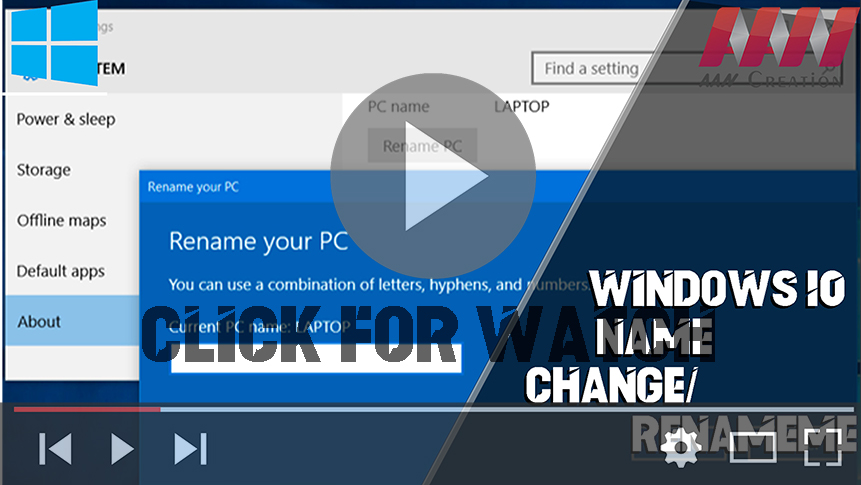

Renaming your Windows 10 PC can help personalize your system or make it easier to manage multiple devices. Here are two ways to do it using either the new Settings option or the traditional method.
Method 01: Via Windows 10 Settings
Step 01: Open Settings by clicking the Start Menu and selecting the gear icon.
Step 02: Click on System.
Step 03: Scroll down and click on About.
Step 04: Click the Rename this PC option.
Step 05: Type the new name you want for your computer.
Step 06: Click Next and restart your computer to apply the changes.

Method 02: Traditional Method (System Properties)
You can also rename your PC via the Control Panel by navigating to System Properties and using the Computer Name tab to change the name.
Both methods are straightforward and will update your PC’s name after a quick restart.
(adsbygoogle = window.adsbygoogle || []).push({});

