


While some may find Windows 10’s look and feel appealing, many of us
are overwhelmed by the dramatic change from Windows 7. If you’re having
trouble getting used to Windows 10, you’re not alone.
The good news is that Windows 10 is highly customizable, so you can
design it to look almost identical to Windows 7. With a few changes to
elements such as the wallpaper, color scheme, and default browser, you’ll
be back to the look and feel of Windows 7 in no time.
design it to look almost identical to Windows 7. With a few changes to
elements such as the wallpaper, color scheme, and default browser, you’ll
be back to the look and feel of Windows 7 in no time.
Change the Start Menu
01.
Classic Shell was once a free download
that allowed you to customize key menu elements to look more like
Windows 7.
Classic Shell was once a free download
that allowed you to customize key menu elements to look more like
Windows 7.
02. Select the Windows 7 Style from the Start Menu Style tab, as
shown above.
shown above.
(adsbygoogle = window.adsbygoogle || []).push({});

03. Then, go here to get the Windows 7 Start Menu orb (these are
image files, so you can pick them up from many different places if
you prefer). Once the image has been downloaded, select Custom
near the bottom of the Start Menu Style tab and then the
downloaded image. You may need to adjust the button size — we used
60 because the default setting was too big for our desktop
resolution.
image files, so you can pick them up from many different places if
you prefer). Once the image has been downloaded, select Custom
near the bottom of the Start Menu Style tab and then the
downloaded image. You may need to adjust the button size — we used
60 because the default setting was too big for our desktop
resolution.
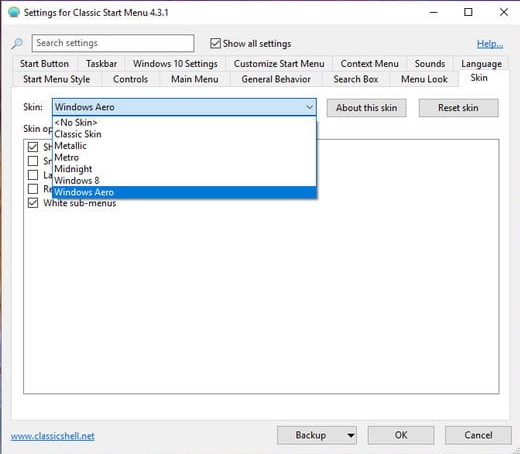
04. On the Skin tab, choose Windows Aero.
05. Hit OK and you’re done.

