
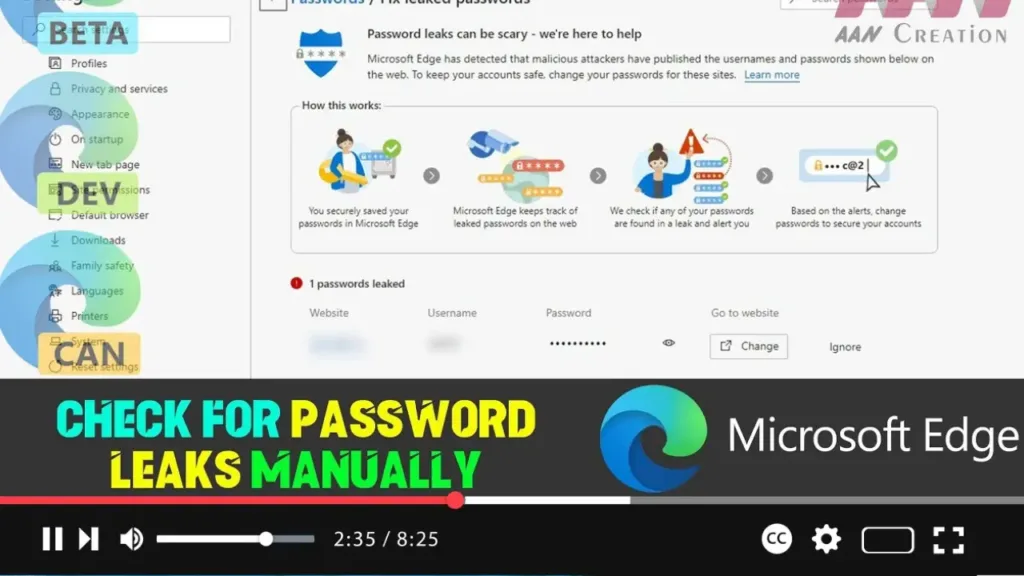

Microsoft Edge includes a built-in feature that helps you check if any of your saved passwords have been compromised in a data breach. By manually checking for password leaks, you can ensure your accounts remain secure. This guide will show you how to perform this check.
Introduction
Regularly checking your passwords for leaks is crucial for maintaining the security of your online accounts. Microsoft Edge provides a built-in tool that helps you identify compromised passwords and take necessary action to secure your accounts.
Steps to Check for Password Leaks Manually on Microsoft Edge
Step 01: Open Microsoft Edge and Access Settings
Open Microsoft Edge on your computer. Click on the three horizontal dots (menu icon) located at the top-right corner of the browser window. From the dropdown menu, select “Settings.”
Step 02: Navigate to Password Settings
In the Settings menu, click on “Profiles” from the left sidebar. Under Profiles, select “Passwords.”
.webp)
Step 03: Use the Password Monitor Feature
In the Passwords settings, locate the “Password Monitor” section. Here, you will see an option to check if your passwords have been compromised.
Step 04: Initiate the Password Check
Click on the option to “Check passwords.” Microsoft Edge will start scanning your saved passwords against a database of known data breaches.
Step 05: Review the Results
After the scan is complete, Edge will display a list of any compromised passwords. If any of your passwords have been found in a data breach, Edge will recommend that you change those passwords immediately.
.webp)
Additional Information
Ensure you have Password Monitor enabled. In the Passwords settings, make sure the “Show alerts when passwords are found in an online leak” option is toggled on. Change any compromised passwords immediately. Use strong, unique passwords for each account, and consider using a password manager to keep track of them. Enable two-factor authentication (2FA) on your accounts whenever possible for added security.
Troubleshooting
If the Password Monitor feature is not available, ensure you are using the latest version of Microsoft Edge. Update the browser if necessary. If you prefer to check passwords manually, you can use online services like Have I Been Pwned. Enter your email addresses or passwords to see if they have been part of a data breach.
By following these steps, you can manually check for password leaks on Microsoft Edge, helping to keep your online accounts secure and protected from unauthorized access.

