

Computers generally use one of two types of graphics processing units (GPUs): integrated or discrete. Understanding which GPU your system uses is essential for knowing how well it can handle graphics-intensive tasks, such as gaming or video editing.
-
Discrete GPU: A dedicated graphics card separate from the main processor, designed specifically for handling graphics processing. These GPUs are more powerful and typically come with their own video memory (VRAM), which makes them ideal for demanding tasks.
-
Integrated GPU: Built into the main processor or motherboard, an integrated GPU shares the system’s memory (RAM) for its tasks. It’s more energy-efficient but not as powerful as a discrete GPU, typically found in systems designed for lighter workloads like office tasks or basic multimedia.
Knowing which type of GPU you have is important for evaluating system performance and deciding if an upgrade is necessary for better graphics performance.
Steps to Check if You’re Using a Discrete or Integrated GPU on Windows 10
Step 01: Open Device Manager.
Search for Device Manager in the Start menu and click on the result. Alternatively, you can right-click the Start button and select Device Manager from the context menu.
Step 02: Expand Display Adapters.
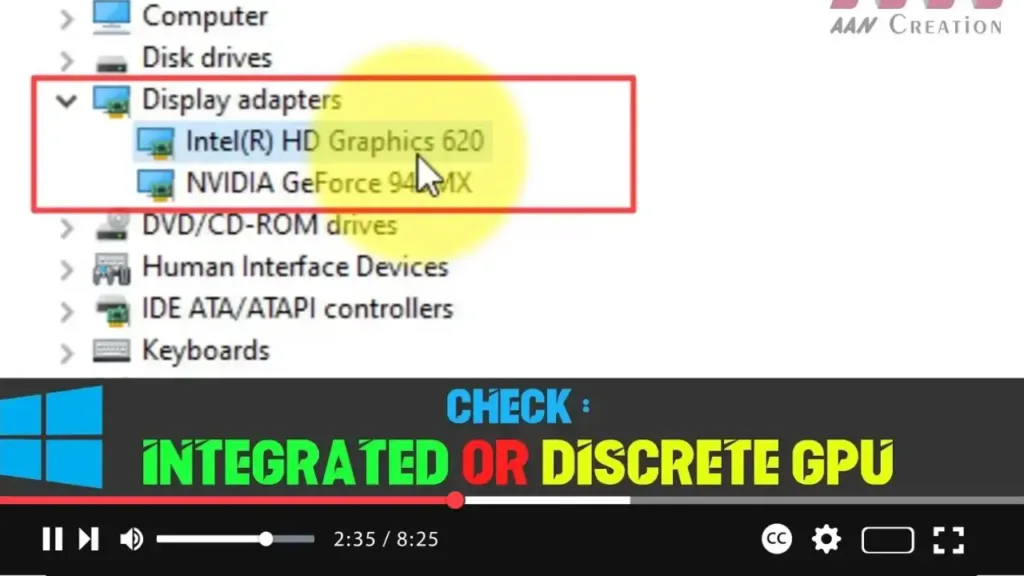
In the Device Manager window, expand the Display adapters section. This will list all the graphics processors installed on your device.

-
If you see two or more graphics processors listed, then your system has both an integrated and a discrete GPU. For example, you might see Intel HD Graphics as the integrated GPU and another entry like NVIDIA GeForce or AMD Radeon, which indicates the presence of a discrete GPU.
-
If you only see one listing, such as Intel HD Graphics, it means your system only has an integrated GPU.
Why Does This Matter?
Knowing whether you’re using an integrated or discrete GPU helps you assess your system’s capabilities. For example, a discrete GPU is better suited for gaming or video editing, while an integrated GPU is more energy-efficient but less powerful. If your system is struggling with performance issues, especially in graphics-heavy applications, it may be time to upgrade to a more powerful discrete GPU.
Understanding your GPU can also help you optimize the settings for specific tasks and plan for future upgrades if necessary.

