
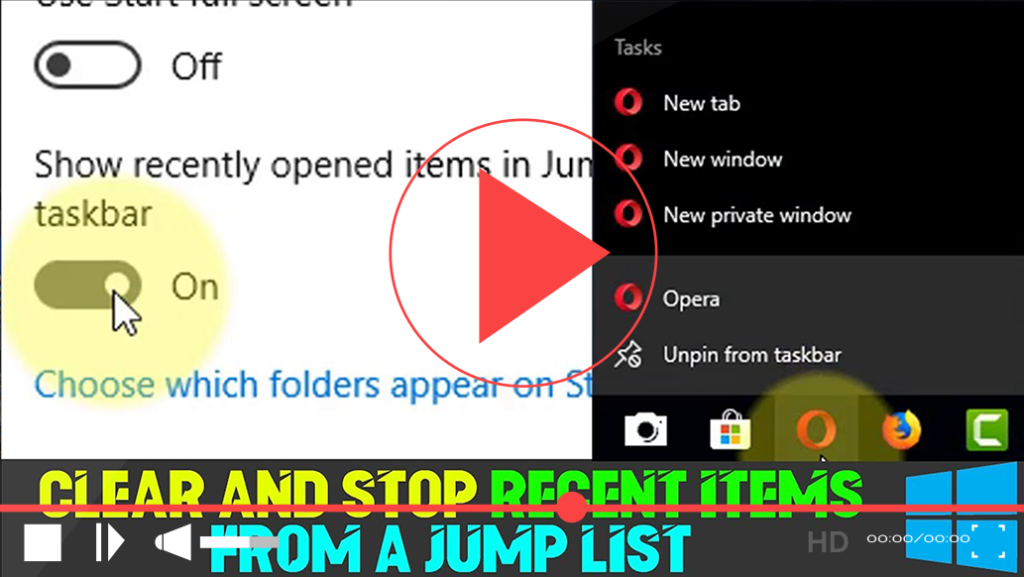

The Jump List feature in Windows 10 enhances productivity by providing quick access to recent documents, frequent folders, and specific actions associated with applications directly from the taskbar, Start menu, and Quick Access in File Explorer. While this feature can significantly streamline your workflow, it may also raise privacy concerns. Recent activities and frequently accessed locations can be exposed to anyone who has access to your account, especially when they right-click an application icon.
Fortunately, Windows 10 offers multiple methods to disable the display of recent items and frequent places in Jump Lists, allowing you to maintain your privacy while still enjoying the functionality of the operating system. Below are detailed steps on how to achieve this through the Settings app, Group Policy, and Registry Editor.
How to Disable Recent Jump List Items Using Settings
To prevent recent documents and locations from appearing in Jump Lists, follow these steps:
Step 01: Open Settings
Click on the Start button, and then select the Settings icon, which looks like a gear.
Step 02: Navigate to Personalization
In the Settings window, click on Personalization to access various customization options.
Step 03: Select Start
On the left sidebar, select Start to view Start menu settings.
Step 04: Turn Off Recent Items
Locate the option labeled Show recently opened items in Jump Lists on Start or the taskbar and in File Explorer Quick Access. Toggle this switch to the Off position.
Once you complete these steps, the Jump Lists in Windows 10 will no longer display recent documents, folder locations, or links for applications.

Additional Methods to Disable Recent Jump Lists
If you wish to disable Jump Lists at a more advanced level, consider the following methods:
Using Group Policy Editor
For users on Windows 10 Pro, Enterprise, or Education editions, you can also use the Group Policy Editor to disable Jump Lists.
Step 01: Open the Group Policy Editor
Press Windows + R to open the Run dialog box. Type gpedit.msc and hit Enter.
Step 02: Navigate to User Configuration
In the Group Policy Editor, expand User Configuration, then Administrative Templates, followed by Start Menu and Taskbar.
Step 03: Locate and Edit the Jump List Setting
Find the setting titled Do not keep a record of recent programs. Double-click on this setting and select Enabled to disable Jump Lists.
Step 04: Apply the Changes
Click Apply, then OK to confirm the changes.
Using Registry Editor
If you’re comfortable editing the Windows Registry, this method can also effectively disable Jump Lists.
Step 01: Open the Registry Editor
Press Windows + R, type regedit, and press Enter.
Step 02: Navigate to the Appropriate Registry Key
Browse to the following path:
HKEY_CURRENT_USERSoftwareMicrosoftWindowsCurrentVersionExplorerAdvanced
Step 03: Modify the Registry Value
Locate the Start_TrackProgs value. If it doesn’t exist, you can create it by right-clicking on the right pane, selecting New, and then DWORD (32-bit) Value. Name it Start_TrackProgs. Set its value to 0 to disable Jump Lists.
Step 04: Restart Your Computer
For the changes to take effect, restart your computer or log off and back on.
Conclusion
By disabling recent Jump List items in Windows 10, you can enhance your privacy without sacrificing functionality. Whether you prefer using the Settings app, Group Policy Editor, or Registry Editor, each method provides a reliable way to manage your user experience in Windows.
With these steps, you can customize your system to better suit your needs, ensuring that sensitive information remains private while still benefiting from the convenience of Jump Lists.

