

VLC Media Player is more than just a great tool for playing videos; it can also convert videos between different formats. The player allows you to convert between a variety of supported video files. It works great for most formats and codecs, but there are a few issues, and the conversion feature isn’t the best, but it’s adequate for the majority of us. We can easily switch between video types by using it. As an example: Convert an AVI file to an MP4 file.
You no longer need to look for.avi to.mp4,.flv to.mp4,.wmv to.avi,.ogg to.mp4 converters. You should also avoid paying for video converters or using ones that include watermarks. VLC, as we all know, is completely free with no restrictions. It works well with most video and audio files. It can also download video or audio streams, as we’ve seen before.
How to Convert Media Files with VLC
To start converting, open VLC and click Media ➡️ Convert/Save.
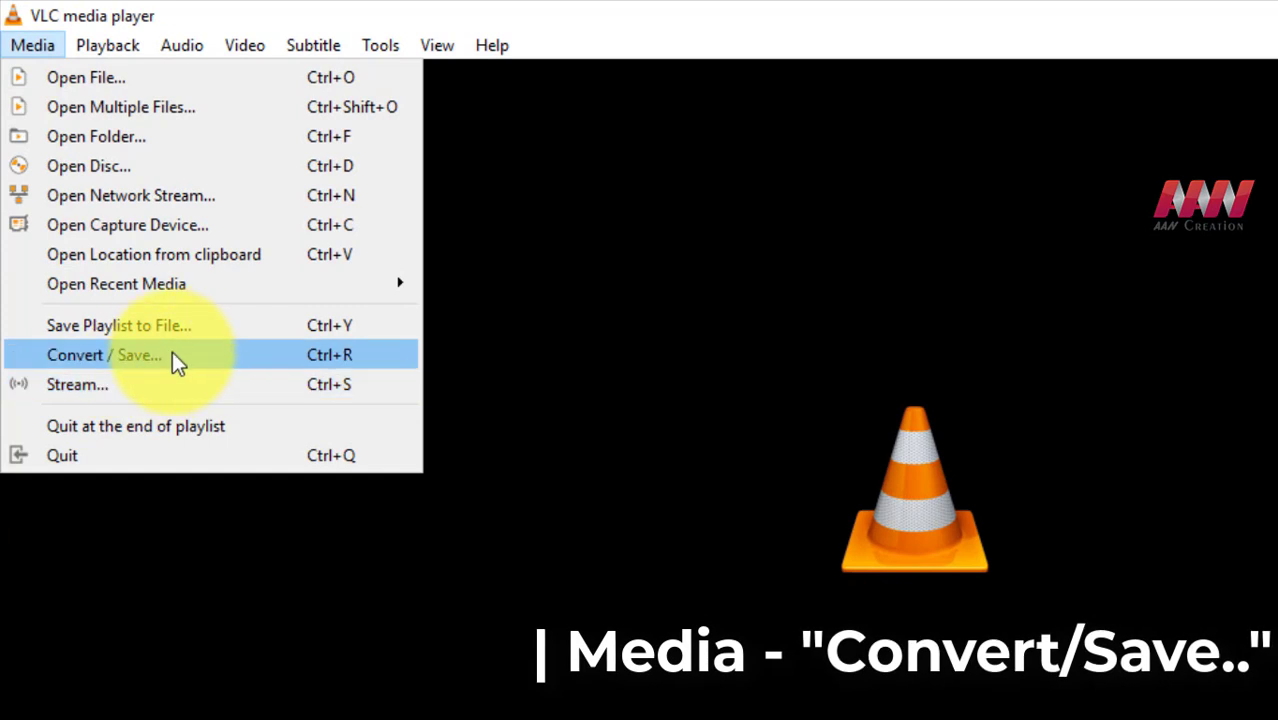
01. On the File tab, click “Add” to the right of the File Selection list. Open the video or audio file to be converted.
02. Click “Convert/Save” to continue.

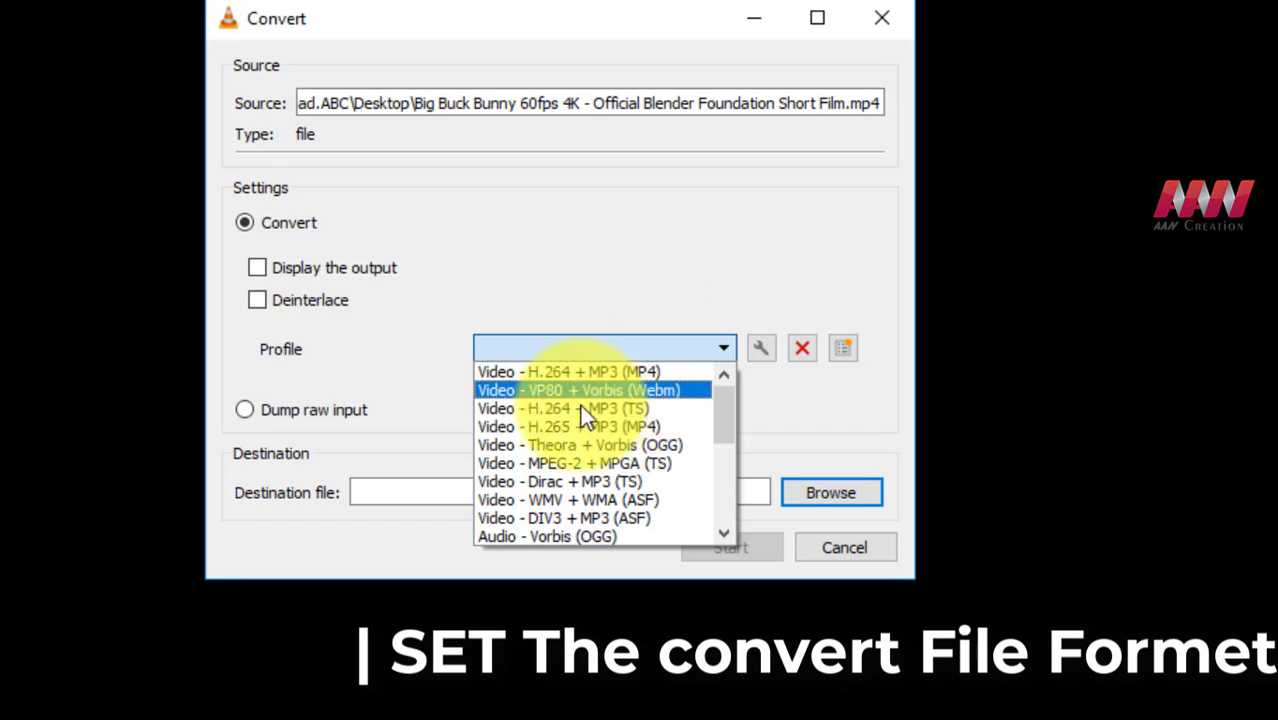
03. Choose the video or audio codec and container to which you want to convert under Convert. Choose “Video – H.264 + MP3 (MP4)” to transcode a video to a reasonably standard MP4 format, for example. Select “Audio – MP3” to convert an audio file to an MP3 that should work almost anywhere.
04. For more options, click the wrench icon (the “Edit Selected Profile” button) to the right of the Profile list.
05. Select a location and filename for the output file by clicking “Browse.”
06. When you’re done, click “Start” to perform the conversion.
07. VLC’s progress bar gradually fills up as the conversion process is completed.

