
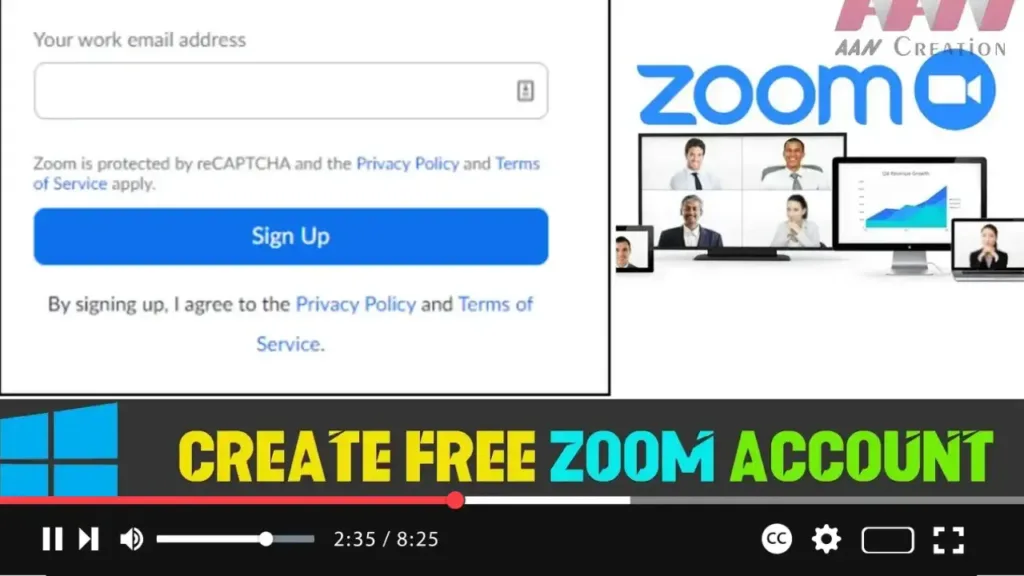

Zoom is a widely used video conferencing platform, offering both business and personal use options. It works across platforms such as Windows 10, macOS, iOS, Android, and the web, making it accessible to a wide audience. For personal use, the free tier allows unlimited one-on-one video calls, but group calls are limited to 40 minutes. Creating a free Zoom account is a simple process that doesn’t require any payment information.
Here’s a step-by-step guide on how to create a free Zoom account:
Step-by-Step Guide to Create a Free Zoom Account
Step 01: Visit Zoom’s Official Website
- Open your browser and go to the Zoom website.
Step 02: Verify Your Age
- You may be asked to complete an age verification process. Enter your details and click Continue.
.webp)
Step 03: Enter Your Email or Use Social Sign-In
- You will be prompted to enter the email address you want to use for the account.
- Alternatively, you can create an account using your Google or Facebook credentials by clicking Sign in with Google or Sign in with Facebook.
Step 04: Click the “Sign Up” Button
- After entering your email, click the Sign Up button.
Step 05: Check Your Email for Confirmation
- Zoom will send you a confirmation email. Go to your email inbox and look for the Zoom verification message.
Step 06: Activate Your Account
- In the confirmation email, click the Activate Account button.
.webp)
Step 07: School Sign-Up Question
- You may be asked, “Are you signing up on behalf of a school?” Select No if this doesn’t apply to you, then click Continue.
Step 08: Complete the Required Information
- Fill in the remaining information needed to create your account, such as your name and password, then click Continue.
Step 09: Skip Inviting Contacts (Optional)
- You can choose to invite others to Zoom right away or click the Skip this step button. You can invite people later if needed.
.webp)
Finalizing Your Zoom Account
Once you’ve completed the steps, your Zoom account will be set up, and you can begin using the platform for one-on-one or group video calls. You can download the Zoom app for your device if you haven’t already, or simply use the web version to get started.
Additional Details:
- Free Plan Limits: The free plan allows unlimited one-on-one meetings, but group meetings are capped at 40 minutes.
- No Payment Needed: The free account does not require payment information, and you can upgrade to a paid plan at any time if needed.

