

01. Open Microsoft Edge.
02. Click the Settings and More (three-dotted) button on the top-right corner.
03. Select the Settings option.
04. Click on Profiles.
05. Click the Add profile button on the top-right.

06. New Profile – Click the Settings and More (three-dotted) button on the top-right corner.
07. New Profile – Select the Settings option.
08. New Profile – Click the (three-dotted) button on the top-right corner. Near the Sign-in button.
09. Click the Edit option.
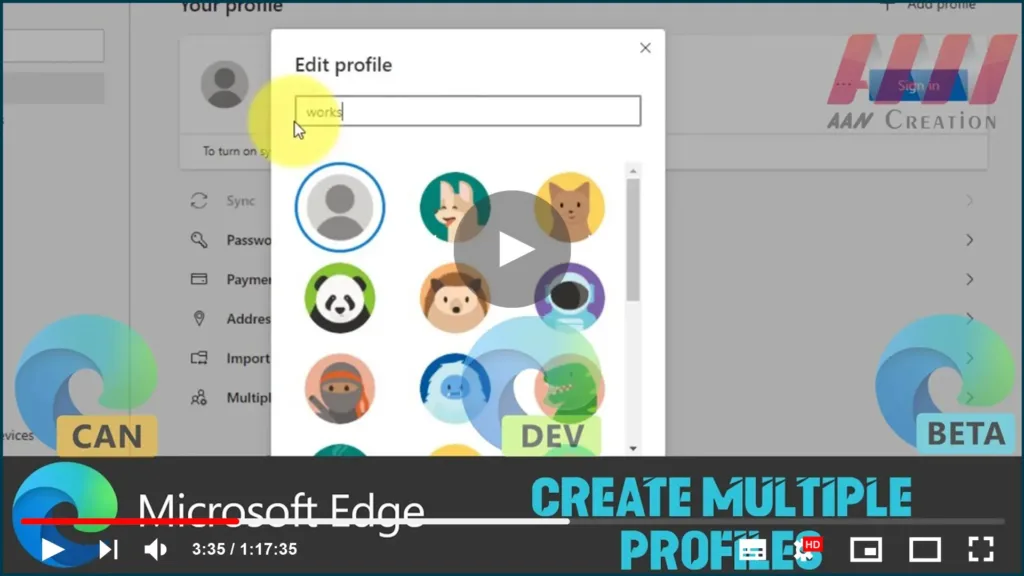
10. Select a name for the profile. For example, if you’re creating a profile to keep your things separate, you can use a name like “Works”.

11. Select an image to identify the profile.
12. Click the Update button.
Once you complete the steps, the new profile will open as an entirely different process, which can include its own settings, bookmarks, history, passwords, and cookies.
You can always repeat the instructions outlined above to create additional profiles.
While we’re focusing this guide on Windows 10, you can also use these steps to create additional Microsoft Edge profiles for Windows 8.1, Windows 7, and macOS.

