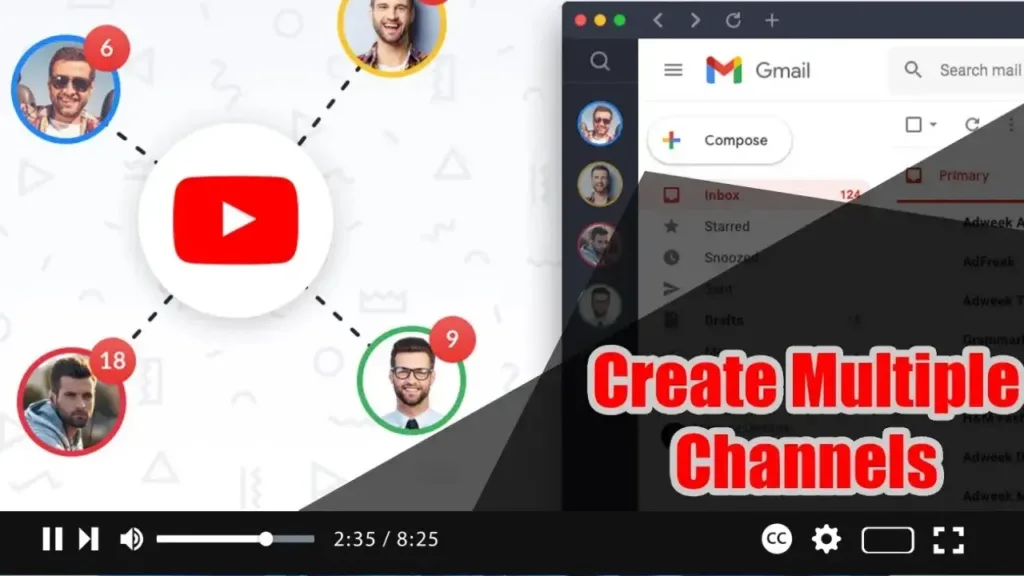

Creating a second channel is a great way to keep your content organized. Whether you’re looking to expand into another niche or simply explore a new corner of YouTube, making a second channel is pretty easy with these tips.
Step 01: Sign in to YouTube
Make sure you’re signed into YouTube (or Google). You need to be logged into your account to create a new channel.
Step 02: Click the Profile Icon
Click on your profile icon located in the top-right corner of the YouTube homepage. This will open a drop-down menu with various options related to your account.
.webp)
Step 03: Open Settings
Press the “Settings” option from the drop-down menu. This will take you to the settings page where you can manage your account.
Step 04: Add or Manage Channels
Click on “Add or manage your channel(s)” under the “Your channel” section. This option allows you to create and manage multiple YouTube channels under the same Google account.
Step 05: Create a New Channel
Click the “Create a new channel” button. This will start the process of setting up your second channel.
Step 06: Name Your New Channel
Enter the name of your new channel. Choose a name that reflects the content or niche you plan to explore with this channel.
.webp)
Step 07: Click “Create”
Click the “Create” button to finalize the creation of your new channel. YouTube will set up your new channel, and you can start customizing it.
YouTube lets you customize each channel with its own branding. Visit the channel settings to change profile avatars, banners, and other branding elements to match the theme and style of your new channel.
Uploading and Managing Content
If you already have videos ready for your second account, you can upload and publish them directly to the second channel. To manage and switch between your channels, use the YouTube channel switcher:
.webp)
- Switch Between Channels: Click on your profile icon and select the desired channel from the list to switch between your different YouTube channels easily.
By following these steps, you can efficiently manage multiple YouTube channels, keeping your content organized and catering to different audiences or niches.