

Windows we can use the feature to Create or remove the hard drive partition or
volume too. The user can Create or Remove drive partition by using the
built-in Disk Management Tool. It isn’t a well-known feature among users.
The user can create a new drive or volume to place their important data or
information separately. The user can also use the newly-created drive or
volume to keep backup system files and to use multiple operating systems. The
user has confidential data or information, then he can hide the volume or
drive which I have described in my previous article on the topic, “How To Hide
Or Unhide Any Drive In Windows 10”.
If the user has no unallocated or free space for creating a new volume or
drive, then the user can shrink the existing drives or volumes by using the
in-built shrinking feature through Disk Management.
This tutorial will show you various methods on how to add or delete the hard
drive partition or volume in Windows 10.
Add The Hard Drive Partition Or Volume
01. Start menu, Open the Run dialog box (press the “Window + R” key) to open
the RUN window.
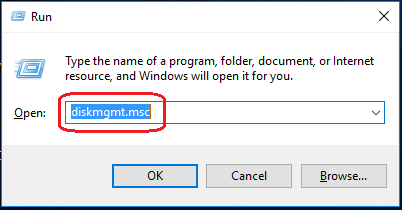 02. Type “diskmgmt.msc” & press the enter to open “Disk Management”.
Alternatively, you can open directly the Disk Management by pressing the
“Windows + X” key and click on Disk Management.
03. Right-click on the Unallocated Space and click on “New Simple Volume” to
add a new hard drive partition or volume.
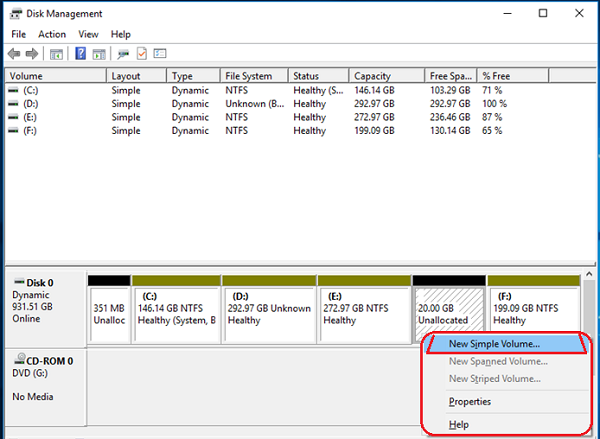
Note: If you do not have an Unallocated Space, then you can simply create an
unallocated or free space by shrinking any existing hard drive.
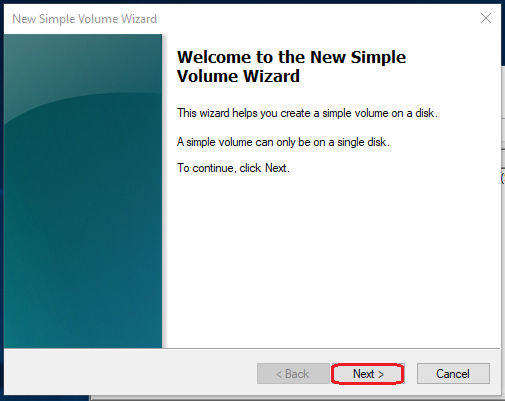
04. “New Simple Volume Wizard” window will appear on the screen and click on
the Next button.
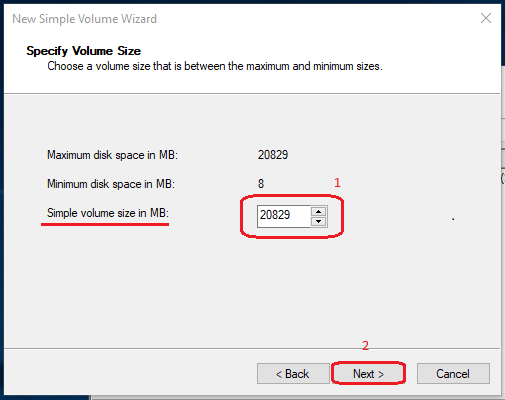 05. Enter the “Simple volume size” that is between the maximum and
minimum sizes and then click on the Next button.
06. Now, assign the drive letter to the newly created hard drive and click on
the Next button.
07. Select the settings you want and choose whether you want to format this
volume by checkmarking the “Perform a quick format” option and click on the
Next button.
08. Click on the Finish to complete the “New Simple Volume Wizard”.
09. Navigate the “This PC” and you can see the newly created drive or
volume.
Delete Hard Drive Partition or Volume
Method 01: Using the built-in Disk Management Tool.
01. Start menu, Open the Run dialog box (press the “Window + R” key) to open
the RUN window.
02. Type “diskmgmt.msc” & press enter.
Alternatively, you can open directly the Disk Management by pressing the
“Windows + X” key and click on Disk Management.
03. Right-click on the drive or volume which you want to delete, and select
the “Delete Volume” option.
04. For removal of the hard drive volume you want, click on the “Yes” button
to confirm.
Method 2 – Using Command Prompt Cmd;
01. Start menu, Open the Run dialog box (press the “Window + R” key) to
open the RUN window.
02. Type “diskpart” and press the enter key.
03. Type “list volume” & press the enter.
04. Type “Select volume” & press the enter.
For example, select volume 0
05. Type “delete volume” & press the enter.
Once you complete the steps, you can create or remove the hard drive partition
or volume in Windows 10.

