
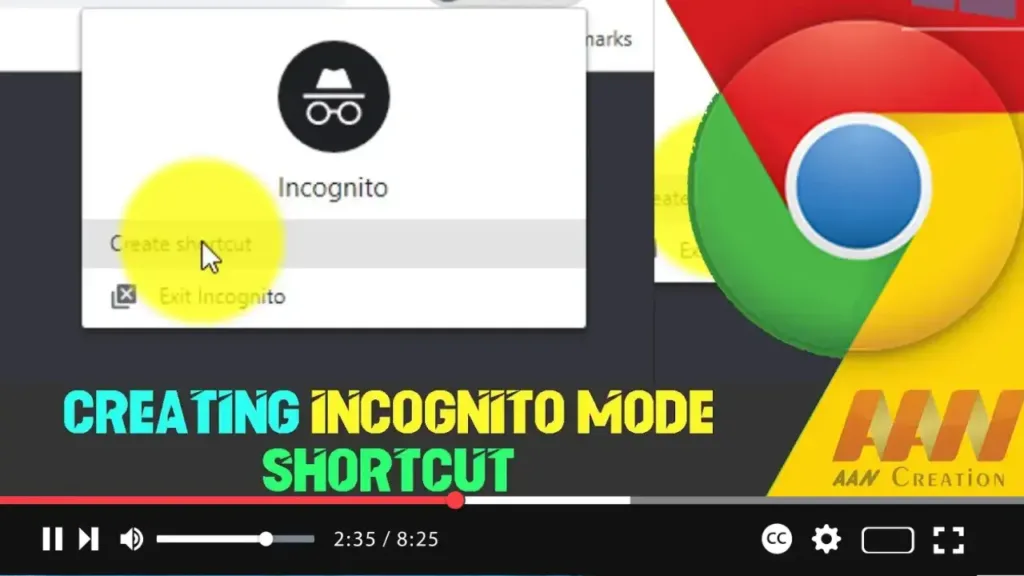

Creating a shortcut for Incognito Mode in Google Chrome allows you to quickly launch a private browsing session with a single click. This can be especially useful if you frequently use Incognito Mode for private browsing or testing. Here’s how to create an Incognito Mode shortcut on your desktop.
Introduction
Incognito Mode in Google Chrome provides a private browsing experience where your browsing history, cookies, and site data are not saved. This guide will walk you through the steps to create a dedicated desktop shortcut that opens Chrome directly in Incognito Mode.
Steps to Create an Incognito Mode Shortcut on Windows
Step 01: Create a Chrome Shortcut
- Locate Chrome: Find the Google Chrome shortcut on your desktop. If you don’t have one, you can create it by navigating to the installation directory (usually
C:Program Files (x86)GoogleChromeApplication) and right-clickingchrome.exe, then selecting “Send to > Desktop (create shortcut).” - Copy the Shortcut: Right-click the Chrome shortcut on your desktop and select “Copy.”
- Paste the Shortcut: Right-click on an empty space on your desktop and select “Paste” to create a copy of the shortcut.
Step 02: Modify the Shortcut to Open in Incognito Mode
- Right-click the Shortcut: Right-click the new Chrome shortcut and select “Properties.”
- Edit the Target Field: In the “Target” field, you will see the path to
chrome.exe. At the end of this path, add a space followed by--incognito. For example, the Target field should look like this:"C:Program Files (x86)GoogleChromeApplicationchrome.exe" --incognito - Apply the Changes: Click “Apply,” then “OK” to save the changes.
.webp)
Step 03: Rename the Shortcut (Optional)
- Right-click the Shortcut: Right-click the modified shortcut and select “Rename.”
- Enter a New Name: Type a new name for the shortcut, such as “Chrome Incognito” or “Private Browsing,” and press Enter.
Steps to Create an Incognito Mode Shortcut on macOS
Step 01: Open Automator
- Launch Automator: Open Automator from the Applications folder or by searching for it using Spotlight.
Step 02: Create a New Application
- Select Application: In Automator, choose “New Document,” then select “Application” and click “Choose.”
Step 03: Set Up the Shortcut
- Run Shell Script: In the left-hand pane, search for “Run Shell Script” and drag it to the workflow area.
- Enter the Script: In the text area, enter the following script:
open -a "Google Chrome" --args --incognito - Save the Application: Go to “File” > “Save,” and name your application something like “Chrome Incognito.” Choose a location, such as the desktop, and click “Save.”
Using the Incognito Mode Shortcut
.webp)
Launch the Shortcut
- Windows: Double-click the Incognito Mode shortcut on your desktop to open Chrome directly in Incognito Mode.
- macOS: Double-click the Automator application you created to launch Chrome in Incognito Mode.
Additional Information
Benefits of Incognito Mode: Incognito Mode does not save your browsing history, cookies, site data, or information entered in forms. It is useful for private browsing sessions and testing how websites behave without stored cookies or cache.
Multiple Shortcuts: You can create multiple shortcuts for different purposes. For instance, you might have one shortcut for regular browsing and another for Incognito Mode.
Custom Icons: To make your Incognito Mode shortcut stand out, you can change its icon. Right-click the shortcut, select “Properties” (Windows) or “Get Info” (macOS), and choose “Change Icon” (Windows) or drag a new icon file onto the existing icon (macOS).
By following these steps, you can easily create a dedicated shortcut for Incognito Mode in Google Chrome, making it more convenient to launch private browsing sessions with just one click.

