
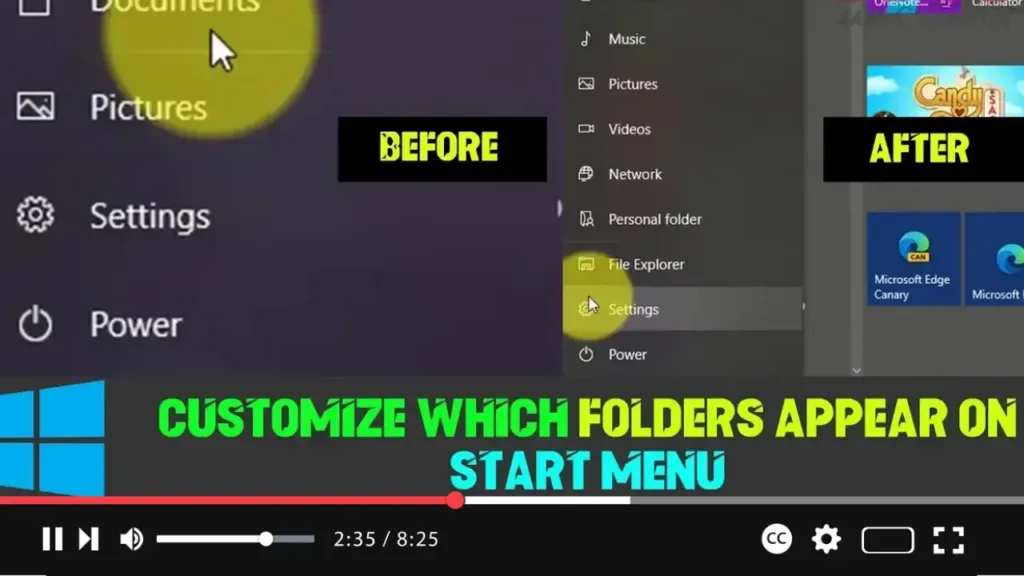

Windows 10 brings a revamped Start menu that combines Live Tiles, a complete list of apps, and a left panel that provides quick access to essential features such as the user profile, power options, and the Settings app. Although the left panel comes with default options, you’re not limited to these. You can customize which system folders are shown for quicker access to essential directories like Documents, Downloads, Network, and more.
Here’s how you can personalize the Start menu by choosing which folders appear on the left rail.
Step-by-Step Guide
Step 01: Open the Settings app by clicking the Windows icon on the taskbar and selecting the gear icon, or press Windows + I on your keyboard.
Step 02: Once in Settings, click on Personalization. This section allows you to modify various appearance aspects of Windows 10, including the Start menu.
.webp)
Step 03: On the left-hand panel, select Start. This opens the configuration page for all the Start menu settings.
Step 04: Scroll down and click on the link that says Choose which folders appear on Start. This option allows you to toggle the visibility of specific folders.
Step 05: On the next screen, you’ll see a list of system folders with toggles next to them. Turn on or off the switch for any folder you want to add or remove from the Start menu. Available folders include:
- Documents
- Downloads
- File Explorer
- Music
- Pictures
- Videos
- Network
- Settings
- Personal Folder
Once you’ve selected the folders, you can quickly access them from the left rail of the Start menu.
.webp)
Verifying Your Changes
After completing these steps, open the Start menu by clicking the Windows icon in the bottom-left corner of the screen or pressing the Windows key on your keyboard. You’ll see the folders you’ve enabled in the left rail for easy access. If you click the hamburger menu (three horizontal lines) at the top-left corner of the Start menu, the folder names will be displayed alongside their icons.
Why Customize Start Menu Folders?
Customizing the Start menu folders can streamline your workflow by giving you faster access to the directories you use the most. Instead of navigating through File Explorer, you can reach commonly used folders with just one click, saving you time and effort.
Conclusion
Personalizing the Start menu in Windows 10 is a simple but effective way to optimize your experience. By customizing which folders appear on the Start menu, you can ensure that your most important directories are always just a click away. Whether you want quicker access to your Downloads, Documents, or even the Network, the Start menu customization options make it easier to navigate your system efficiently.

