
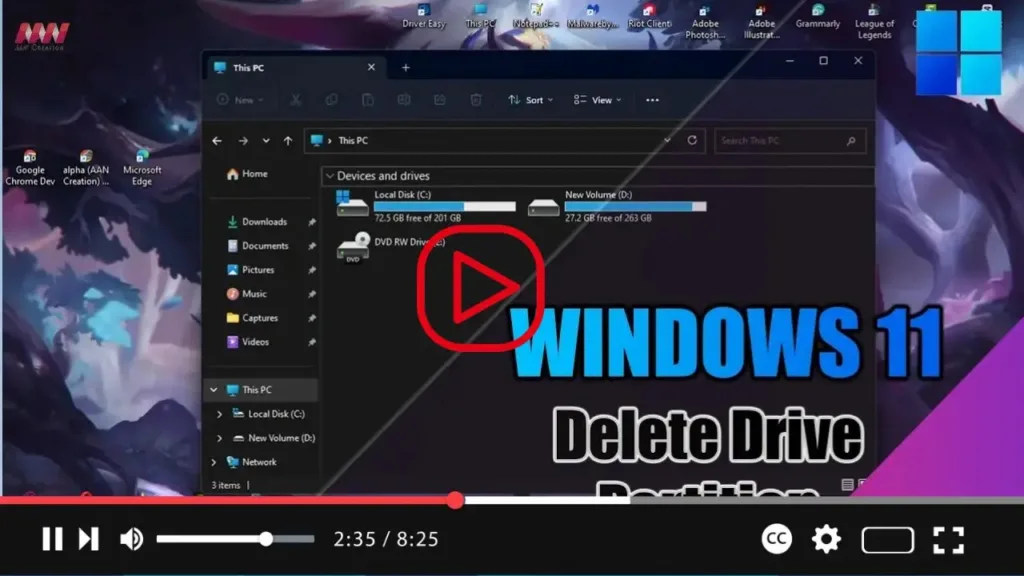

Deleting a partition (also referred to as a volume) on Windows 11 can be necessary for various reasons, such as changing the file system, fixing file corruption problems, or extending a partition. In this guide, you will learn how to delete a partition using the Settings app on Windows 11.
Step 01: Open Settings:
- Click on the Start button and select “Settings.”
Step 02: Access Storage Settings:
- In the Settings app, click on “System” and then select “Storage” from the sidebar.
.webp)
Step 03: Navigate to Advanced Storage Settings:
- Under the “Storage management” section, click on “Advanced storage settings.”
Step 04: Choose Disks & Volumes:
- In the Advanced storage settings, click on “Disks & volumes.”
.webp)
Step 05: Select the Partition:
- Find the partition you want to delete from the list of volumes.
- Click on the partition to select it.
Step 06: Open Partition Properties:
- With the partition selected, click on the “Properties” button.
.webp)
Step 07: Delete the Partition:
- In the properties window, under the “Format” section, click on the “Delete” button.
Step 08: Confirm Deletion:
- Confirm the action to delete the partition and its data.
Once you complete these steps, the selected partition will be deleted from the drive, and any data on it will be removed. Make sure to back up any important files before deleting a partition.

