
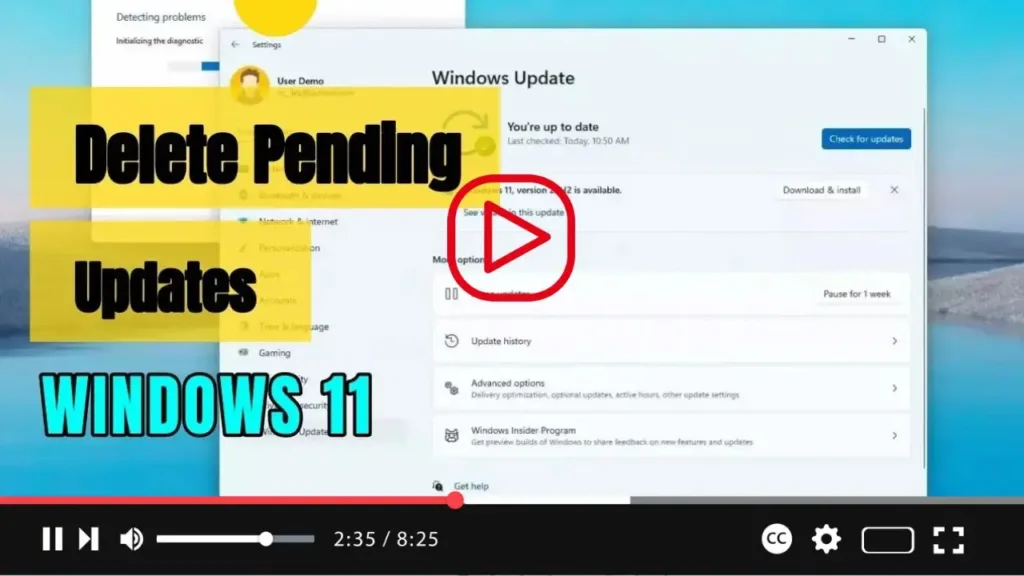

When it comes to managing pending updates on Windows 11, clearing the contents of the “Download” folder within the “SoftwareDistribution” directory is key. This folder holds the necessary files for Windows Update to implement system updates, making it crucial for maintenance and troubleshooting purposes.
If you encounter installation failures or compatibility issues with updates, or suspect file corruption, removing pending updates can be a practical solution. Whether you need to redownload the files or prevent the system from attempting to install problematic updates, these steps will guide you through the process:
-
Open File Explorer on your Windows 11 system.
-
In the address bar, enter the following path: C:WindowsSoftwareDistributionDownload
-
Press Enter to navigate to the specified location.
-
Once inside the “Download” folder, select all folders and files. You can do this by pressing “Ctrl + A” or using the “Select all” option from the “See more” menu.
-
With everything selected, click the “Delete” button to eliminate the pending updates from Windows 11.

Following these steps will remove any available files associated with pending updates on your Windows 11 device. If you wish to prevent a specific update from being downloaded again after deletion, you can use the “Show or hide updates” tool to block it. These instructions are equally effective for managing pending feature updates.
By staying proactive in managing pending updates, you can ensure the smooth operation and security of your Windows 11 system. Don’t hesitate to take control of your update process and keep your device running optimally.

