

Cannot Delete a File in Windows 10
The administrator is said to have complete control over the computer’s
operations. However, there are some situations in which even an
administrator encounters difficulty, which can be extremely frustrating. A
file or folder, For example, a file or folder cannot be deleted, like the
case. How to delete undeletable files? In this post, we will cover the
reasons for and ways of force deleting files and folders in Windows.
operations. However, there are some situations in which even an
administrator encounters difficulty, which can be extremely frustrating. A
file or folder, For example, a file or folder cannot be deleted, like the
case. How to delete undeletable files? In this post, we will cover the
reasons for and ways of force deleting files and folders in Windows.
Why You Cannot Delete File
Undeletable files are commonly spyware, malware, adware, or Trojans.
They are also normal files that the system is currently using and thus
cannot be deleted. How do you know if the files can’t be deleted? The
messages that follow are signs of the undeletable, as well as the
reasons for them.
They are also normal files that the system is currently using and thus
cannot be deleted. How do you know if the files can’t be deleted? The
messages that follow are signs of the undeletable, as well as the
reasons for them.
01. Cannot delete file: Access is denied.
02. The file or folder is open in another program or user.
03. The source or destination of the file may be in use.
04. There has been a sharing violation.
05. Make sure the disk is not full or write-protected and that the file
is currently not in use.
is currently not in use.
Once you receive these messages, you cannot delete files by simply
pressing the Delete button. no matter how many times you try. That is
why you must delete the files and folders manually.
pressing the Delete button. no matter how many times you try. That is
why you must delete the files and folders manually.
Close the Folder or File and Try Again
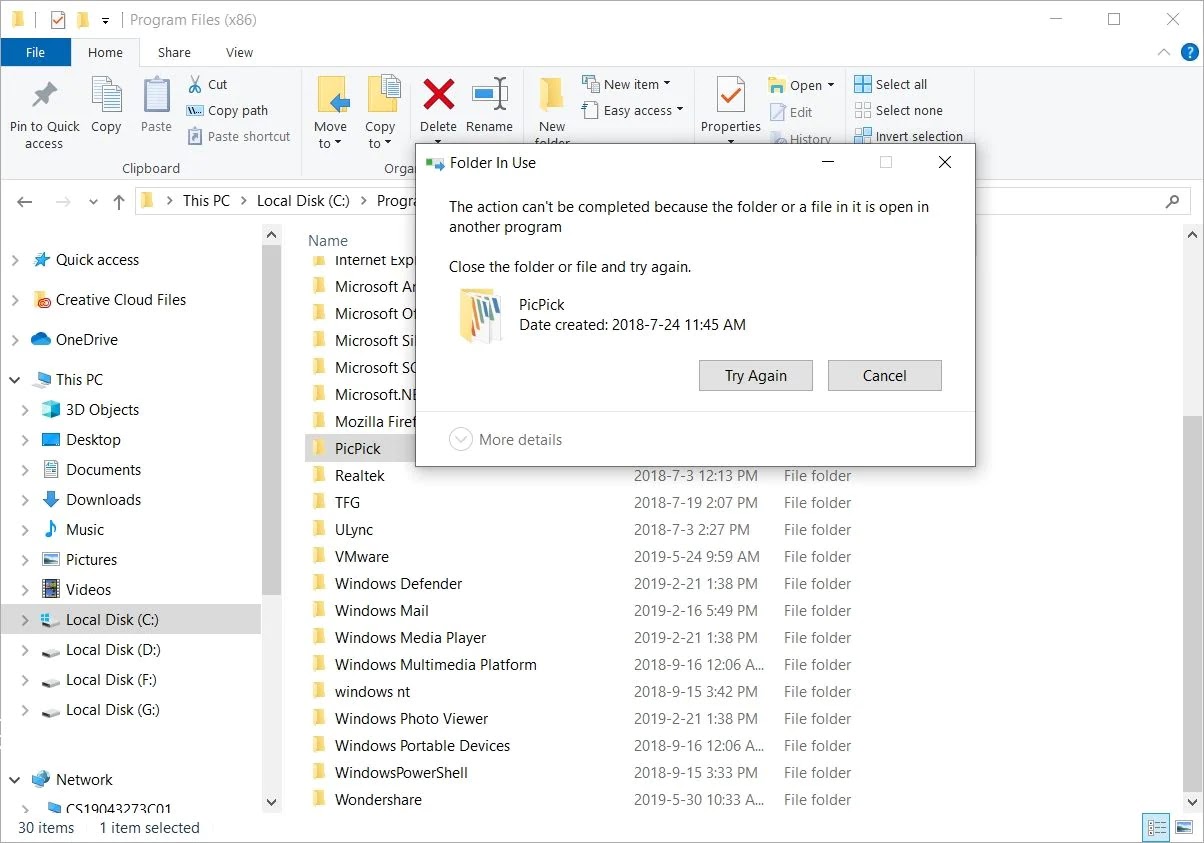
If you get the message showing that “The action can’t be completed
because a folder or a file in it is open in another program”, you can
delete the file or folder after following the below steps.
because a folder or a file in it is open in another program”, you can
delete the file or folder after following the below steps.
There are two methods for easily closing a file, folder, or
application.
application.
01. You can directly click the “x” logo on the upper right.
02. Right-click the app in the taskbar and choose “Close window”.
03. Finally, try deleting the files or folders once again.
You may be unable to close files, folders, or apps at times. The Task
Manager can help you do that.
Manager can help you do that.
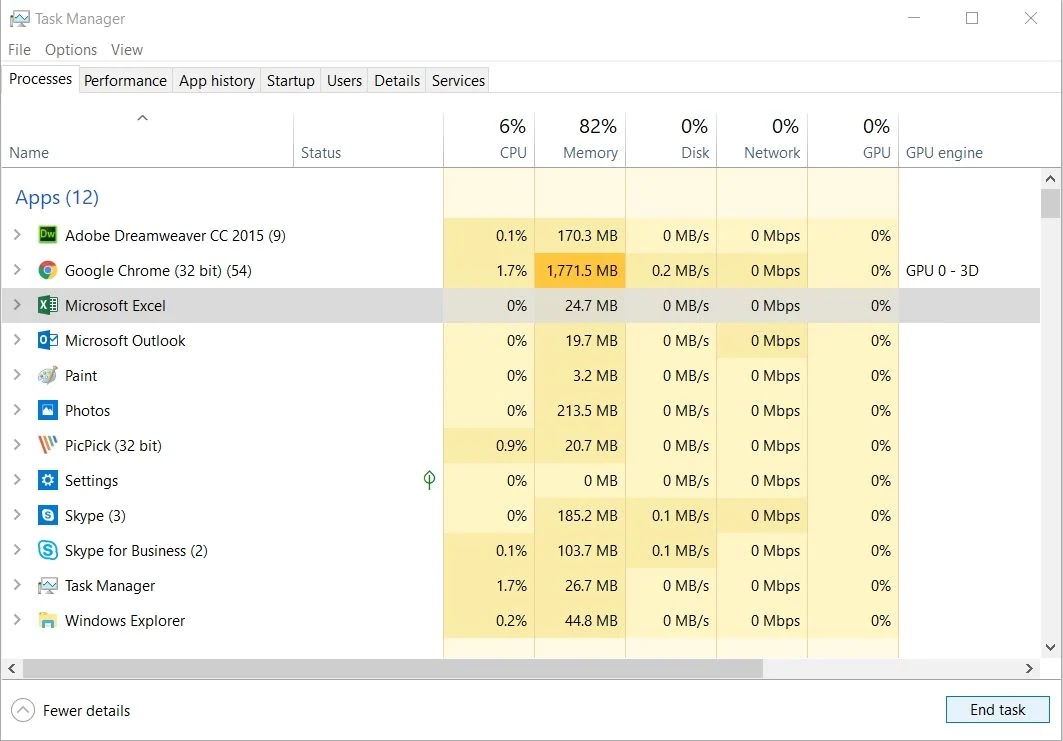
01. Press “Ctrl + Alt + Delete” simultaneously and choose “Task
Manager” to open it.
Manager” to open it.
02. Find the application where your data is in use. Select it and click
“End task”.
“End task”.
03. Try to delete the undeletable information once again.
(adsbygoogle = window.adsbygoogle || []).push({});
Reboot the Computer
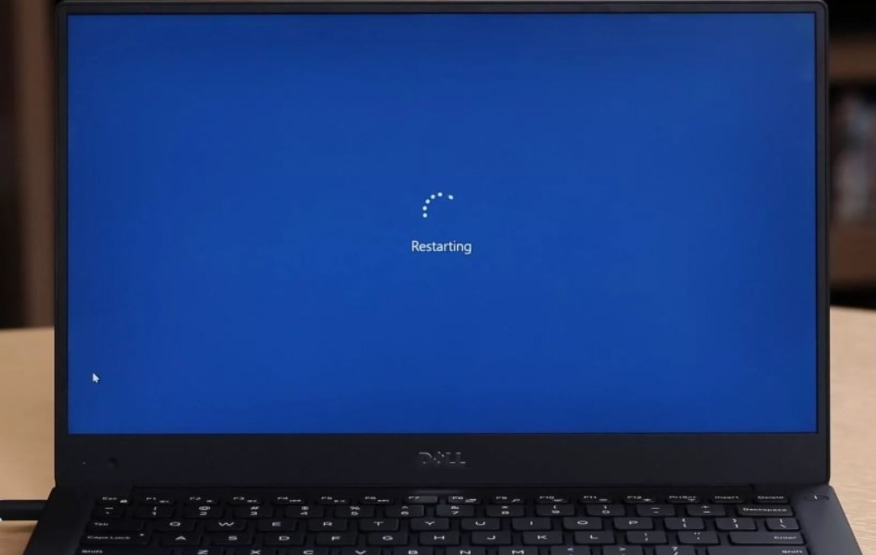
In many cases, restarting the computer helps to resolve many computer
errors and abnormalities, including deleting undeletable files and
folders. When you open certain applications, the file may be in an
unknown state. You can end tasks, close apps, and successfully remove
files by rebooting the computer.
errors and abnormalities, including deleting undeletable files and
folders. When you open certain applications, the file may be in an
unknown state. You can end tasks, close apps, and successfully remove
files by rebooting the computer.
To restart a computer, navigate to the Start menu, click the Power
button, and then select “Restart.”
button, and then select “Restart.”
You can also resort to Settings to do the same.
01. Go to the “Settings” window by clicking the gear icon in the Start
menu.
menu.
02. Go to “Update & Security” and click “Recovery”.
03. Select the Advanced startup and “Restart now”.
After restarting the computer, you can try deleting files or folders or
move on to get another solution for removing data in Windows.
move on to get another solution for removing data in Windows.
Use Command Prompt
This enables you to delete irremovable files without the use of any
third-party apps. However, you will need some technical knowledge to use
this method.
third-party apps. However, you will need some technical knowledge to use
this method.
01. Click on the “Start” button and then type “Command Prompt” or “CMD”
in the search box and press the ‘Enter’ key.
in the search box and press the ‘Enter’ key.
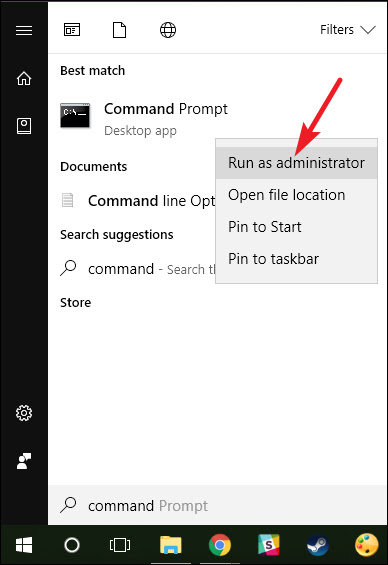
02. A search result appears. From the search results, right-click the
“Command Prompt” icon and select “Run as administrator” from the menu
that appears.
“Command Prompt” icon and select “Run as administrator” from the menu
that appears.
03. This will launch the administrator level command prompt window
which allows you to execute commands without any restriction.
which allows you to execute commands without any restriction.
04. For example you need to delete a file named “virus.exe” present in
the desktop. To force delete the file from the system, enter the command
as shown and press the “Enter” key.
the desktop. To force delete the file from the system, enter the command
as shown and press the “Enter” key.
(adsbygoogle = window.adsbygoogle || []).push({});
DEL /F /Q /A C:\Users\Enter your username here\Enter the Location of the file here\Enter the file name here
- DEL: stands for the delete option
- /F: stands for the force delete option
- /Q: stands for quite a mode option.
-
/A: stands for various file attributes such as read-only, hidden,
ready for archiving, etc. -
/C: stands for your main drive. In most of the cases, it is the “C:”
drive
Using WinRAR
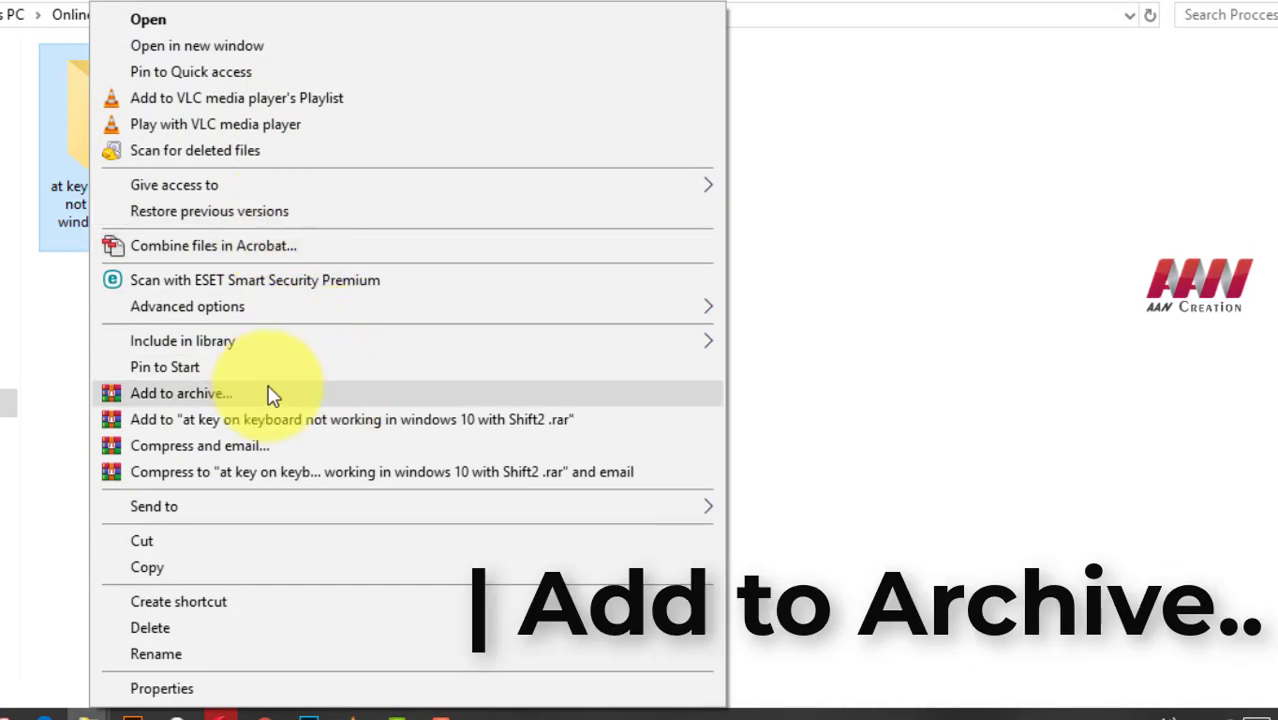
01. Right-click on the folder and select the “Add to archive”
option.
option.
02. Tick the “Delete files after archiving” check box, which is located
in the “Archiving options” section.
in the “Archiving options” section.
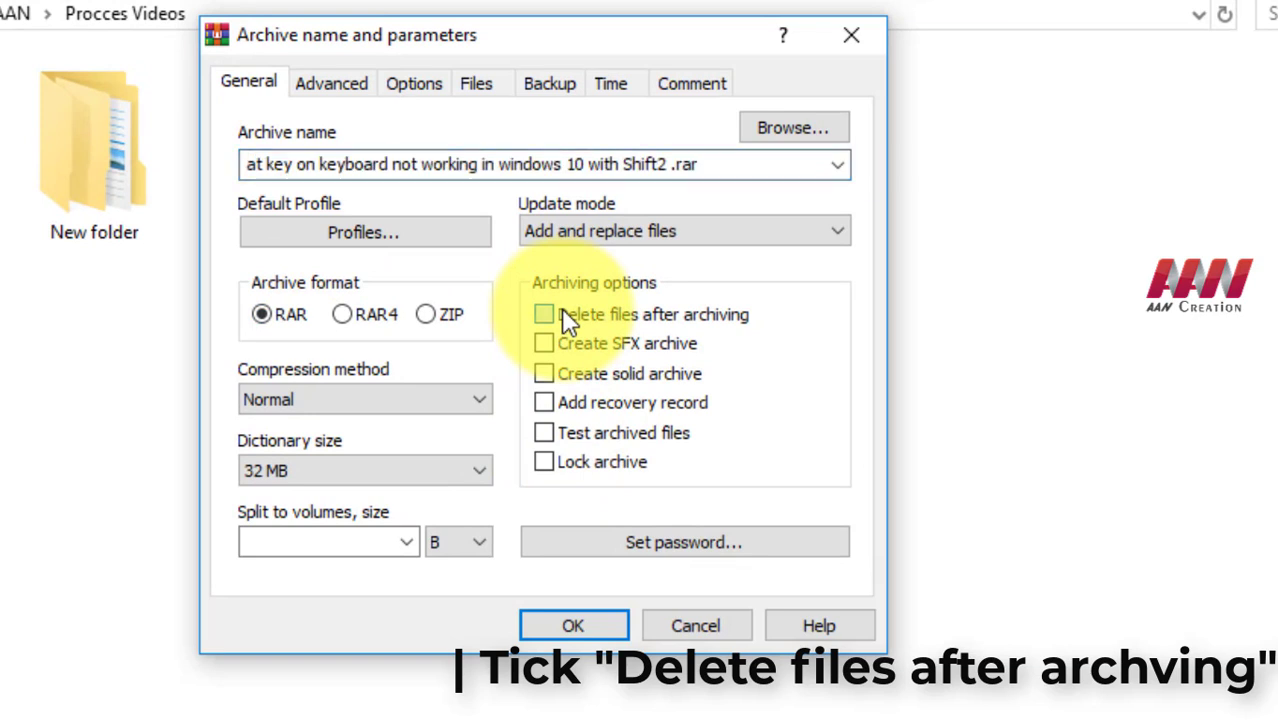
03. Leave all other settings as they are & click “OK” button.
The.rar archive will be created on your computer, and your painful
folder will be automatically deleted. You can now delete this *.rar file
whenever you want.
folder will be automatically deleted. You can now delete this *.rar file
whenever you want.

