
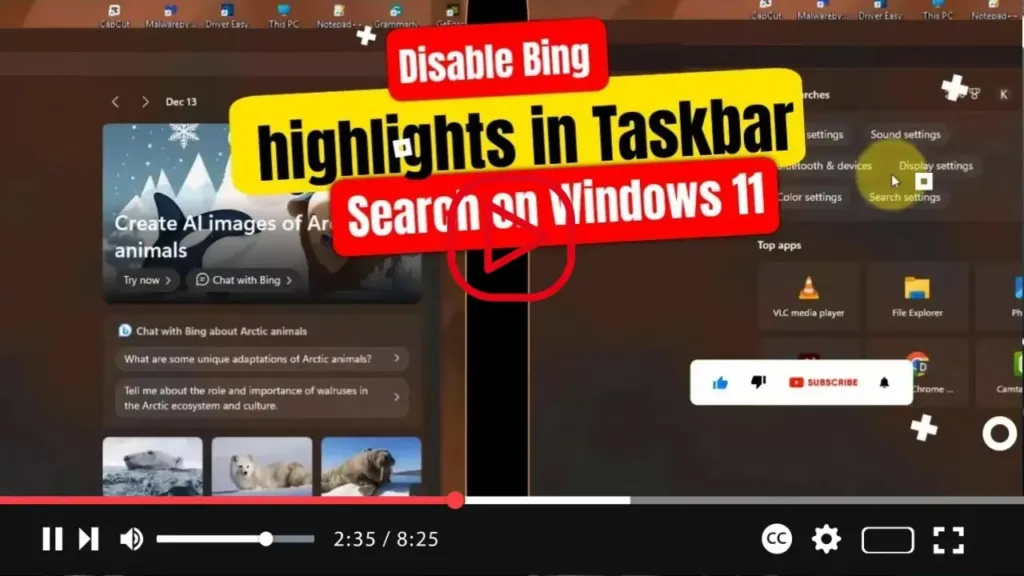

If you’re using Windows 11, you might have noticed the “Search highlights” feature in the Windows Search experience. This feature periodically updates from Bing search to help you discover more, stay connected, and boost productivity. Situated on the right side, it showcases notable moments such as holidays, anniversaries, and educational events happening locally and globally. You’ll also find today’s moment and daily content like the word of the day, Microsoft Rewards, trending searches, and more.
On the left side of the Search interface, you’ll see a list of recent apps, files, settings, and websites, making it easy to pick up where you left off with your tasks.

However, if the Search highlights feature doesn’t align with your preferences, Windows 11 offers an option to disable Bing search suggestions for a more traditional experience. Once disabled, this space will feature a section displaying search suggestions and your top apps.
.webp)
Here’s how you can remove the Bing search highlights feature from the Taskbar on Windows 11:
- Open Settings on Windows 11 and navigate to Privacy & security.
- Under the “Windows permissions” section, find the “Search permissions” setting.
- Under the “More settings” section, toggle off the “Show Search highlights” switch to disable Bing search suggestions.
.webp)
Once you’ve followed these steps, Bing search highlights will no longer appear in the search box. Additionally, note that this option will remove the chatbot shortcut from the search box interface, although you’ll still have access to it from the top right corner.

