
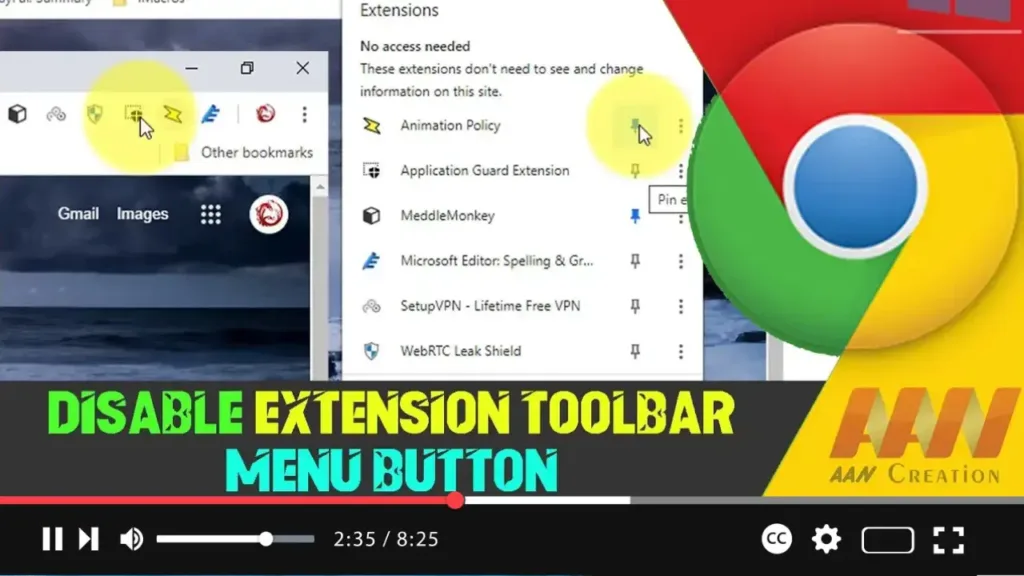

Google Chrome displays an extension toolbar menu button, which provides a centralized location for managing all your installed extensions. While this feature can be helpful, some users might prefer to disable the extension toolbar menu button for a cleaner and less cluttered toolbar. Here’s how you can disable the extension toolbar menu button in Google Chrome.
Introduction
The extension toolbar menu button in Google Chrome is designed to help users manage their extensions more efficiently. However, if you find it unnecessary or prefer not to see it on your toolbar, you can disable it by following these steps.
Steps to Disable Extension Toolbar Menu Button in Google Chrome
Step 01: Open Google Chrome
Launch Google Chrome on your computer.
Step 02: Access Chrome Flags
To enable or disable experimental features like the extension toolbar menu, you need to access Chrome’s flags.
- Type
chrome://flags/in the address bar and press Enter.
.webp)
Step 03: Search for the Extension Toolbar Menu Flag
In the search box at the top of the Flags page, type “Extensions Toolbar Menu” to find the relevant flag.
Step 04: Disable the Extension Toolbar Menu Flag
- Look for the flag named “Extensions Toolbar Menu.”
- Click the dropdown menu next to this flag and select “Disabled.”
Step 05: Relaunch Google Chrome
After disabling the flag, click the “Relaunch” button at the bottom of the page to restart Chrome and apply the changes.
Additional Information
Re-Enabling the Extension Toolbar Menu: If you want to re-enable the extension toolbar menu button in the future, follow the same steps and select “Enabled” or “Default” in the dropdown menu in Step 04.
.webp)
Managing Extensions Without the Toolbar Button: Even after disabling the extension toolbar menu button, you can still manage your extensions by:
- Clicking on the three vertical dots (menu icon) in the top-right corner of the browser window.
- Selecting “More tools.”
- Clicking on “Extensions.”
Keeping Chrome Updated: Make sure you keep Google Chrome updated to ensure you have the latest security features and enhancements. Updates may affect how certain flags and features work.
Why Disable the Extension Toolbar Menu?: Disabling the extension toolbar menu can result in a cleaner interface, especially if you don’t frequently manage your extensions. It can also free up space on the toolbar for other icons and shortcuts.
Conclusion
Disabling the extension toolbar menu button in Google Chrome is a straightforward process that can help declutter your browser interface. By following the steps outlined above, you can remove the extension toolbar menu button and enjoy a cleaner browsing experience. If needed, you can always re-enable the feature by revisiting the Chrome flags page. This customization helps you tailor Chrome to your personal preferences and streamline your workflow.

