

In Windows 11, notifications come in two types: those from apps and services, and system notifications. While they’re handy for keeping you informed about new messages or important events, they can sometimes become overwhelming and distract you from your tasks, especially when apps demand your attention with flashing icons in the Taskbar.
Previously, disabling this flashing feature required tinkering with the Registry, but Windows 11 offers a simpler solution—you can now turn off the flashing animation directly from the Taskbar settings.
Here’s a quick guide on how to disable the flashing alerts for apps in the Taskbar of Windows 11:
Step 01: Open Settings: Launch the Settings app on your Windows 11 system.
Step 02: Access Personalization: Within Settings, navigate to the “Personalization” section.
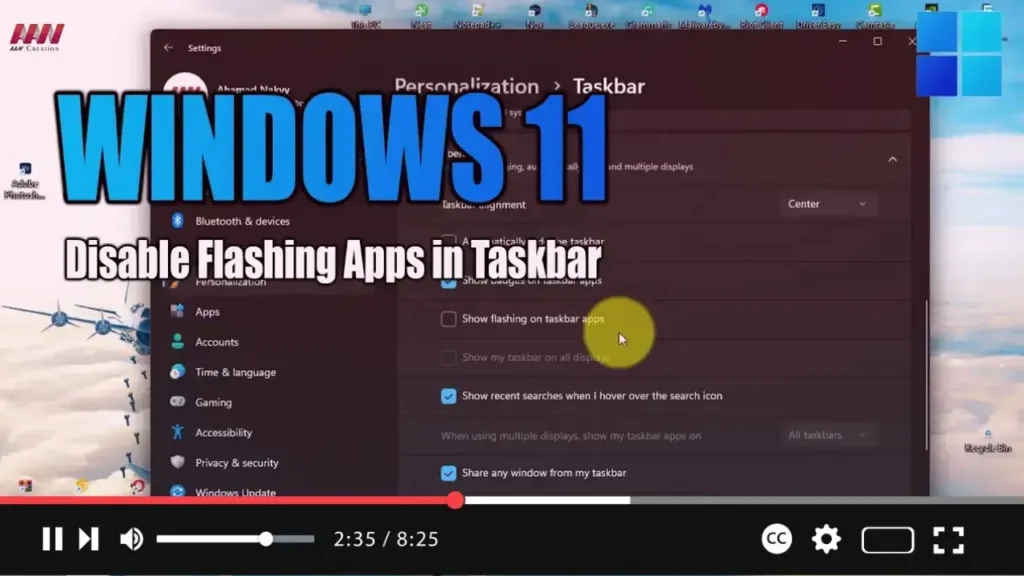
Step 03: Navigate to Taskbar Settings: Click on the “Taskbar” tab, located within the Personalization settings.
Step 04: Adjust Taskbar Behaviors: Look for the “Taskbar behaviors” setting and click on it.

Step 05: Disable Flashing Alerts: In the Taskbar behaviors menu, locate the option labeled “Show flashing on taskbar apps.” Clear the checkbox or toggle switch associated with this option to disable the feature.
Once you’ve completed these steps, apps won’t flash in the Taskbar to grab your attention anymore.
By following these straightforward steps, you can customize your Taskbar settings in Windows 11 to reduce distractions and tailor your notification experience to suit your preferences. Enjoy a more focused computing environment without pesky flashing icons pulling your attention away from the task at hand!

