
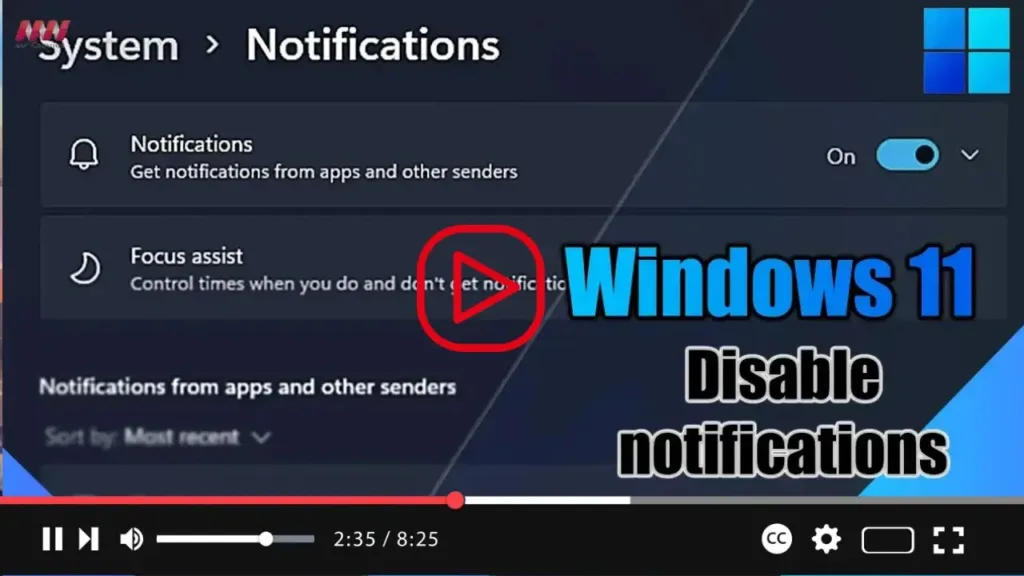

On Windows 11, managing notifications can help streamline your desktop experience by reducing interruptions from apps, websites, and system alerts. Whether you prefer to silence all notifications or selectively disable them for specific applications, Windows 11 offers flexible options to customize your notification settings. Here’s how to enable or disable notifications on Windows 11:
.webp)
-
Open Settings:
- Begin by clicking on the Start button and selecting “Settings” from the menu. Alternatively, you can press the Windows key + I to open Settings directly.
-
Navigate to System Settings:
- In the Settings window, click on “System” to access system-related settings.
-
Access Notifications Settings:
- In the left sidebar, click on “Notifications” to view and configure notification preferences.
-
Toggle Notifications On or Off:
- Locate the toggle switch labeled “Notifications” at the top of the Notifications settings page. Toggle it off to disable notifications entirely, or toggle it on to enable notifications.
-
Manage App Notifications:
- Below the main toggle switch, you’ll find a list of installed applications. Each app has its own toggle switch that allows you to enable or disable notifications specifically for that app.
-
Customize Notification Settings (Optional):
- For more granular control over notifications, click on an individual app in the list to access its notification settings. Here, you can configure notification preferences such as sound, banners, and notification grouping.
-
Save Changes:
- Once you’ve adjusted the notification settings to your preference, close the Settings app to save your changes.
-
.webp)
By following these steps, you can easily manage notifications on Windows 11 according to your preferences. Whether you prefer a clutter-free desktop environment or selective notifications for essential apps, Windows 11 provides the flexibility to tailor your notification experience to suit your needs.

