
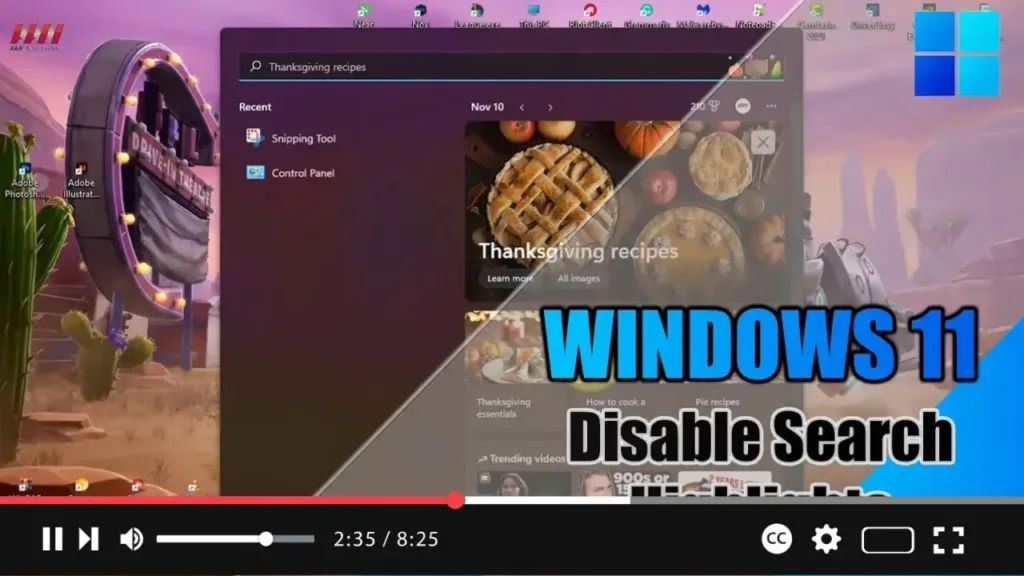

Exciting news for Windows 11 users! The latest update introduces the “Search highlights” feature within the Windows Search experience, providing periodic updates to help you stay connected, discover more, and boost productivity.
Here’s a breakdown of what you can expect from this feature:
On the Right Side: You’ll find the “Search highlights” feature, showcasing notable moments such as holidays, anniversaries, and educational content from around the world. Additionally, you’ll discover today’s highlights, including the word of the day, Microsoft Rewards, trending searches, and more.
On the Left Side: The left side of the Search interface lists recent apps, files, settings, and websites, enabling you to quickly resume tasks from where you left off. For those using a work or school account, Microsoft Search within the organization is also accessible.
However, if the Search highlights feature isn’t your cup of tea, fear not! Windows 11 offers an option to disable it for a more traditional search experience. Once disabled, the space will include a section displaying Search suggestions and your top apps.
.webp)
Here’s how to manage the Search highlights feature on Windows 11:
Step 01: Open Settings: Navigate to the Settings app on your Windows 11 system.
Step 02: Access Privacy & Security: Within Settings, click on the “Privacy & security” option.
Step 03: Navigate to Search Permissions: Under the “Windows permissions” section, locate and click on the “Search permissions” setting.
Step 04: Adjust Search Highlights: In the “More settings” section, you’ll find the toggle switch for “Show Search highlights.” Simply turn off this toggle switch to disable the feature.
.webp)
Once you complete these steps, the Search box will no longer display highlights or recent files in the left pane, offering a more streamlined search experience.
By following these simple steps, you can customize your Windows 11 Search experience to suit your preferences, ensuring a seamless and personalized user experience. Enjoy exploring and staying productive with Windows 11!

