
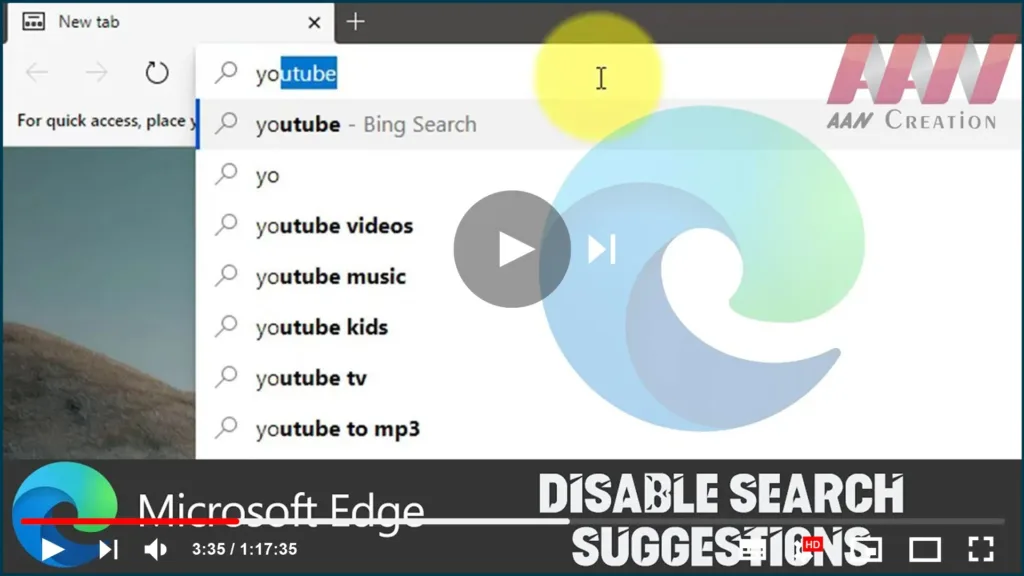

bar, but if you don’t want to use this feature, follow these steps to
disable it.
engine can speed up the search process by showing search and website
suggestions using the characters as you type in the address bar.
especially for those with privacy concerns. Even before you press Enter
every character you type is sent over the internet to the search engine.
For this reason, Microsoft Edge includes a setting to enable or disable
search suggestions from the address bar.
suggestions when typing characters in the address bar in Microsoft Edge’s
Chromium version.
To disable search suggestions on Microsoft Edge on Windows 10, use
these steps:
01. Open Microsoft Edge.
02. Click the Settings and More (three-dotted) button on the top-right
corner.
03. Click on Settings.
04. Click on Privacy and services.
05. Under the “Services” section, click the Address bar option.
06. Turn off the Show me search and site suggestions using my typed
characters toggle switch.

(adsbygoogle = window.adsbygoogle || []).push({});
Tip: in this page, you can also change the default search engine (Bing)
to anything you want.
Once you complete the steps, when typing characters in the address bar, you
will no longer send information to the default search engine to see a list
of search suggestions. However, you’ll still see suggestions for history and
favorites.
To enable search suggestions on Microsoft Edge, use these steps:
01. Open Microsoft Edge.
02. Click the Settings and More (three-dotted) button on the top-right
corner.
03. Click on Settings.
04. Click on Privacy and services.
05. Under the “Services” section, click the Address bar option.
06. Turn on the Show me search and site suggestions using my typed
characters toggle switch.

type in the address bar to the default search engine, which will display
relevant suggestions.
work on the variants of Microsoft Edge for Windows 8.x, Windows 7, macOS,
and Linux.

