
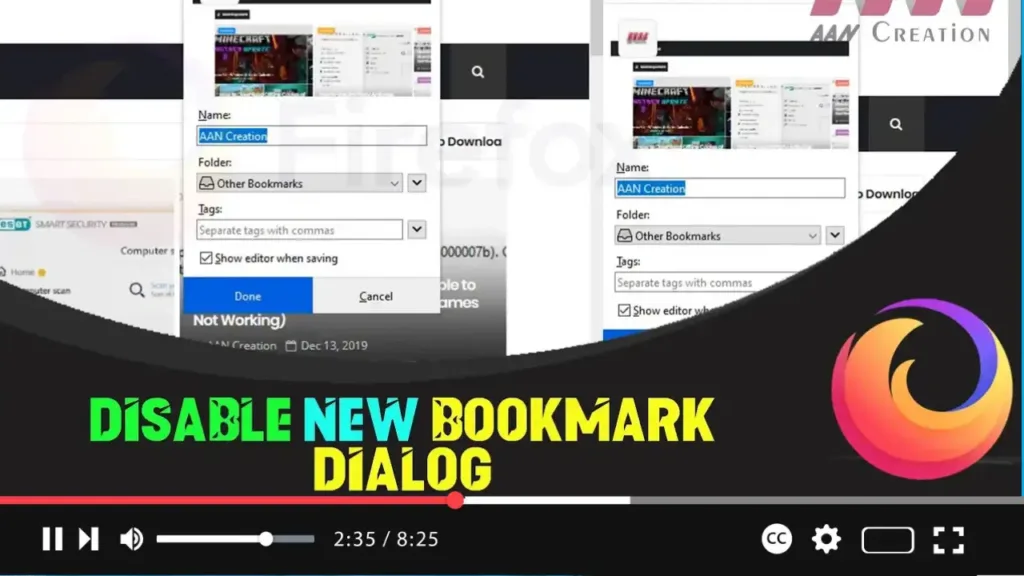

Starting with Firefox 63, Mozilla introduced a new bookmark dialog that pops up every time you add a bookmark. While this feature can be useful for organizing bookmarks immediately, it can also be a nuisance if you prefer a quicker, more streamlined bookmarking process. Luckily, you can disable this dialog so that when you add a page to bookmarks, a tiny notification appears next to the bookmark (star) button instead of the full dialog.
In this comprehensive guide, we’ll show you how to disable the new bookmark dialog in Firefox.
Steps to Disable the New Bookmark Dialog in Firefox
Step 1: Open Mozilla Firefox
- Launch Mozilla Firefox on your computer by double-clicking its icon or selecting it from your Start menu or application list.
Step 2: Access Firefox Configuration Settings
- In the Firefox address bar, type
about:configand press Enter. - If a warning message appears, click Accept the Risk and Continue to proceed. This warning is just to inform you that changing advanced settings can affect browser performance and security.
.webp)
Step 3: Search for the Bookmark Dialog Setting
- In the search box at the top of the
about:configpage, typebrowser.bookmarks.editDialog.showForNewBookmarks.
Step 4: Modify the Setting
- Once the
browser.bookmarks.editDialog.showForNewBookmarkssetting appears in the list, double-click it. - This action will toggle the value from
truetofalse. Setting this value tofalsedisables the new bookmark dialog.
.webp)
Conclusion
By following these steps, you can disable the new bookmark dialog in Firefox. This will streamline your bookmarking process by eliminating the pop-up dialog and instead showing a small notification next to the bookmark (star) button.
Additional Tips for Firefox Users
- Bookmark Organization: Even with the dialog disabled, you can still organize your bookmarks by clicking the bookmark (star) button again to edit details or move bookmarks to specific folders.
- Sync Bookmarks: If you use Firefox on multiple devices, consider setting up Firefox Sync to keep your bookmarks, history, and other settings synchronized across all your devices.
- Extensions for Bookmark Management: Explore Firefox add-ons and extensions that can help with advanced bookmark management, such as sorting, finding duplicates, and tagging.
By customizing Firefox to better suit your workflow, you can enhance your browsing experience and increase productivity.

