
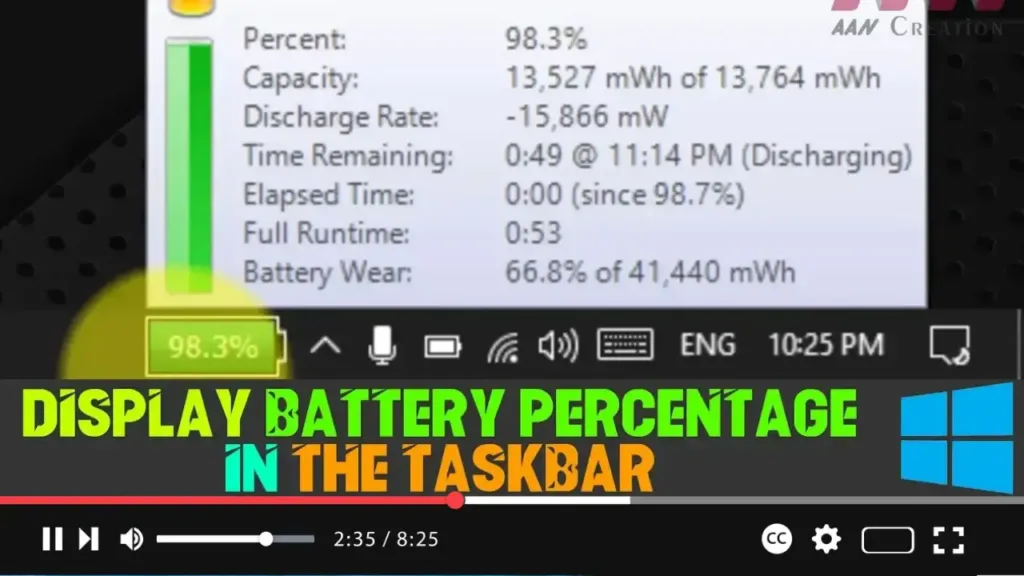

Windows 10 typically shows a battery icon in the Taskbar on laptops or tablets, which provides a quick visual cue about whether your device is running on AC power and how much battery life remains. However, the default battery icon doesn’t display the battery percentage directly; instead, you must click the icon to view the remaining percentage, which might not be as convenient.
For a more user-friendly and informative battery meter, you can use a third-party application called BatteryBar. This small, lightweight application provides a more detailed battery icon in the Taskbar, showing the exact percentage of battery life remaining. Additionally, it offers extra features such as time remaining, battery capacity, battery wear, and more when you hover over the icon.
Here’s a step-by-step guide to displaying the battery percentage in the Taskbar on Windows 10 using BatteryBar:
Step 01: Download BatteryBar
-
Visit the BatteryBar Official Website:
- Navigate to the official website where you can download BatteryBar. The application offers both free and paid versions. For basic use, the free version is sufficient.
- Download link: BatteryBar Download
.webp)
-
Download the Setup File:
- Click on the appropriate download button for your system, which will typically download an executable
.exefile. - Save the file in a location on your computer where you can easily access it.
- Click on the appropriate download button for your system, which will typically download an executable
Step 02: Install BatteryBar
-
Locate the Setup File:
- Navigate to the folder where you saved the BatteryBar setup file.
- The file name might be something like
BatteryBarSetup.exe.
-
Run the Installer:
- Double-click the setup file to start the installation process.
- If prompted by User Account Control (UAC), click Yes to allow the installation.
-
Follow the Installation Wizard:
- The installer will guide you through the installation steps. Generally, you can follow the default prompts:
- Accept the License Agreement: Review the terms and click I Agree.
- Choose Installation Location: You can use the default location or select a different folder if desired.
- Select Additional Tasks: If there are any optional components, decide if you want to include them.
- Click Install to begin the installation.
- The installer will guide you through the installation steps. Generally, you can follow the default prompts:
-
Complete the Installation:
- After the installation is complete, you may be given the option to launch BatteryBar immediately. You can choose to do so or wait until you restart your computer.
.webp)
Step 03: Configure and Use BatteryBar
-
Access BatteryBar in the Taskbar:
- Once installed, you’ll notice a new battery icon in your Taskbar. This icon is usually larger than the default Windows battery icon and provides a percentage readout of your remaining battery life.
-
Monitor Battery Life:
- The battery icon will change color based on the remaining battery life:
- Green: Battery life is high.
- Yellow: Battery life is moderate.
- Red: Battery life is low.
- You can hover over the icon to see additional details such as:
- Time remaining: Estimated time left before the battery is depleted.
- Battery capacity: Current and full charge capacity of the battery.
- Battery wear: Information about battery health and wear over time.
.webp)
-
Customize BatteryBar (Optional):
- Although the free version of BatteryBar has limited customization options, it should blend well with your Taskbar’s appearance.
- For advanced features such as customizable themes or more detailed battery statistics, consider upgrading to the paid version of BatteryBar.
Additional Tips:
-
BatteryBar Auto-Start:
- To ensure BatteryBar runs every time you start your computer, you might want to add it to your startup programs. This can usually be done through the app’s settings or by manually adding it to the Windows startup folder.
-
Checking Battery Health:
- Regularly check the battery wear information to monitor your battery’s health over time. If BatteryBar shows significant wear, it might be time to consider a battery replacement.
-
Uninstalling BatteryBar:
- If you decide that you no longer want to use BatteryBar, you can uninstall it like any other program through the Control Panel or Settings > Apps in Windows 10.

