
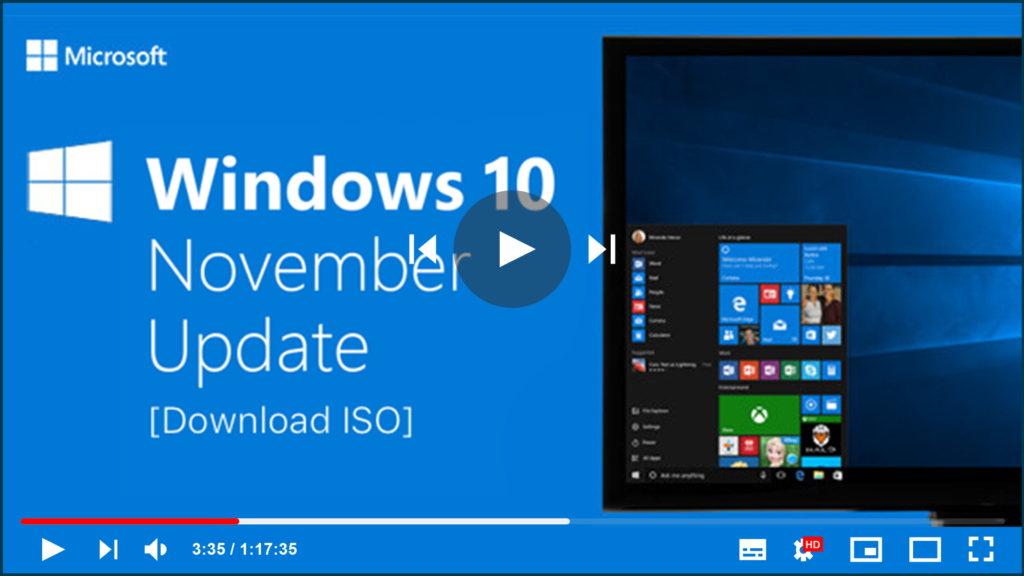

ISO is a computer storage format for CD or DVD Mirror. It is also
known as an ISO image file. Because it is a file stored in accordance with
the ISO-9660 standard for the CD-ROM file system, it is usually suffixed
with.iso.
An ISO image file is a complete copy of the CD-ROM file information that
must be loaded using special virtual CD-ROM drive software. The majority
of downloadable operating systems, including Windows 10, are distributed
as ISO files.
must be loaded using special virtual CD-ROM drive software. The majority
of downloadable operating systems, including Windows 10, are distributed
as ISO files.
Whether you have already activated Windows 10 Pro or not, you can
download the Windows 10 ISO file from Microsoft’s official website. The
ISO file can then be burned to a DVD/CD or used to create installation
media on a USB drive to upgrade your PC or install Windows 10 on a
different computer.
download the Windows 10 ISO file from Microsoft’s official website. The
ISO file can then be burned to a DVD/CD or used to create installation
media on a USB drive to upgrade your PC or install Windows 10 on a
different computer.
How to Download Windows 10 ISO File 64-Bit for Free
Before downloading the Windows 10 ISO image file, ensure that you
have:
have:
* Have an Internet connection.
* Make sure you have enough storage space on your computer, USB, or
external drive for downloading.
external drive for downloading.
* If you want to make media, you should use a blank USB drive with at
least 8GB of space or a blank DVD (as well as a DVD burner). It’s
worth noting that if you use a USB or DVD with files, all of the data
on it will be erased.
least 8GB of space or a blank DVD (as well as a DVD burner). It’s
worth noting that if you use a USB or DVD with files, all of the data
on it will be erased.
* If the system warns you that the image file is too large, use a
dual-layer (DL) DVD medium when burning a DVD from an ISO file.
dual-layer (DL) DVD medium when burning a DVD from an ISO file.
Windows 10 ISO download instructions:

02. Click “Download tool now”. Then run this tool as an
administrator.
administrator.
03. Accept Microsoft software license terms as required.
04. Choose “Create installation media (USB flash drive, DVD, or ISO
file) for another PC” on the What do you want to do? window and
click “Next”.
file) for another PC” on the What do you want to do? window and
click “Next”.

05. Select language, architecture – 64-bit, and edition – Windows
10.
10.
06. On Choose which media to use window, choose “ISO file”. The ISO
file must then be burned to a DVD later.
file must then be burned to a DVD later.

(adsbygoogle = window.adsbygoogle || []).push({});
07. Set a file path and start to download Windows 10 ISO
file.
file.
How to Burn Windows 10 ISO File to DVD
After downloading the Windows 10 ISO file, you have two options
for burning it to DVD.
for burning it to DVD.
If you have a third-party DVD burning program installed on your
computer that you prefer to use to create installed DVDs, you can
launch it by going to the ISO file’s location and double-clicking
it. Alternatively, you can right-click the ISO file and follow the
steps below to open and burn it.
computer that you prefer to use to create installed DVDs, you can
launch it by going to the ISO file’s location and double-clicking
it. Alternatively, you can right-click the ISO file and follow the
steps below to open and burn it.
01. Go to the location where the ISO file is stored.
02. Right-click the ISO file > select “Properties”. Then,
click “General” > “Change” > “Apply”.
click “General” > “Change” > “Apply”.
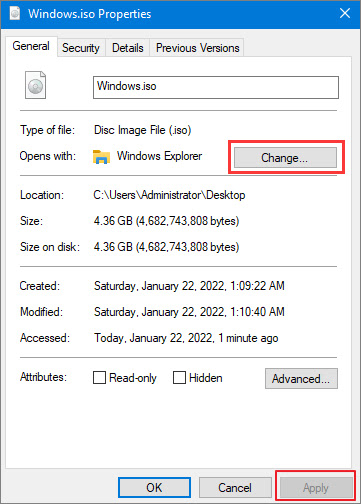
03. Select “Windows Explorer” for the program you would like to
use to open ISO files and click “OK”.
use to open ISO files and click “OK”.
04. Right-click the ISO file and select “Burn disc
image”.
image”.


