
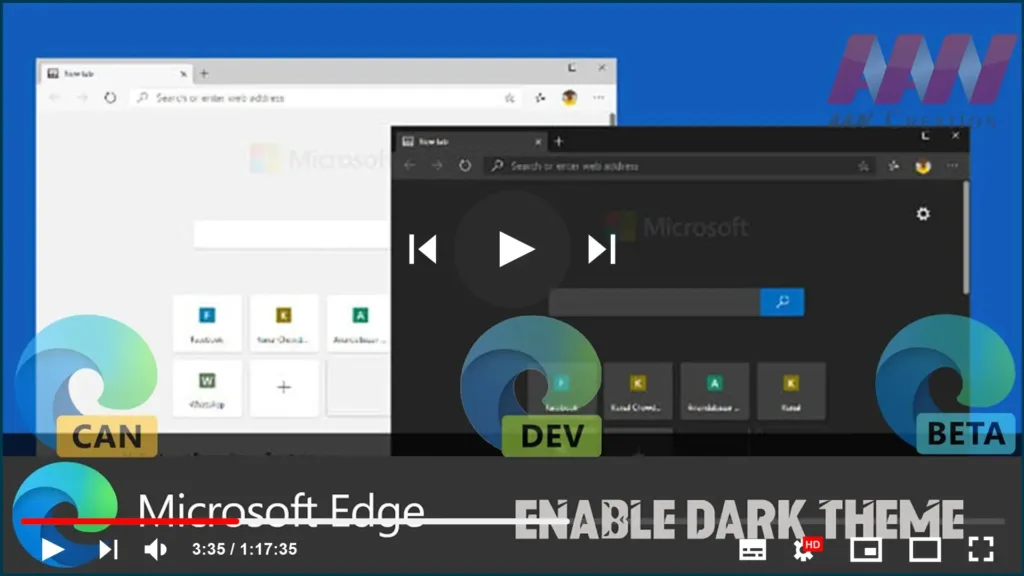

If you enable Windows 10’s dark theme, Microsoft Edge will activate a
dark theme. If you’re running Windows 10 with the light theme and want
Edge to run in dark mode, you’ll need to manually enable a theme in Edge’s
application settings.
dark theme. If you’re running Windows 10 with the light theme and want
Edge to run in dark mode, you’ll need to manually enable a theme in Edge’s
application settings.
Chromium Version of Microsoft Edge uses its default light theme, but you
can switch to the dark theme if you prefer this look and feel on Windows
10.
can switch to the dark theme if you prefer this look and feel on Windows
10.
In this guide, you’ll learn the steps to enable the dark theme in the
default on the Chromium Version of Microsoft Edge for Windows 10.
default on the Chromium Version of Microsoft Edge for Windows 10.
To switch from the light to dark theme on Microsoft Edge, use the
following steps:
following steps:
01. Open Microsoft Edge.
02. Click the Settings and More (three-dotted) button on the top-right
corner.
corner.
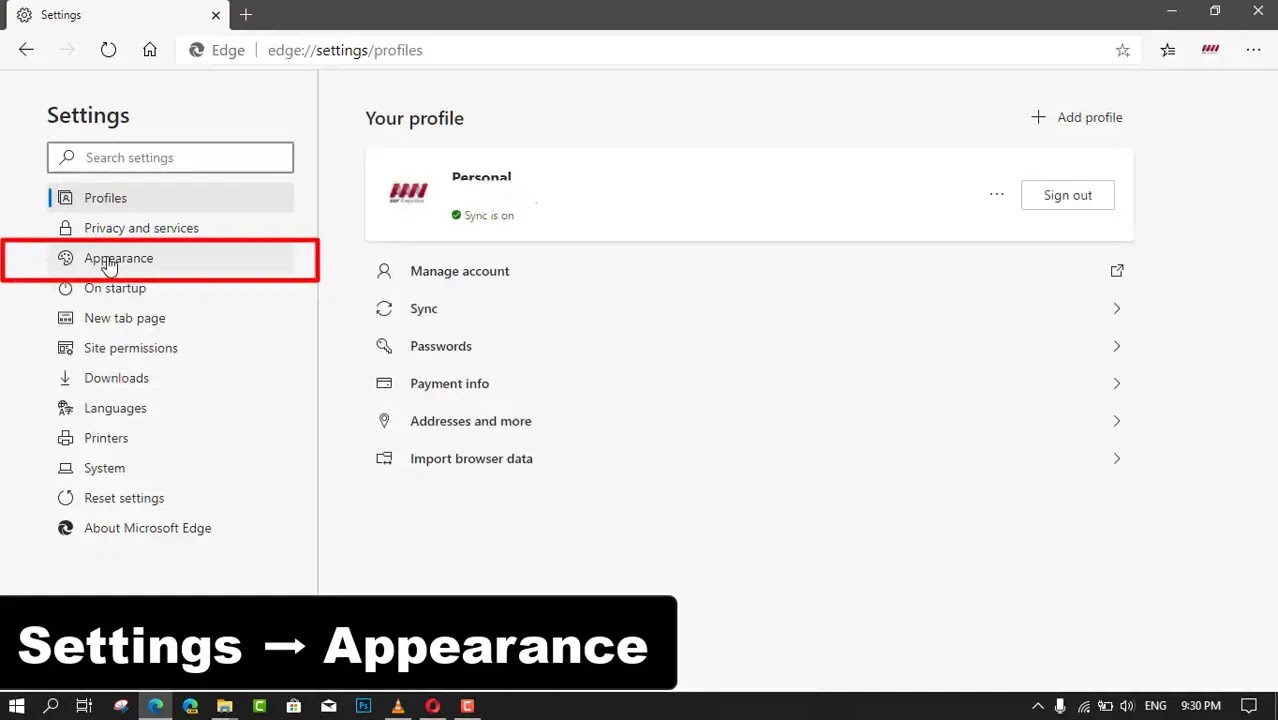
03. Select the Settings option.
(adsbygoogle = window.adsbygoogle || []).push({});
04. Click the Appearance.
05. Click the pull-down menu next to the Theme. To use the browser in
dark mode, select Dark.
dark mode, select Dark.

By default, Edge is set to the “Light” theme. You can also choose “System
default,” which will use the Windows theme option you chose in the
Settings app. If you choose system accent colors, they will also be used
for the title bar and window frame.
default,” which will use the Windows theme option you chose in the
Settings app. If you choose system accent colors, they will also be used
for the title bar and window frame.

