
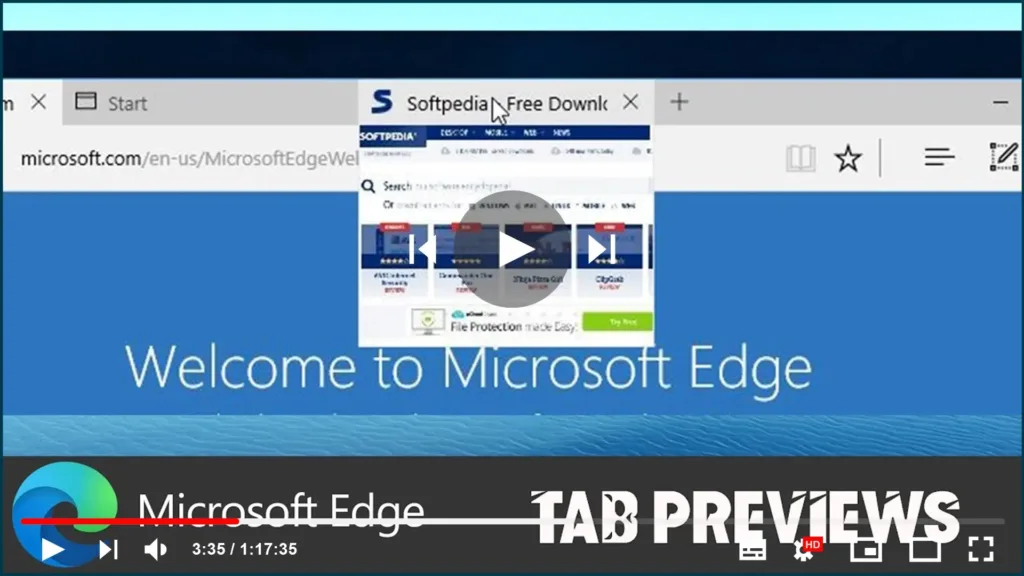

The Chromium version of Microsoft Edge also includes tab previews similar to
the tab preview bar available in the legacy version, which allows you to
hover over your open tabs to switch to the right page more quickly, but it’s
still an experimental feature.
However, if you’re using the stable release of Microsoft Edge, you can
enable the feature from the flags advanced settings page.
In this video, you’ll learn the steps to enable and disable tab previews in
the Chromium version of Microsoft Edge on Windows 10.
To enable tab previews on Chromium Edge, use these steps:
01. Open Microsoft Edge.
02. Type the following path in the address bar and press Enter:
edge://flags/#tab-hover-cards
03. Use the “Tab Hover Cards” drop-down menu on the right and select the
Enabled option.

(adsbygoogle = window.adsbygoogle || []).push({});
04. Click the Restart button.
Once you complete the steps, upon restart of the browser, when you have
multiple tabs open, you can hover over them to see a preview with the name
of the page.
Google Chrome also includes an option to show a thumbnail image preview,
which is not available in the current version of Microsoft Edge, but it may
arrive on a later update.
To disable tab hover cards on Microsoft Edge, use these steps:
01. Open Microsoft Edge.
02. Type the following path in the address bar and press Enter::
edge://flags/#tab-hover-cards
03. Use the “Tab Hover Cards” drop-down menu on the right and select the
Disabled or Default option.

you complete the steps.
on Windows 8, Windows 7, macOS, and even Linux (when it becomes
available).

