

With Chrome 78, Google adds Tab preview to its browser. The new feature,
similar to Microsoft Edge for Windows 10, replaces the tooltip and allows
you to see a small preview of the other tabs when you hover over them with
the mouse pointer.
similar to Microsoft Edge for Windows 10, replaces the tooltip and allows
you to see a small preview of the other tabs when you hover over them with
the mouse pointer.
Chrome refers to the new feature as “Tab Hover Cards,” and it’s enabled
by default beginning with version 78, but the default behavior only
displays the page title. You must enable this feature separately if you
want to see a screenshot of the page in the preview.
by default beginning with version 78, but the default behavior only
displays the page title. You must enable this feature separately if you
want to see a screenshot of the page in the preview.
This video will show you how to enable Tab Hover Cards (tab previews) in
the Chrome web browser.
the Chrome web browser.
01. Open Chrome
02. Type the following path in the address bar and press Enter:
chrome://flags/#tab-hover-cards or chrome://flags ➡ Search Tab Hover
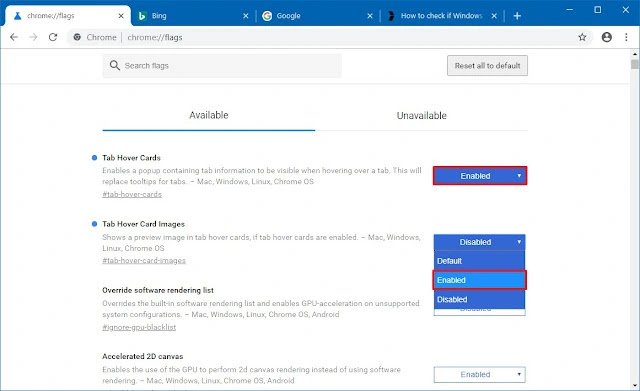
03. Use the drop-down menu on the right and select Enabled (or Disabled to
turn the feature off).
04. Click the Relaunch now button.
After you’ve finished the steps, open multiple websites in different
tabs, and hovering over the other tabs should now display a card, which is
an image that gives you a preview of the website.
tabs, and hovering over the other tabs should now display a card, which is
an image that gives you a preview of the website.
While this guide focuses on Windows 10, Tab Hover Cards are also
available for macOS, ChromeOS, and Linux, and the steps outlined above
should work in all Chrome editions.
available for macOS, ChromeOS, and Linux, and the steps outlined above
should work in all Chrome editions.

